2. Free
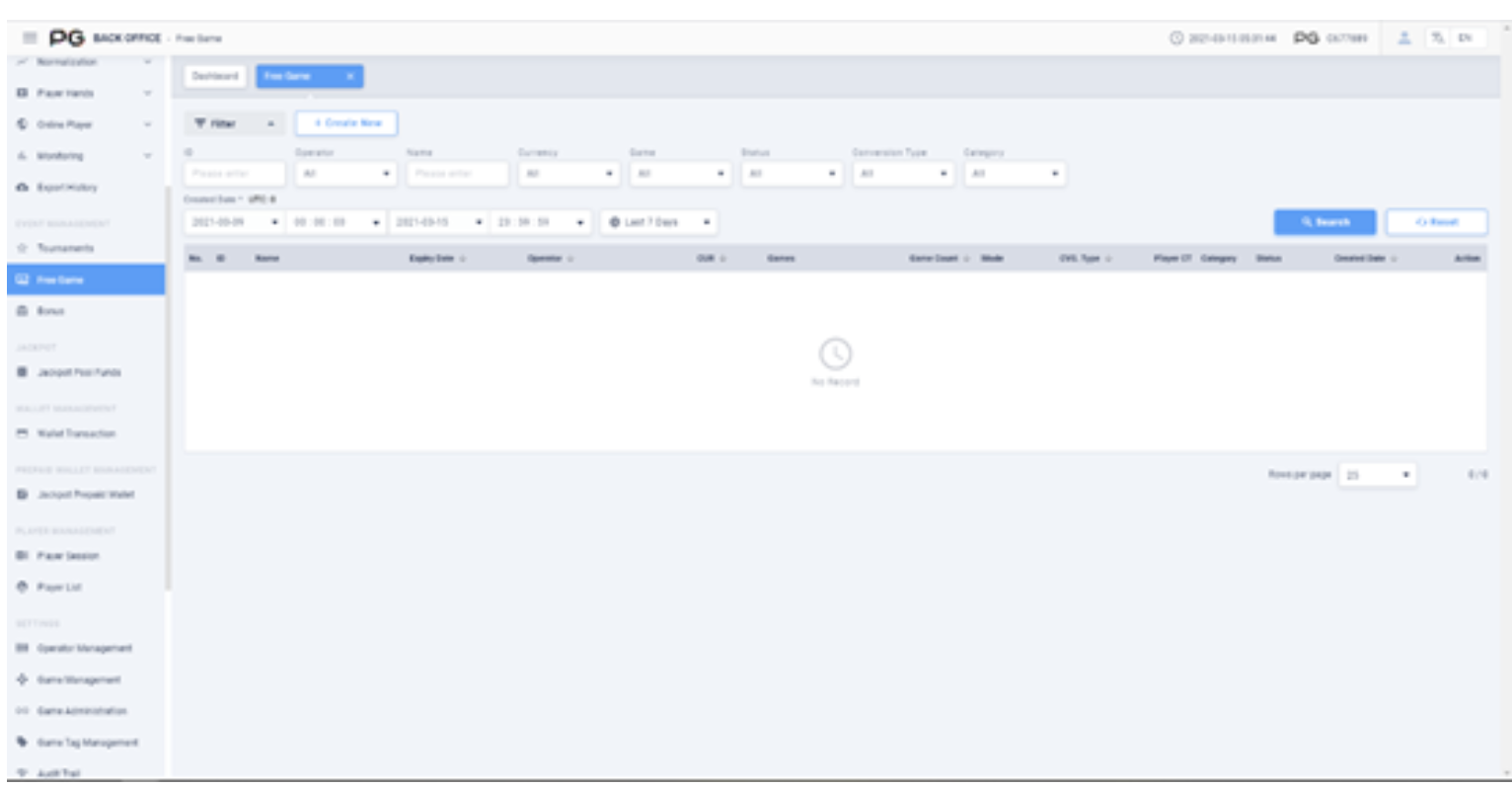
The Free Game function is located in the PG Back Office EVENT MANAGEMENT column.
Click on ‘Free Game’ in the dashboard. Search for the corresponding Free Game record by setting the ID, Operator, Name, Currency, Game, Status, Conversion Type, Category, Created Date, or Time.
Click the ‘Search’ button to find and view the Free Game records.
1.1 Create Free Game
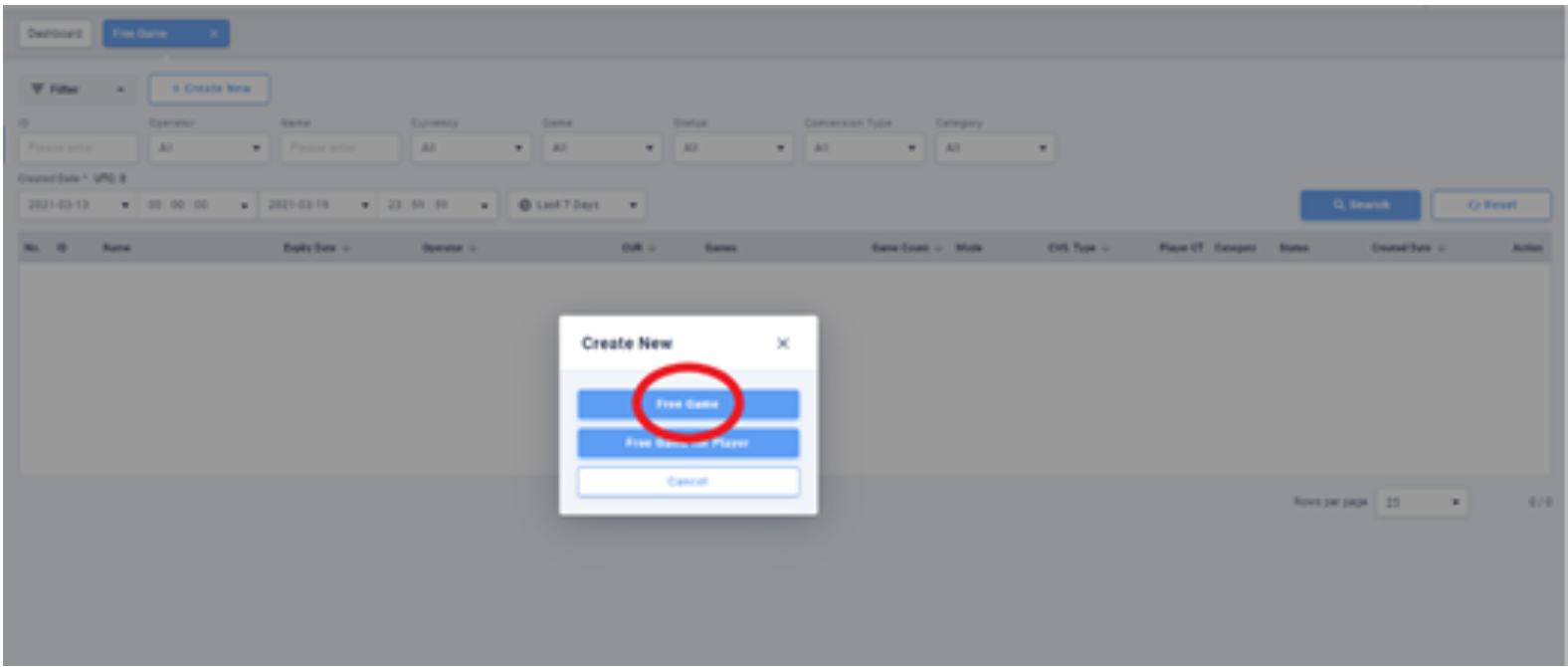
Click on the ‘+ Create New’ button, then select ‘Free Game’ to create a new Free Game.
1.1.1 Create Free Game for Player
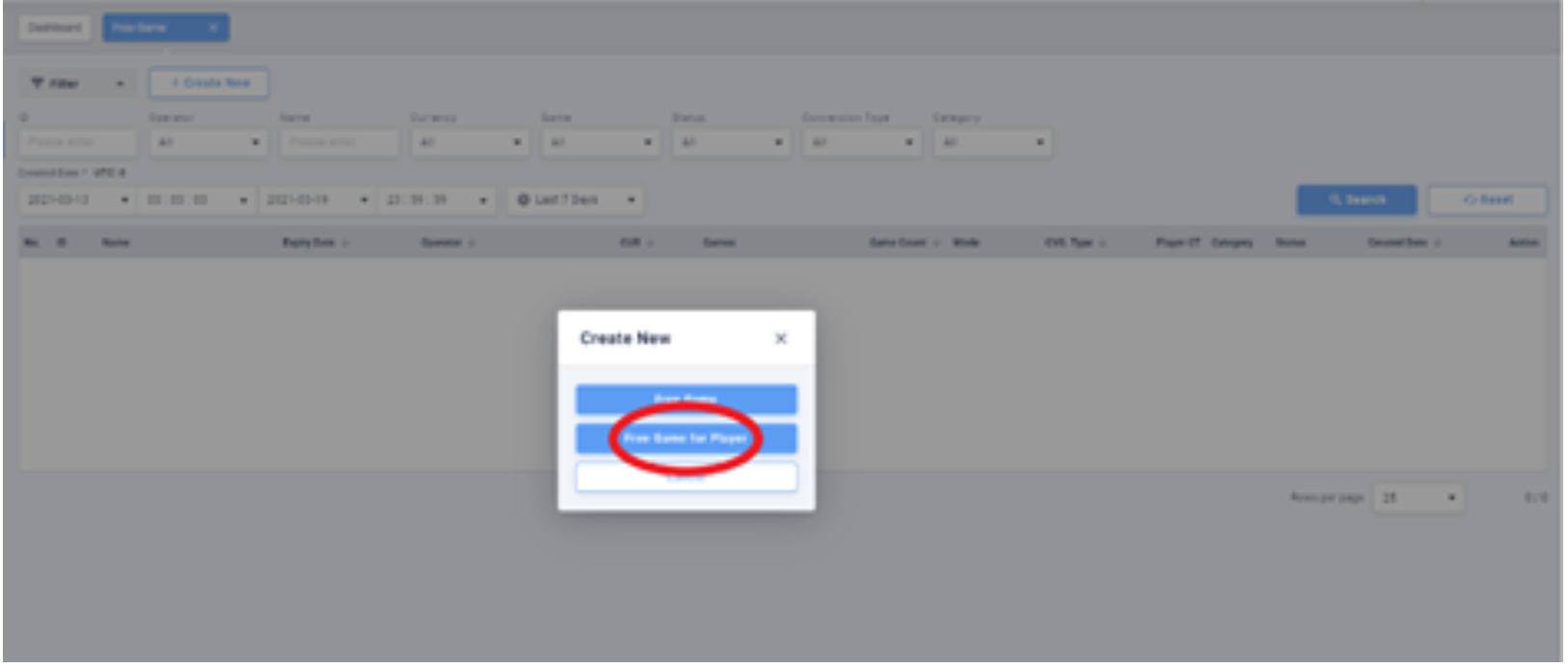
Click on the ‘+ Create New’ button, then select ‘Free Game for Player’ to create a new Free Game for a specific player.
1.2. Definitions
Fill in and select in the required information needed to create a Free Game.
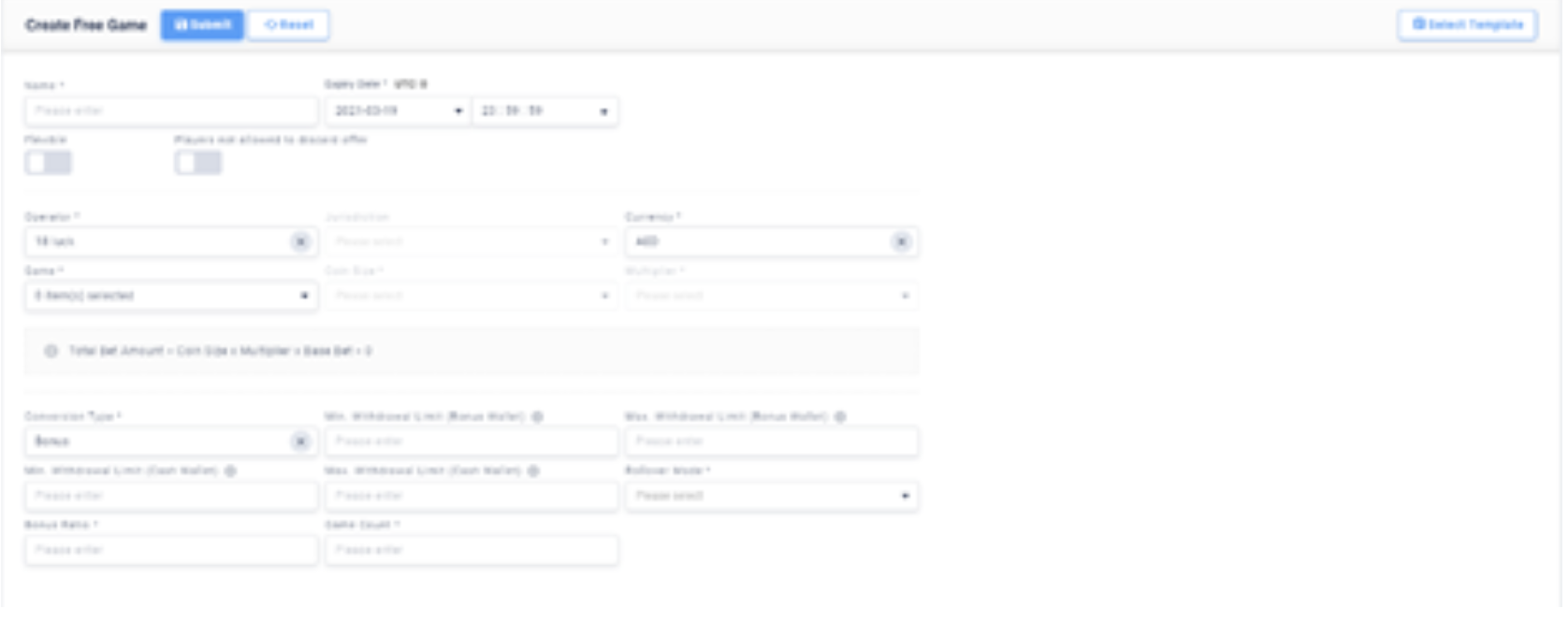
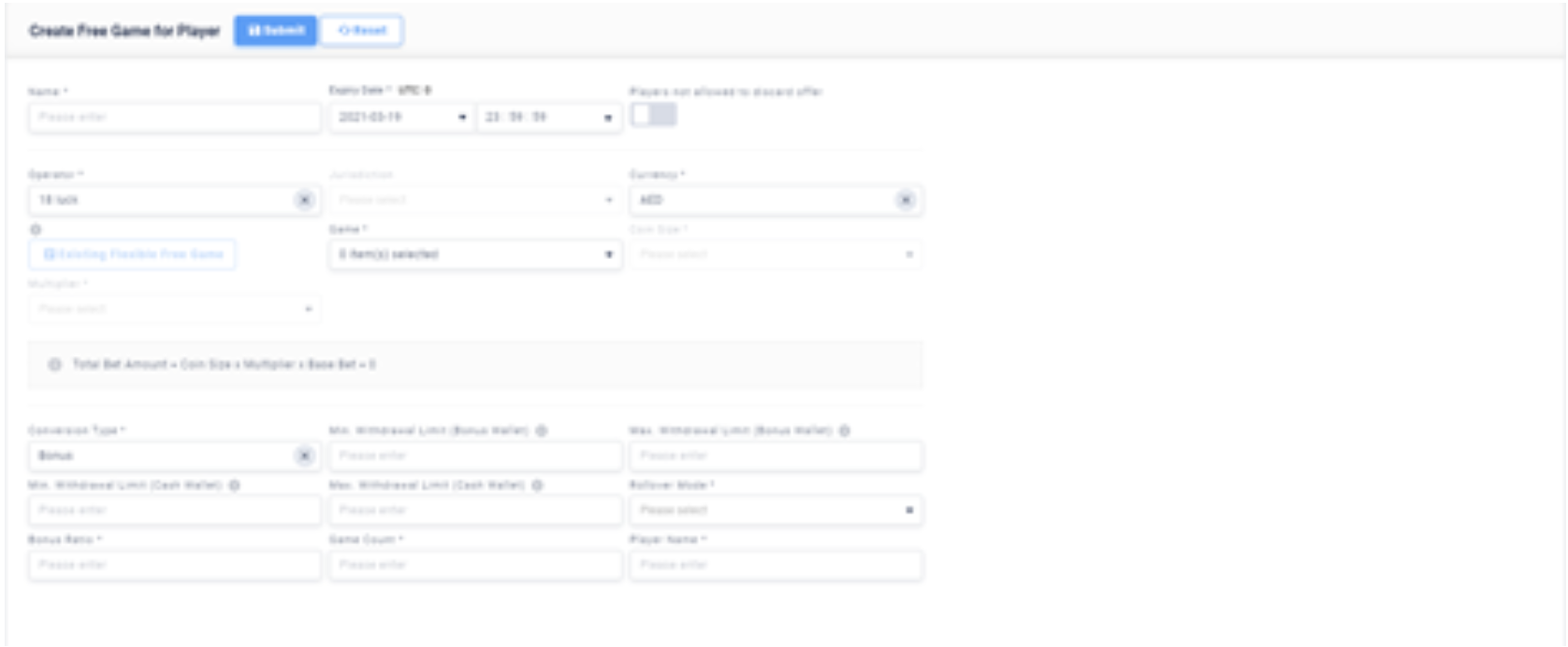
Name: Name of the Free Game
Expiry Date: The date and time when the Free Game will expire.
Operator:Select operator (or default)
Currency:Select currency
Game: Select either single or multiple games that are supported by the Free Game. The number of Free Games given will be shared among the selected games.
Coin Size: Bet size
Multiplier: Bet Multiplier
Base Bet: Number of bet lines for the game
Conversion Type: After the Free Game is completed, the amount rewarded will enter the bonus wallet or cash wallet. If the cash wallet is selected, the bonuses won in the Free Game can be transferred or withdrawn without meeting the rollover requirements.
Min. Withdrawal Limit (Bonus Wallet): Sets the minimum amount of money that players can transfer into their Bonus Wallet after completing the Free Game.
Max. Withdrawal Limit (Bonus Wallet): Sets the maximum amount of money that players can transfer into their Bonus Wallet after completing the Free Game.
Min. Withdrawal Limit (Cash Wallet): Sets the minimum amount of money that players can transfer into their Cash Wallet after completing the rollover required in the Bonus.
Max. Withdrawal Limit (Cash Wallet): Sets the maximum amount of money that players can transfer into their Cash Wallet after completing the rollover required in the Bonus.
Rollover Mode:
- Bonus: Player can only use Bonus in the Free Game to achieve rollover requirement.
- Cash: Player can only use Cash to achieve rollover requirement, then Bonus will be automatically credited to Cash Wallet.
- Bonus & Cash: Player can use both Bonus and Cash to achieve rollover requirement.
Bonus Ratio: Sets the rollover requirement of the Bonus Amount that was transferred into the Bonus Wallet after completing the Free Game. Example: The Bonus Amount is 10 Euros and the Bonus Ratio is 5, then the rollover required of the player will be 10*5=50 Euros.
Game Count: Number of Free Games that will be given to the single player.
Standard / Flexible:
- Standard: All players will get the same bonus amount.
- Flexible: Different players can get different Bonus amounts. (These features are available in “Add player” section)
Jurisdiction: Limit the location the Free Games can be played.
Player Name: The username of the player that will be playing this Free Game. *only applicable in Free Game for Player.
Existing Flexible Free Games: Add player into existing Flexible Free Games that are available for selected Operator and Currency.*only applicable in Free Game for Player.
1.3 Add Players
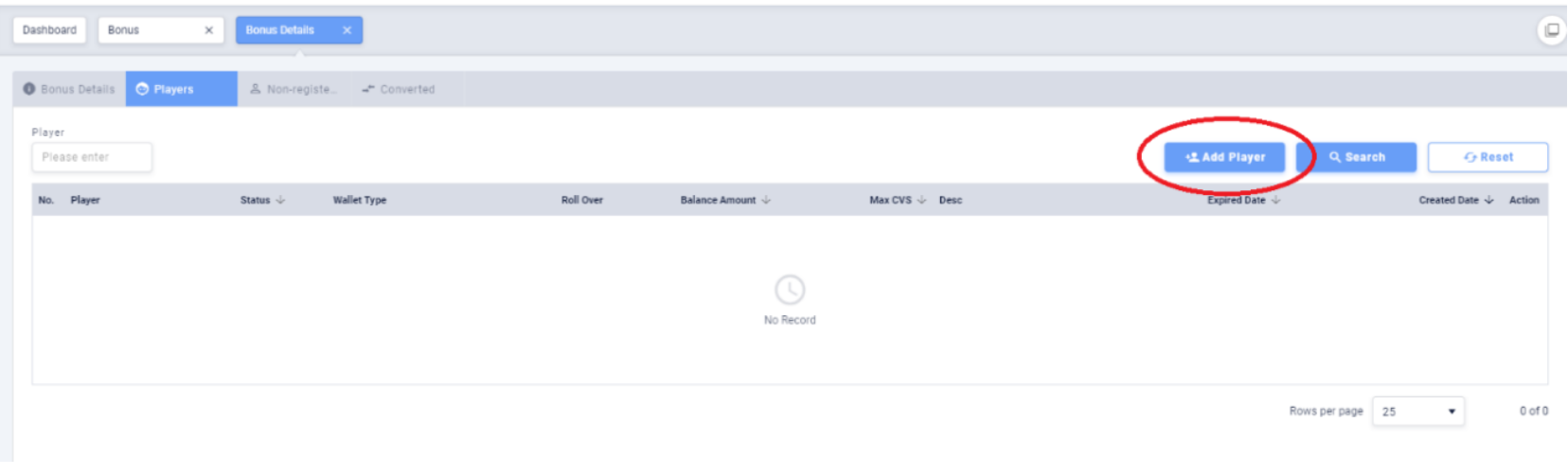
After creating the Free Game, click on the “Players” tab to add players to the Free Game.
1.3.1 Add a Single Player
Fill in the required information needed to add a Single Player.
For Standard Bonus: Fill in the Player Name.
For Flexible Bonus: Fill in the Player Name, Game Count, Min. Withdrawal Limit (Bonus Wallet), Max. Withdrawal Limit (Bonus Wallet), Min. Withdrawal Limit (Cash Wallet), Max. Withdrawal Limit (Cash Wallet)and Description.
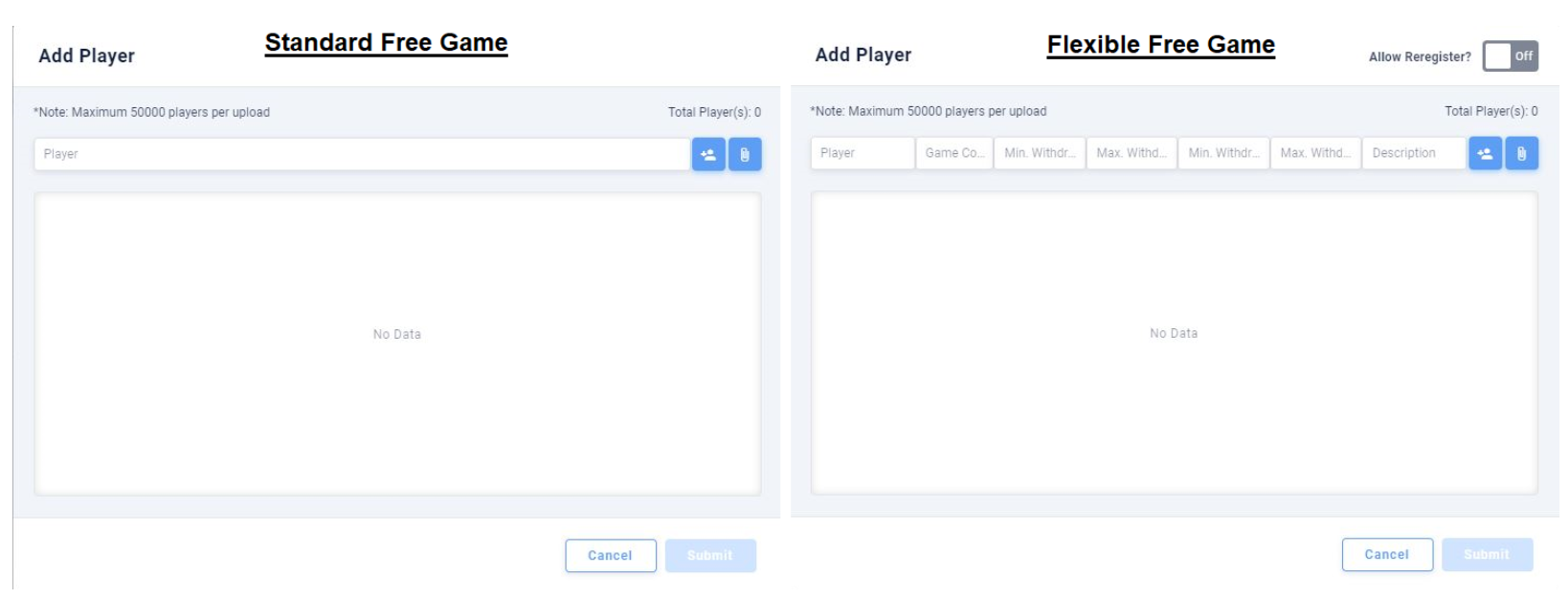
Click ‘Add Player’ button to add one player at a time.
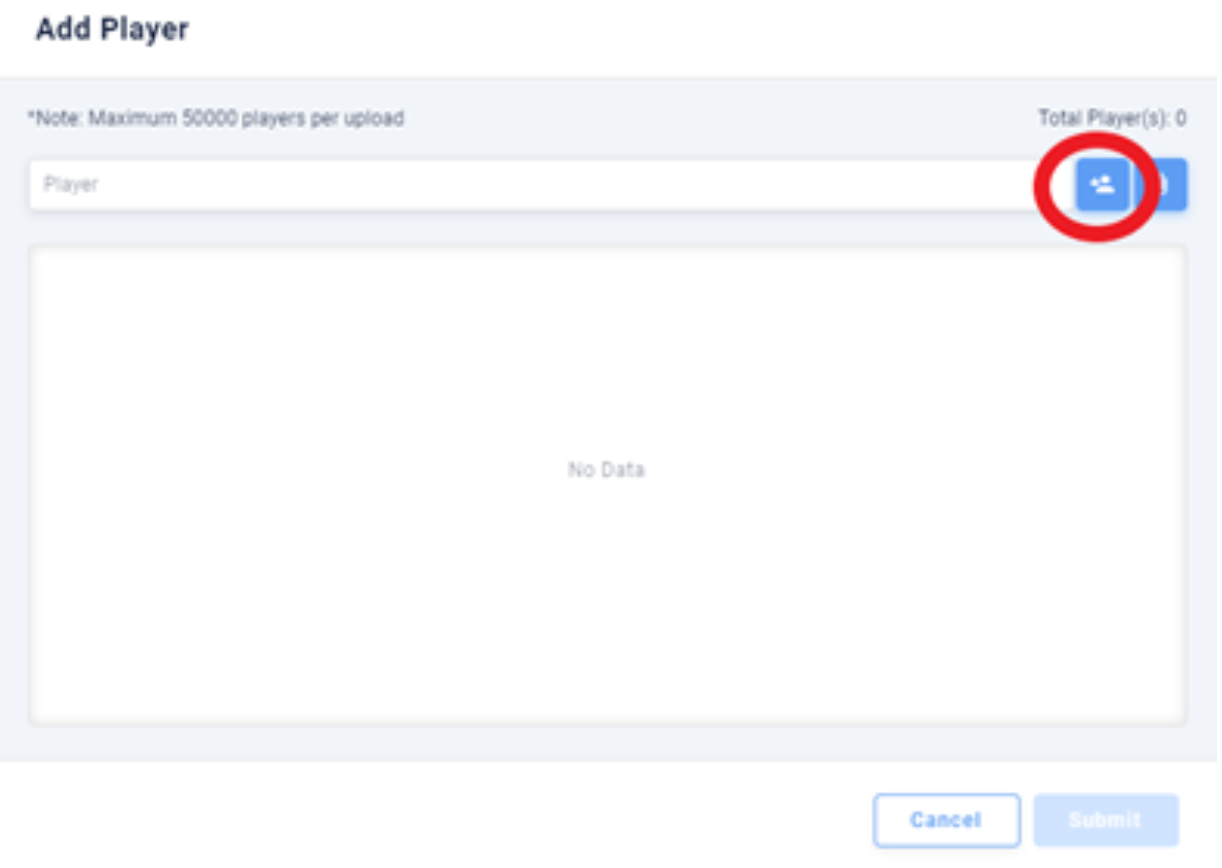
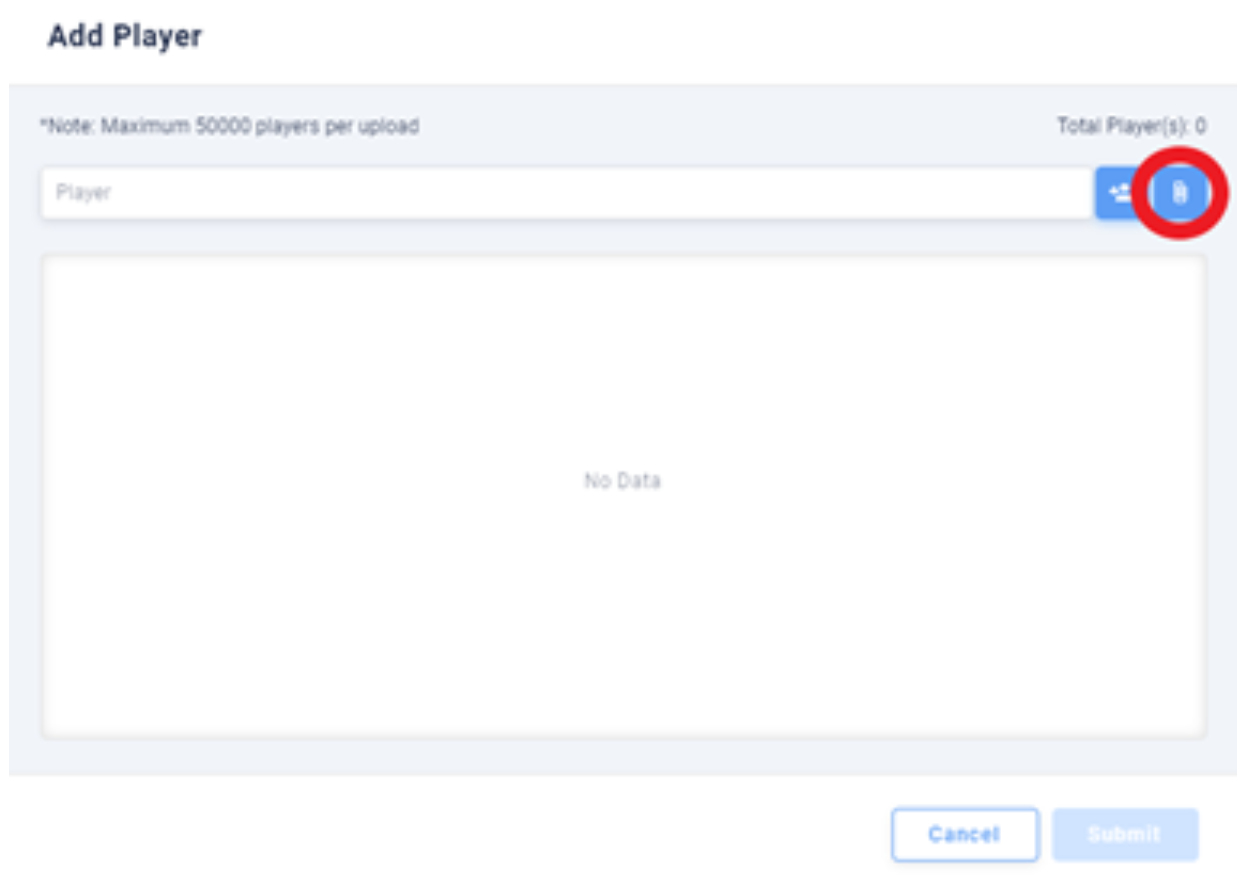
1.3.2 Add Players by Batches
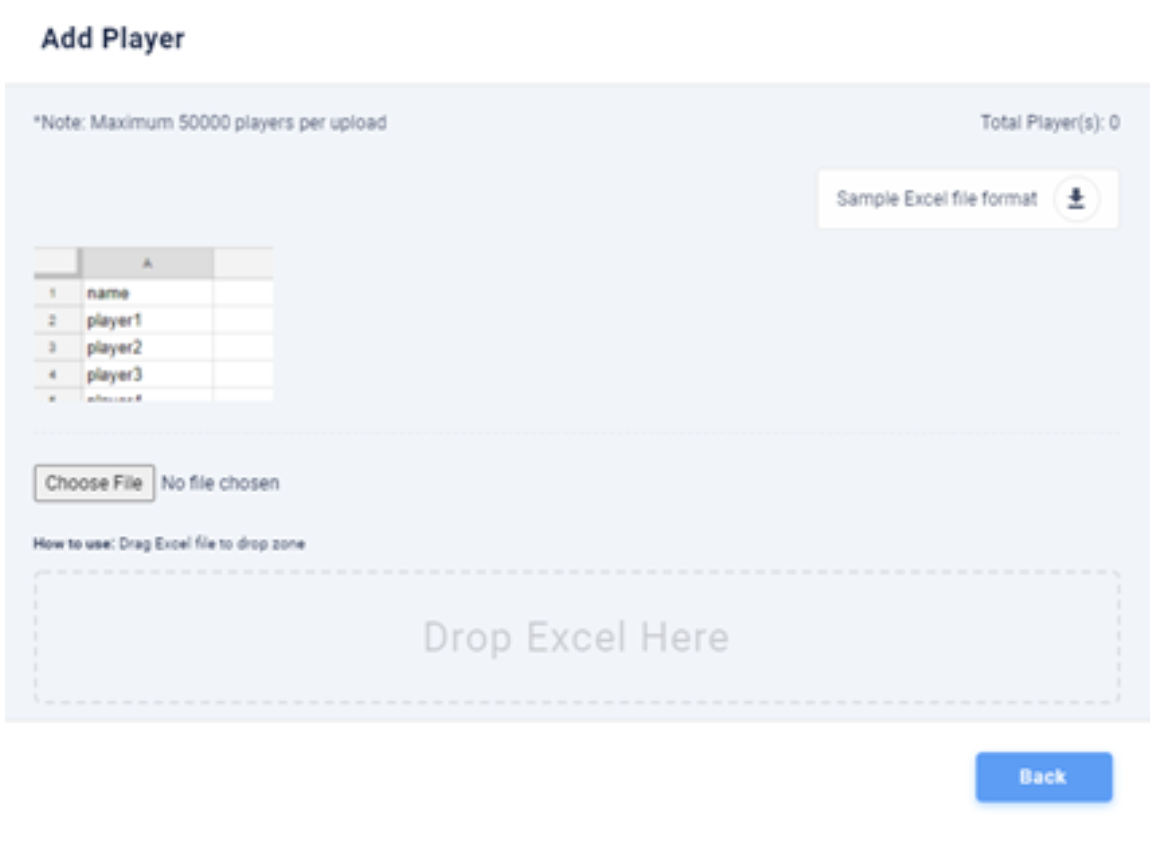
Click on the ‘Attach’ button to add a large number of players.
Use an Excel file to add accounts by batches. Click on ‘Sample Excel file format’ to download the form template.
1.4 User Game Interface
1.4.1 Offer Reminder
Players will get a reminder of new offers when they enter the game.
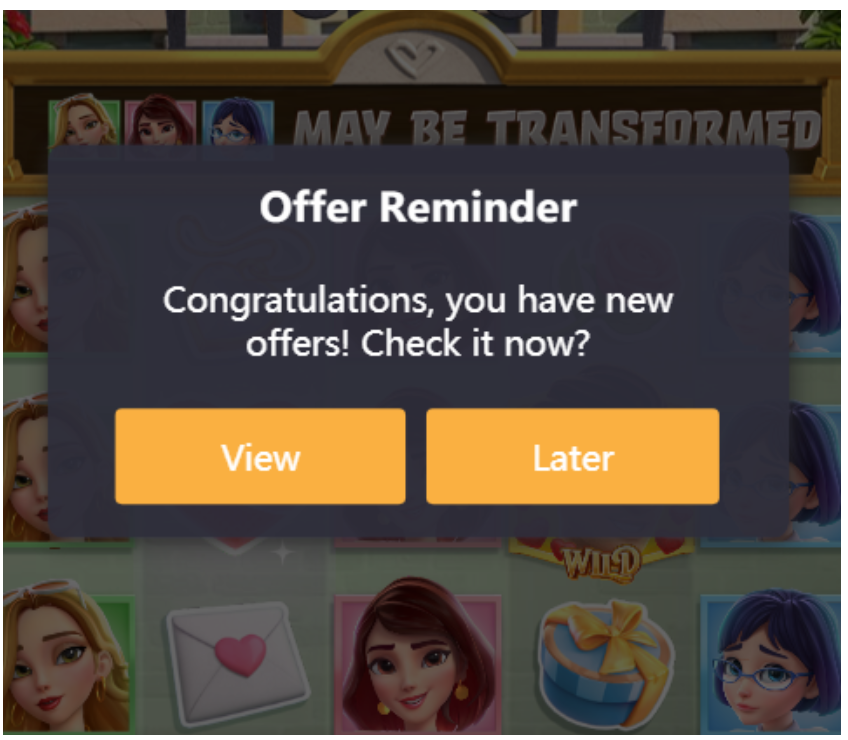
Click ‘View’ to see the offer list in the Wallet.
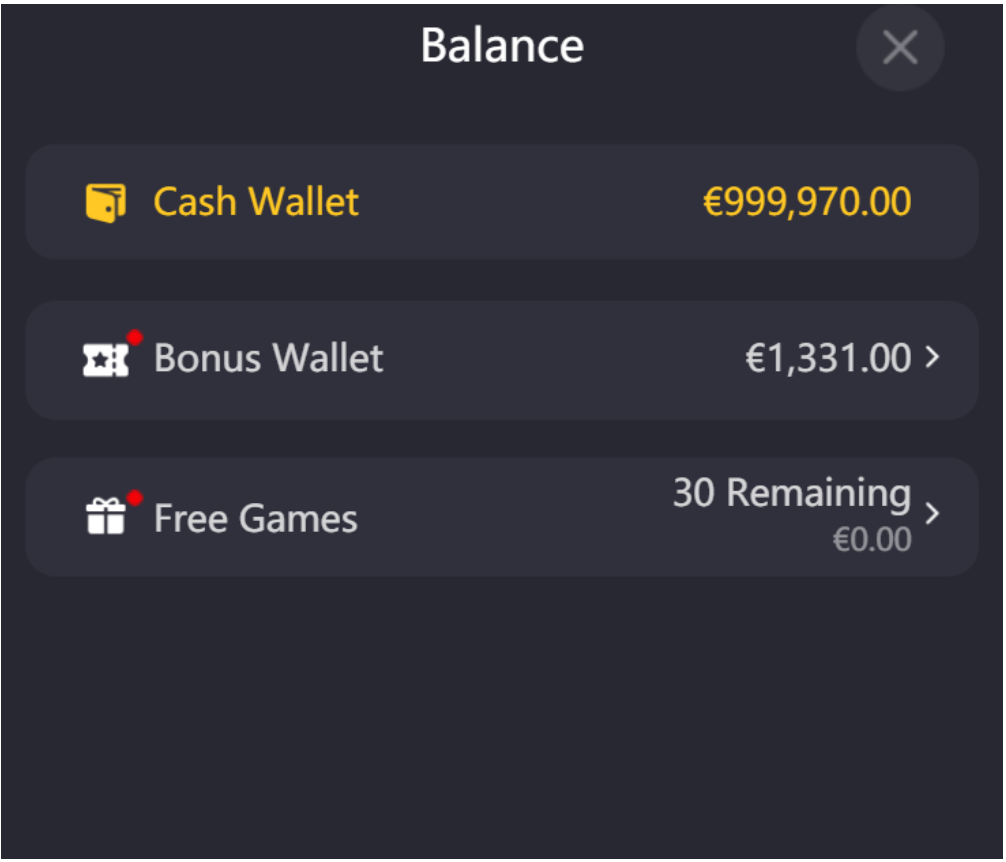
Click on ‘Free Games’ to see the free games available to play.
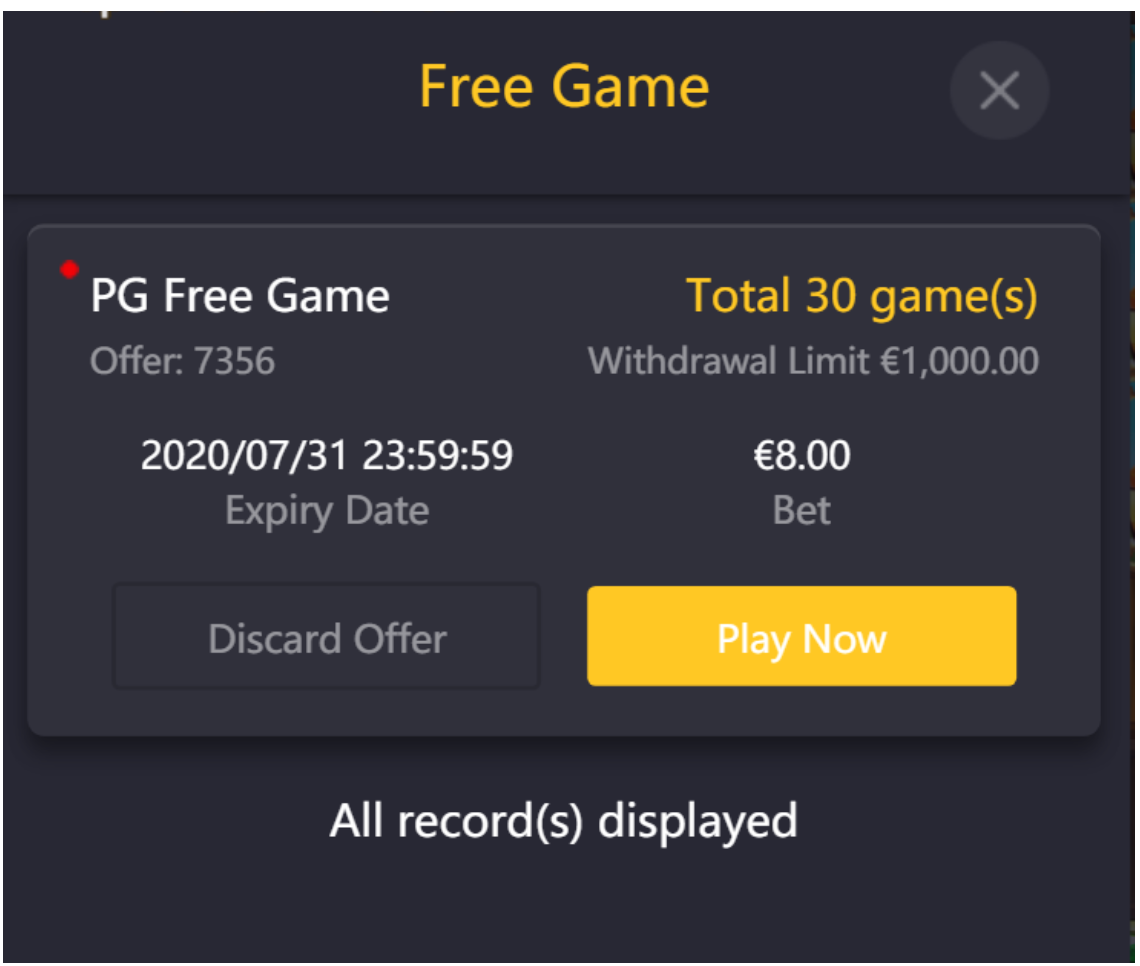
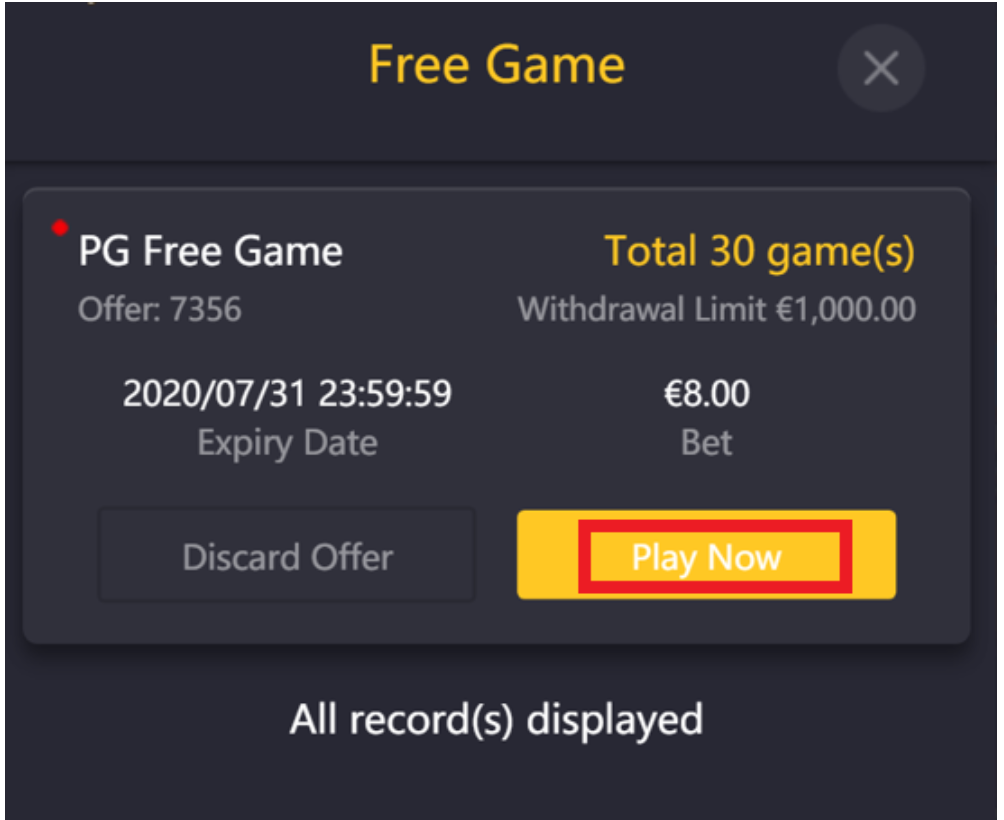
1.4.2 Discard Offer
Players can click on ‘Discard Offer’ to delete the offer.
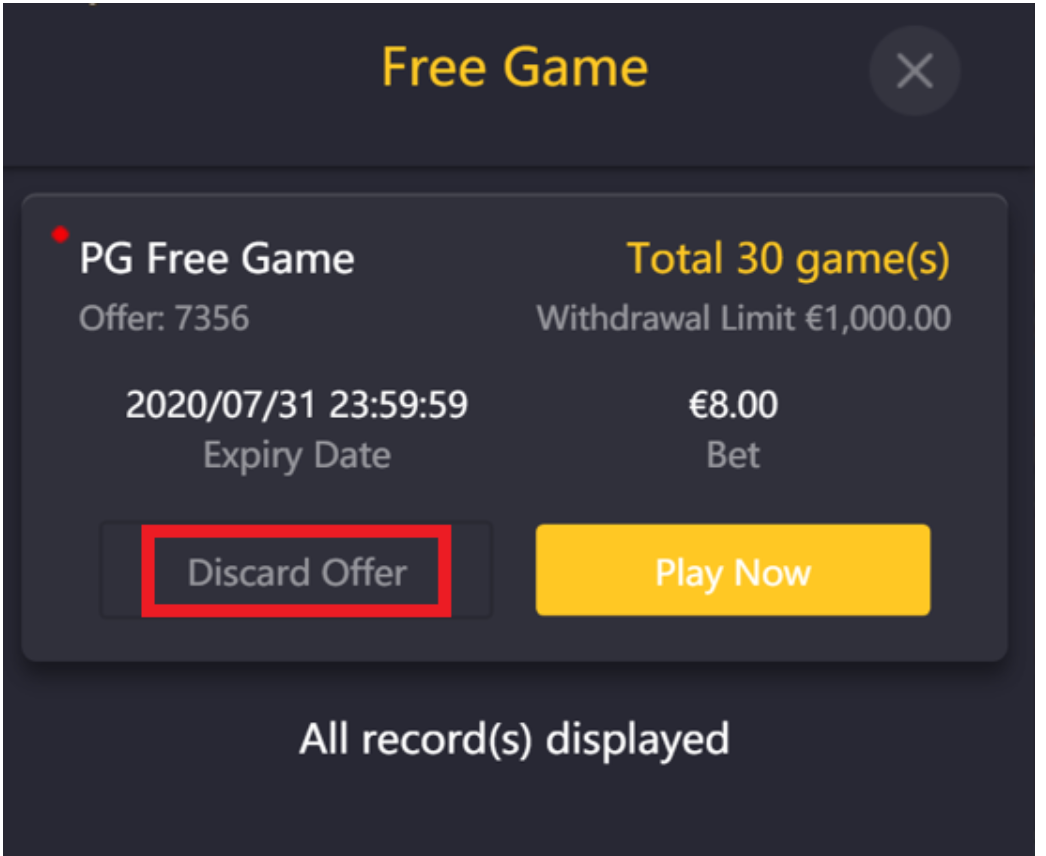
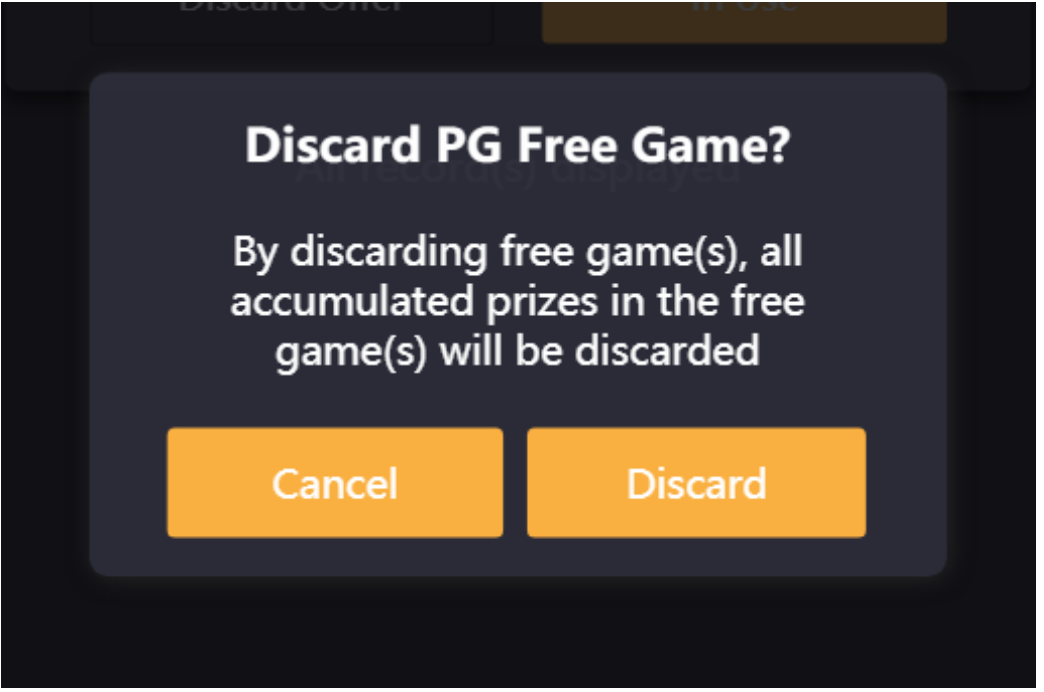
1.4.3 Playing the Free Game
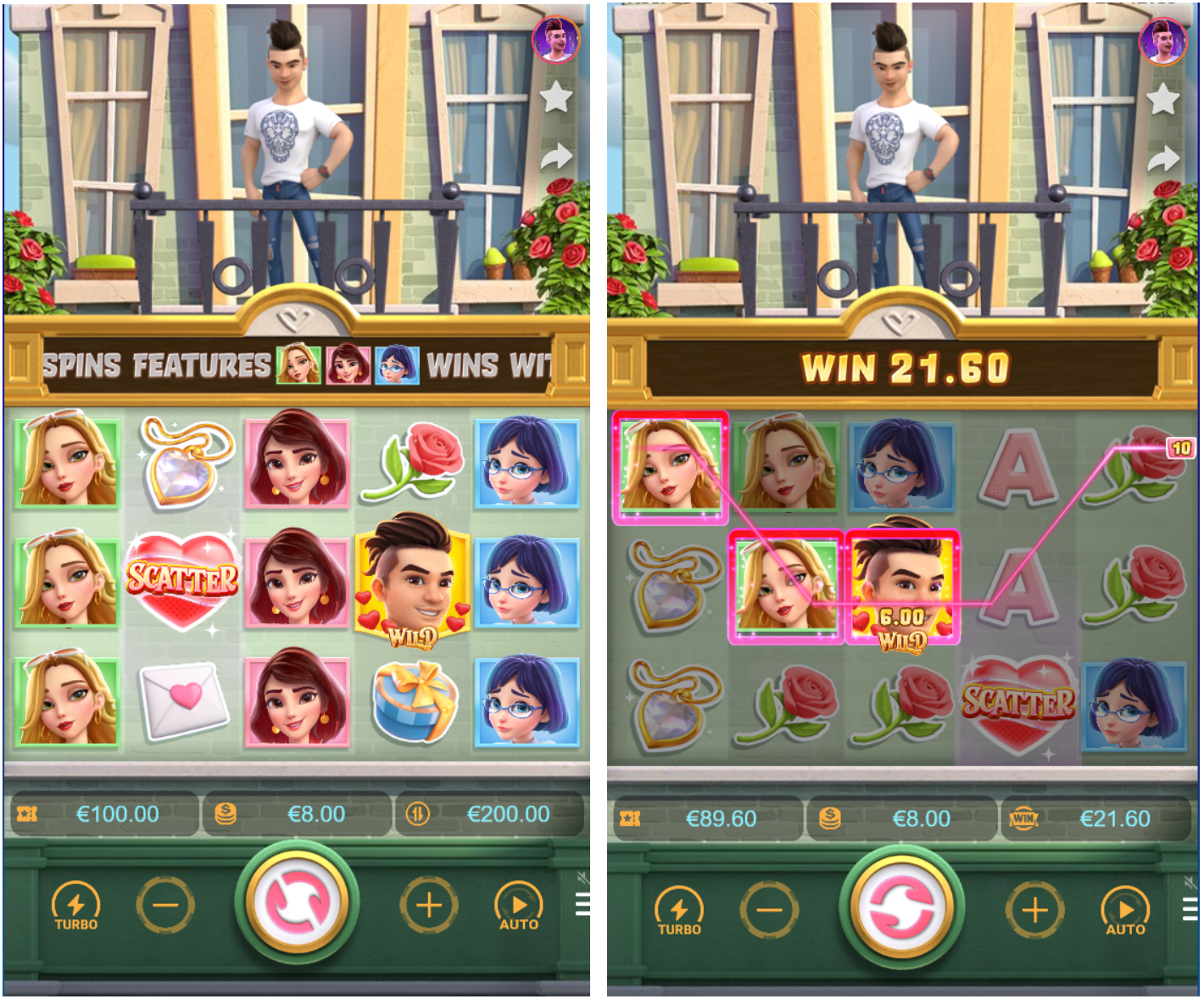
Click ‘Play Now’ to start the free game. Players will not be able to adjust the Bet Size.
Balance: Refers to the total winning amount of the player in the Free Game.
1.4.4 Completing Free Game
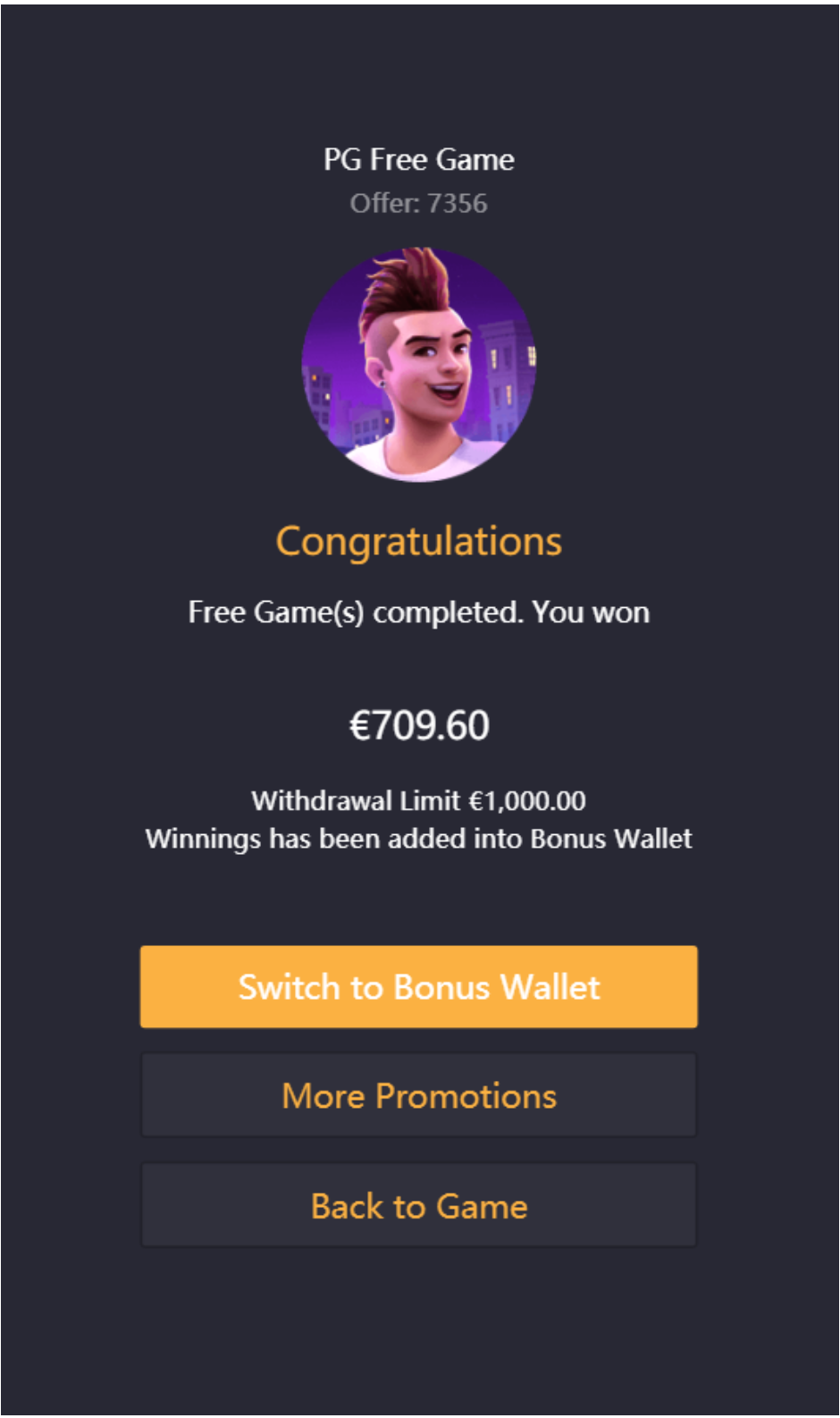
The total winnings will enter the bonus wallet or cash wallet, depending on the settings, when Free Game is completed.
Switch to Bonus Wallet:Complete the required bet flow in the Bonus wallet.
More Promotions:View other offers.