2. Reports
2.1 Operator
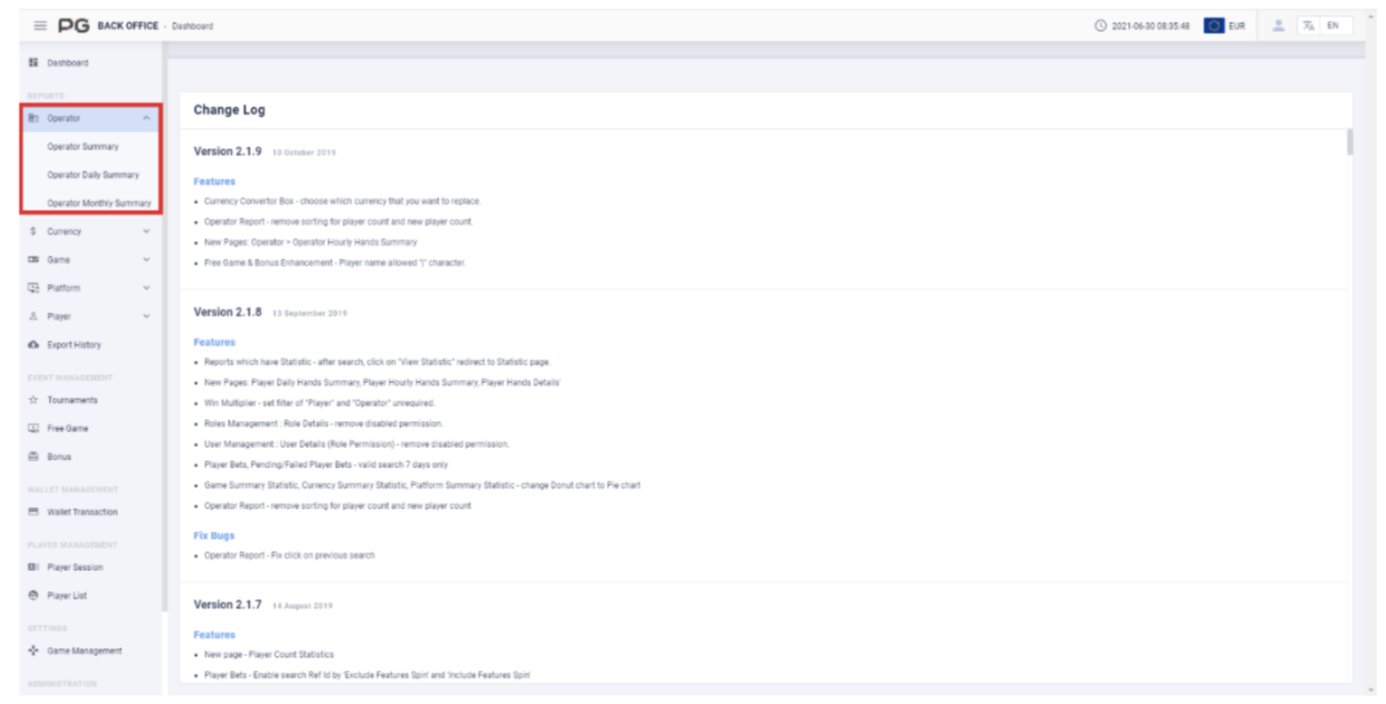
Users can use reports to check the data for a specific time. Click on “Operator”, and select the report category: Operator Summary, Operator Daily Summary, and Operator Monthly Summary. (Please refer to the red box in Screenshot 1).
2.1.1 Operator Summary
Users can click on “Operator Summary” to open the operator summary page. A new tab will be opened beside the Dashboard tab. Click on the X symbol to close the tab. Each tab can be closed separately.
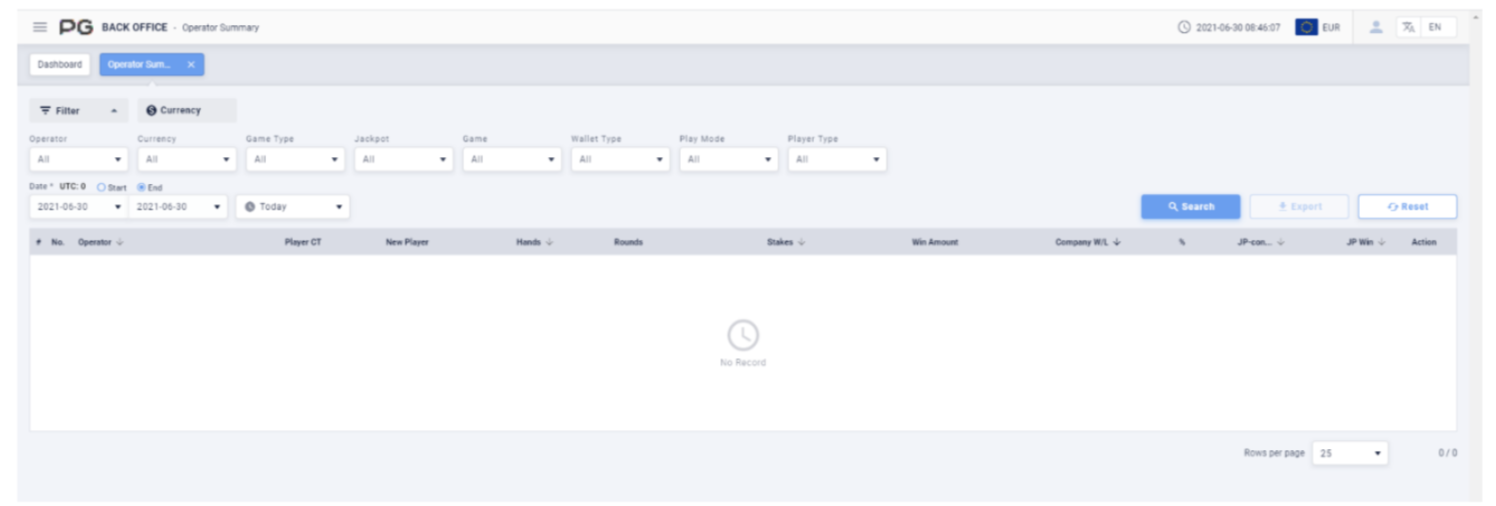
Once the Operator Summary tab is opened, fill in the following details:
(Customized Settings)
Operator: Fill in the operator and sub-operator’s name.
Currency: Select the currency.
Game Type: Select Slot Game, Card Game or Multiplayer Game.
Jackpot: Select None or Jackpot.
Game: Select a specific game.
Wallet Type: Select Cash, Bonus and Free Game. May select 3 at the same time.
Play Mode: Select Normal or Cash Bonus.
Player Type: Select Live or Test Accounts.
Date/Time: The default date of the report will be Today’s date. The time period can be customized. (Select Today, Yesterday, Last 7 Days, Last 30 Days or This Month).
Filter the report by the “Start” or “End” time of the bets.
Once the details above are filled in, click “Search” to generate the final report.
Operator Summary Search Results
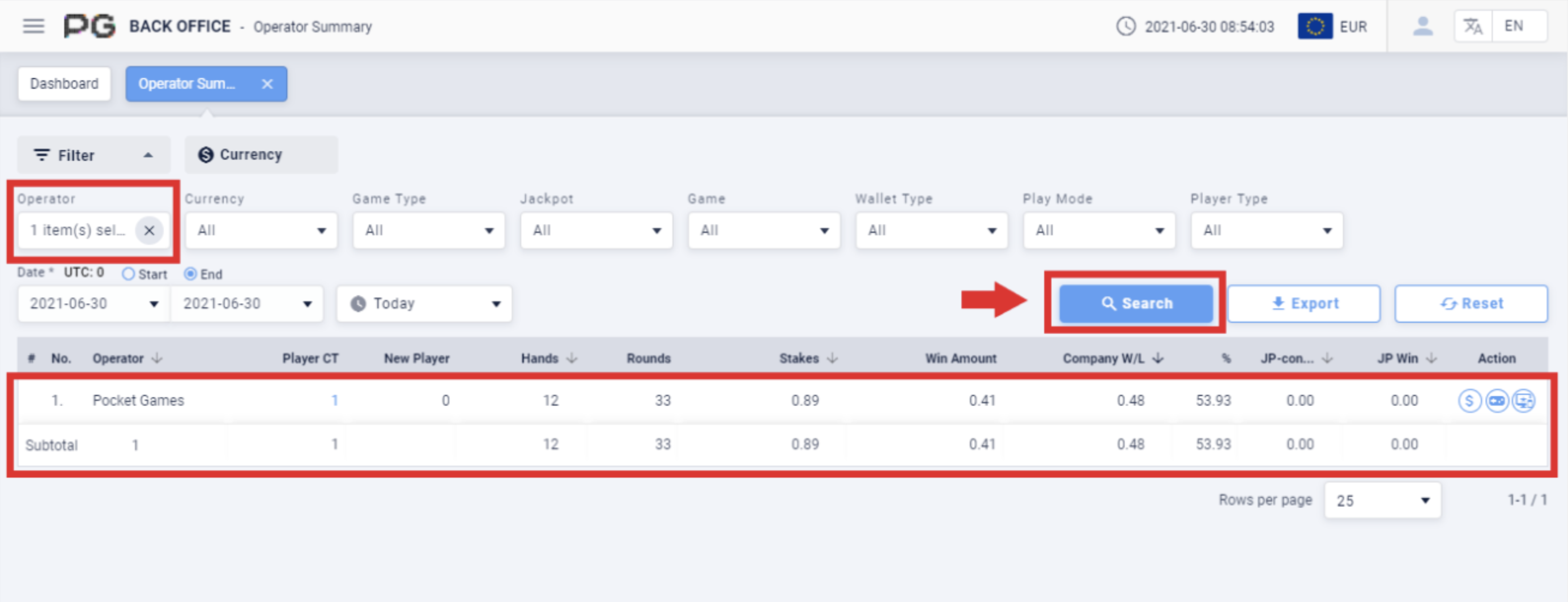
After obtaining the report, click on the icons under “Action” to jump to the corresponding report page.
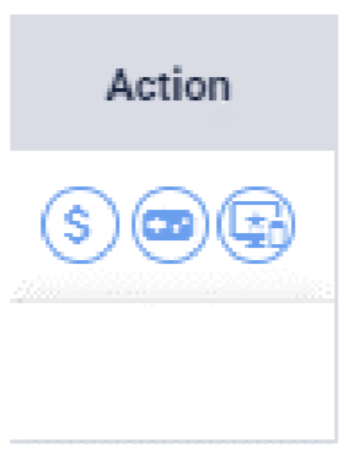
- Currency Summary
- Game Summary
- Platform Summary
2.1.2 Operator Daily Summary
Users can click on “Operator Daily Summary” to open the operator daily summary page. A new tab will be opened beside the Dashboard tab. Click on the X symbol to close the tab. Each tab can be closed separately.
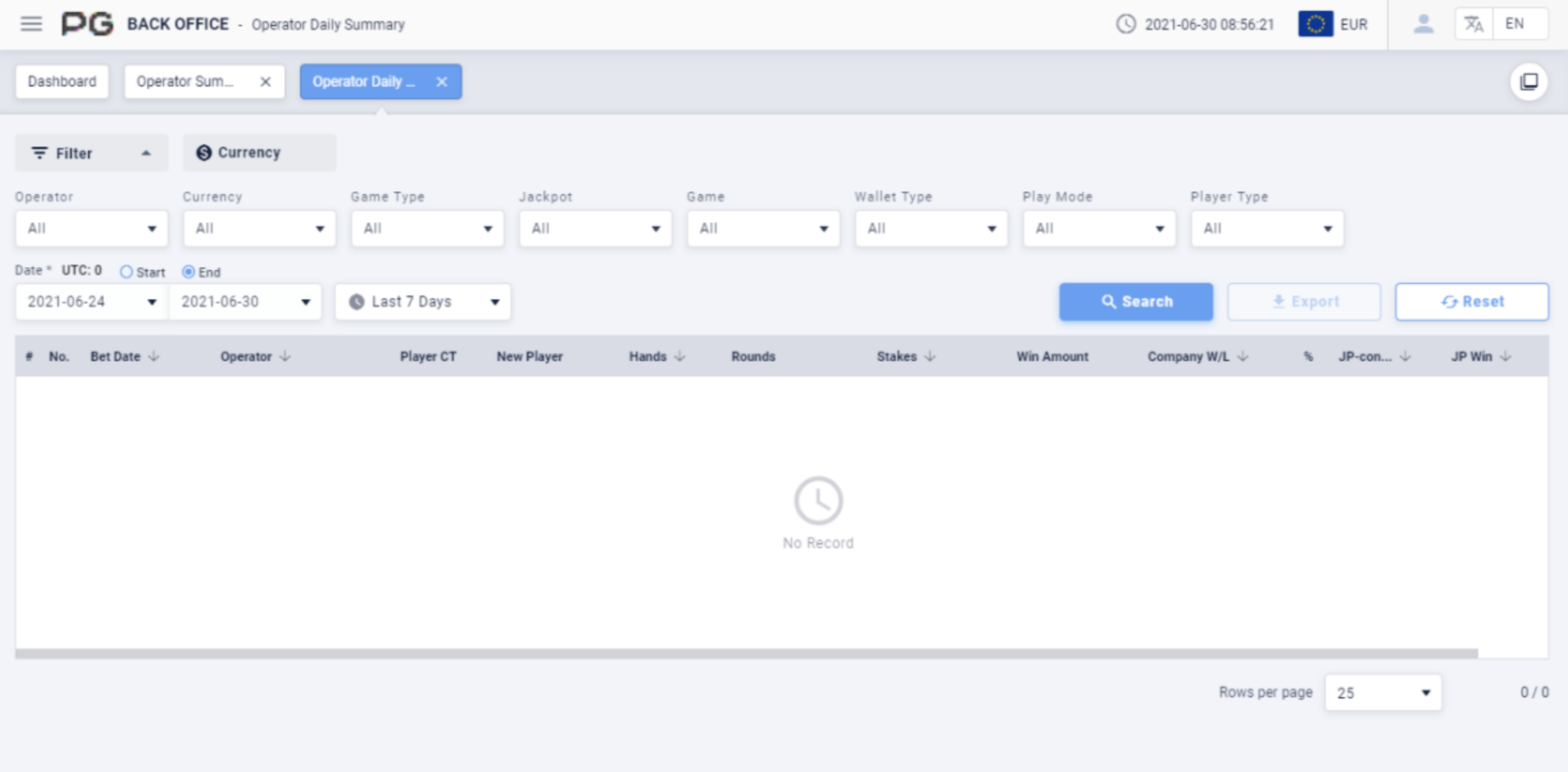
Once the Operator Daily Summary tab is opened, fill in the following details:
(Customized Settings)
Operator: Fill in the operator and sub-operator’s name.
Currency: Select the currency.
Game Type: Select Slot Game, Card Game or Multiplayer Game.
Jackpot: Select None or Jackpot.
Game: Select a specific game.
Wallet Type: Select Cash, Bonus and Free Game. May select 3 at the same time.
Play Mode: Select Normal or Cash Bonus.
Player Type: Select Live or Test Accounts.
Date/Time: The default date of the report will be Last 7 Days. The time period can be customized. (Select Today, Yesterday, Last 7 Days, Last 30 Days or This Month). Filter the report by the “Start” or “End” time of the bets.
Once the details above are filled in, click “Search” to generate the final report.
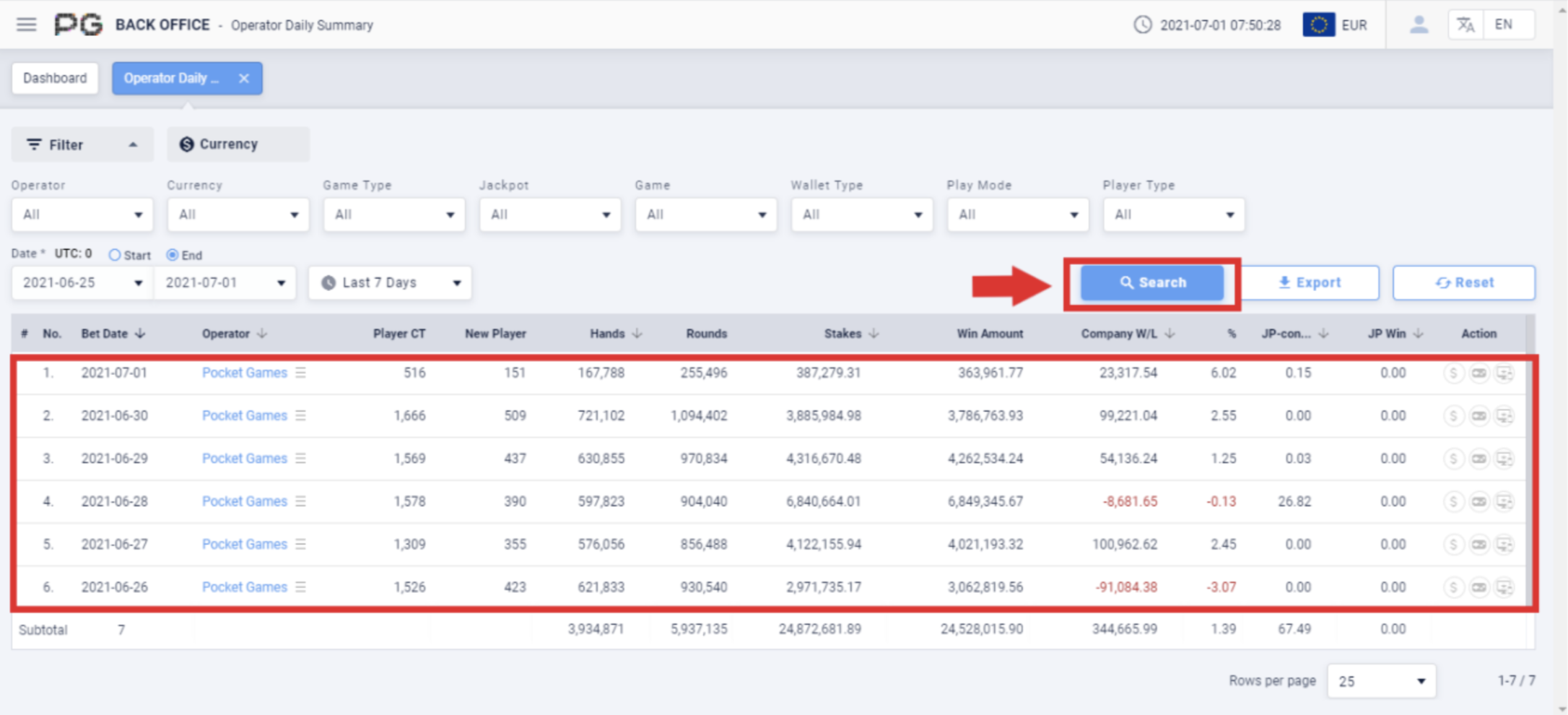
After obtaining the report, click on the icons under “Action” to jump to the
corresponding report page. (Please refer to Screenshot 4 Action Icons).
2.1.3 Operator Monthly Summary
Users can click on “Operator Monthly Summary” to open the operator monthly summary page. A new tab will be opened beside the Dashboard tab. Click on the X symbol to close the tab. Each tab can be closed separately.
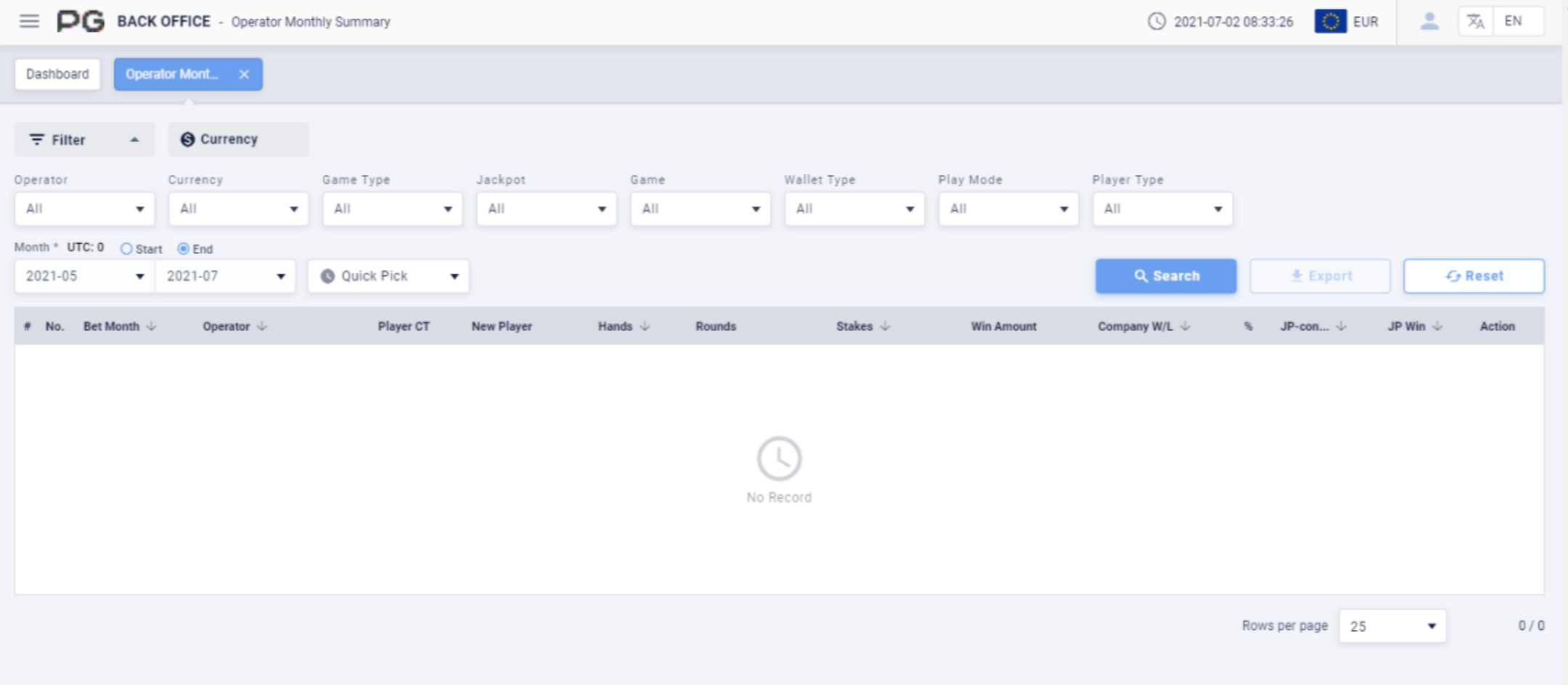
Once the Operator Monthly Summary tab is opened, fill in the following details:
(Customized Settings)
Operator: Fill in the operator and sub-operator’s name.
Currency: Select the currency.
Game Type: Select Slot Game, Card Game or Multiplayer Game.
Jackpot: Select None or Jackpot.
Game: Select a specific game.
Wallet Type: Select Cash, Bonus and Free Game. May select 3 at the same time.
Play Mode: Select Normal or Cash Bonus.
Player Type: Select Live or Test Accounts.
Date/Time: There is no default date for the report. The time period can be customized. (Select Quick Pick, then This Month or Last Month). Filter the report by the “Start” or “End” time of the bets.
Once the details above are filled in, click “Search” to generate the final report.
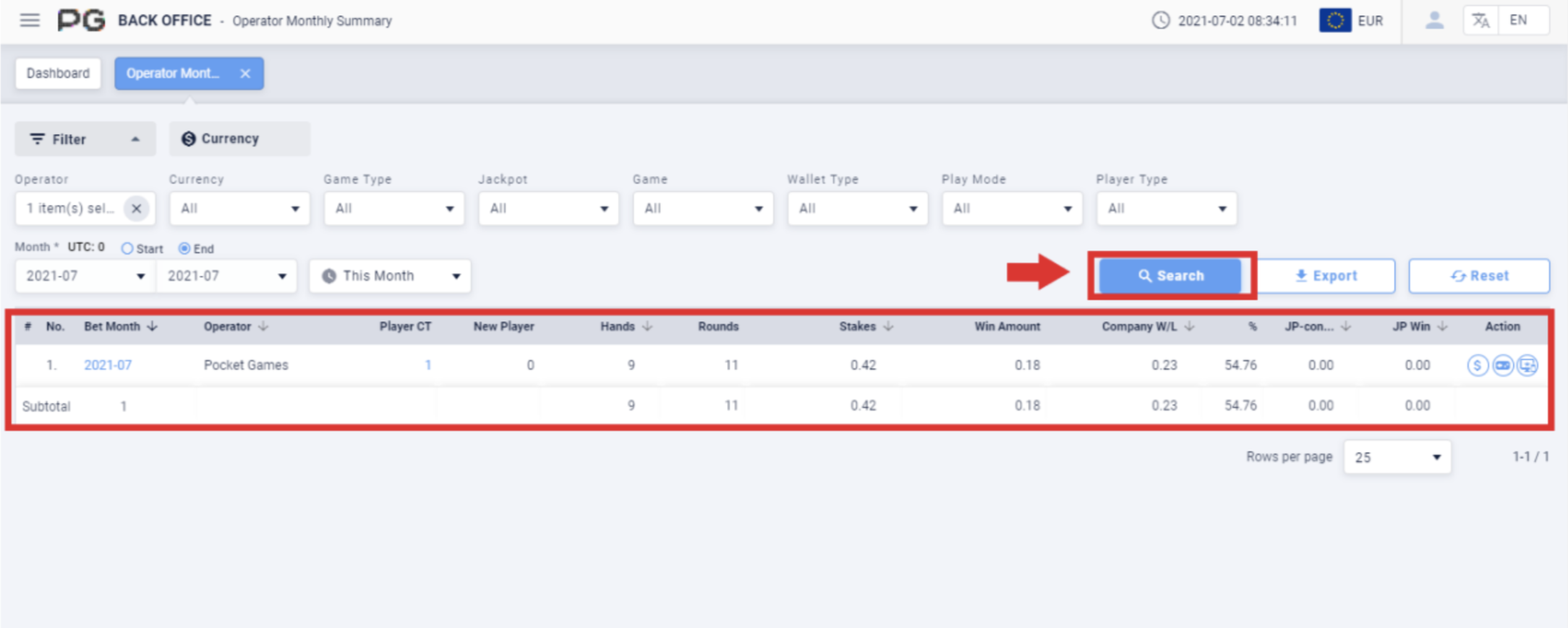
After obtaining the report, click on the icons under “Action” to jump to the corresponding report page. (Please refer to Screenshot 4 Action Icons).
2.2 Currency
Users can use reports to check the data for a specific time. Click on “Currency”, and select the report category: Currency Summary, Currency Daily Summary, and Currency Monthly Summary. (Please refer to the red box in Screenshot 9).
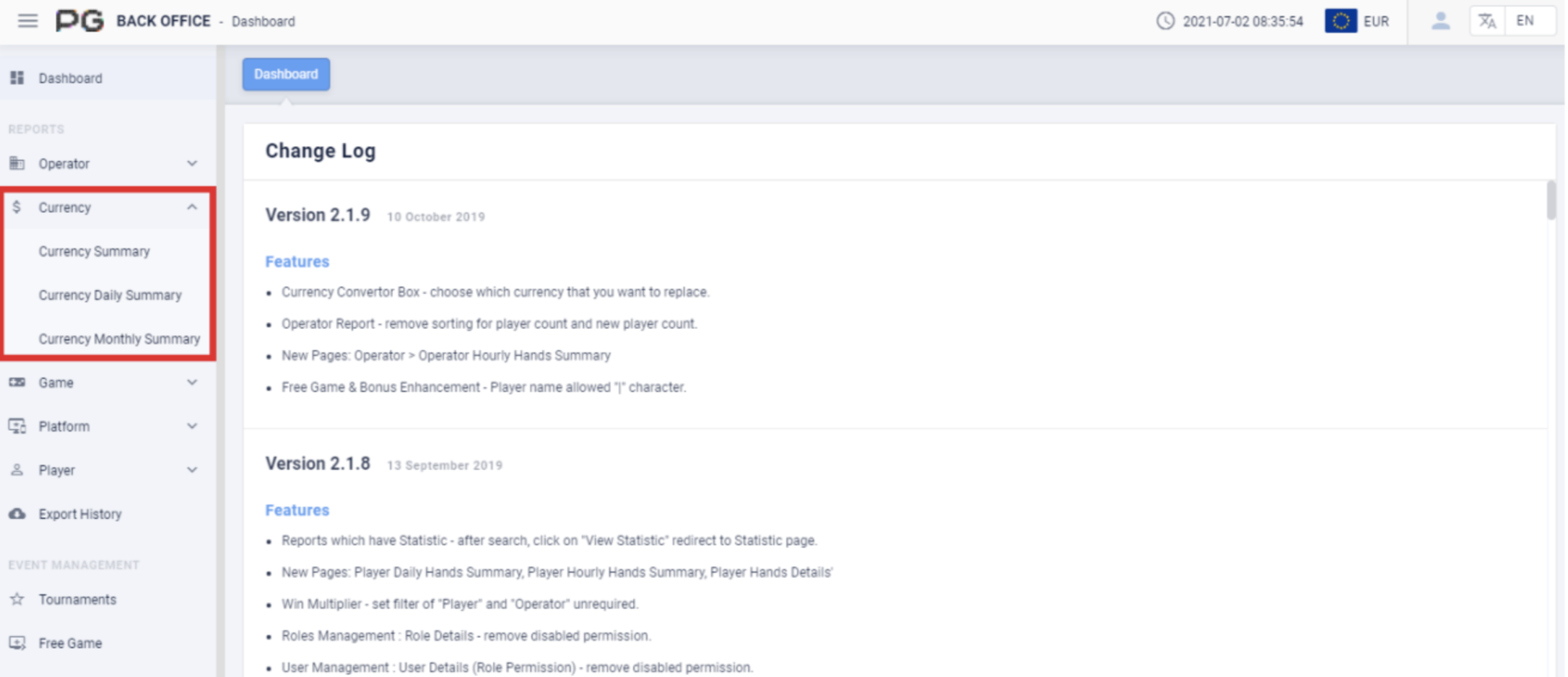
2.2.1 Currency Summary
Users can click on “Currency Summary” to open the currency summary page. A new tab will be opened beside the Dashboard tab. Click on the X symbol to close the tab. Each tab can be closed separately.
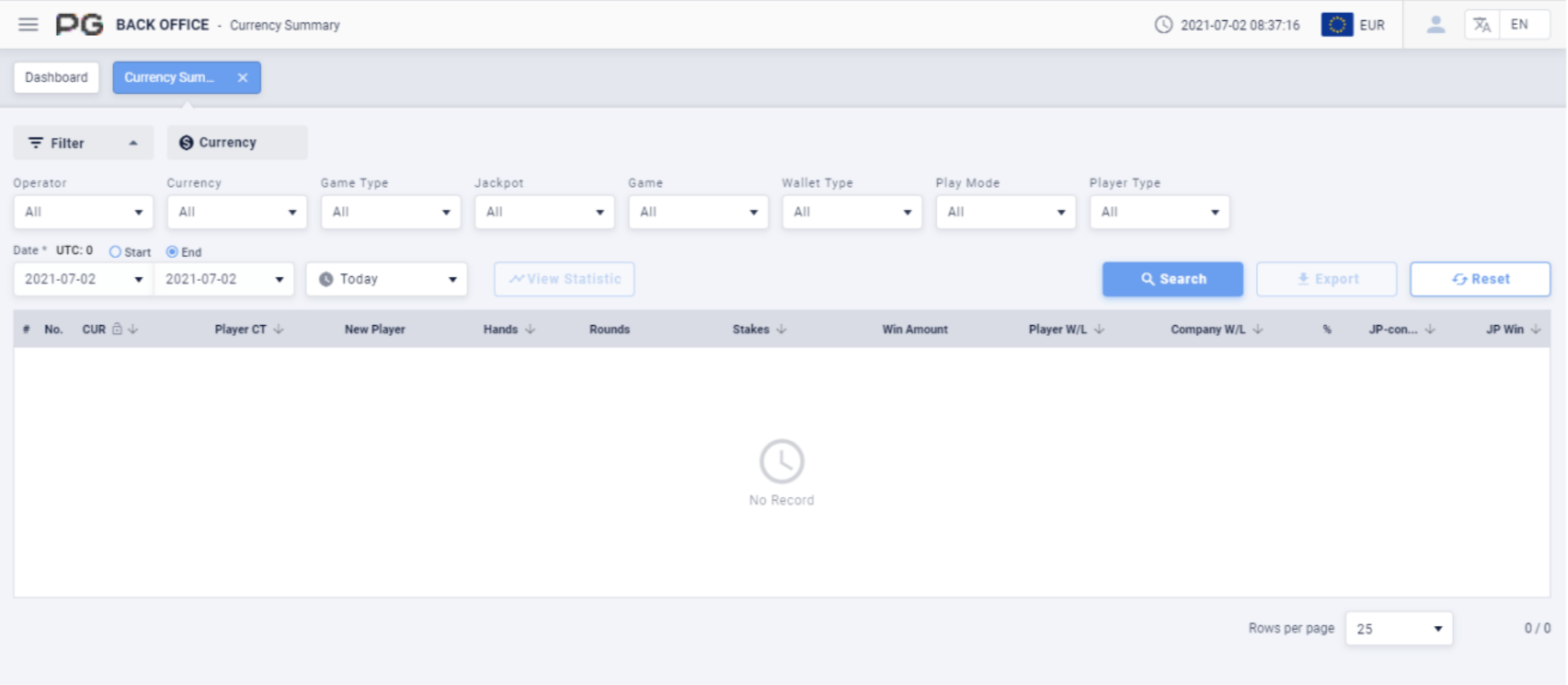
Once the Currency Summary tab is opened, fill in the following details:
(Customized Settings)
Operator: Fill in the operator and sub-operator’s name.
Currency: Select the currency.
Game Type: Select Slot Game, Card Game or Multiplayer Game.
Jackpot: Select None or Jackpot.
Game: Select a specific game.
Wallet Type: Select Cash, Bonus and Free Game. May select 3 at the same time.
Play Mode: Select Normal or Cash Bonus.
Player Type: Select Live or Test Accounts.
Date/Time: The default date of the report will be Today’s date. The time period can be customized. (Select Today, Yesterday, Last 7 Days, Last 30 Days or This Month). Filter the report by the “Start” or “End” time of the bets.
Once the details above are filled in, click “Search” to generate the final report.
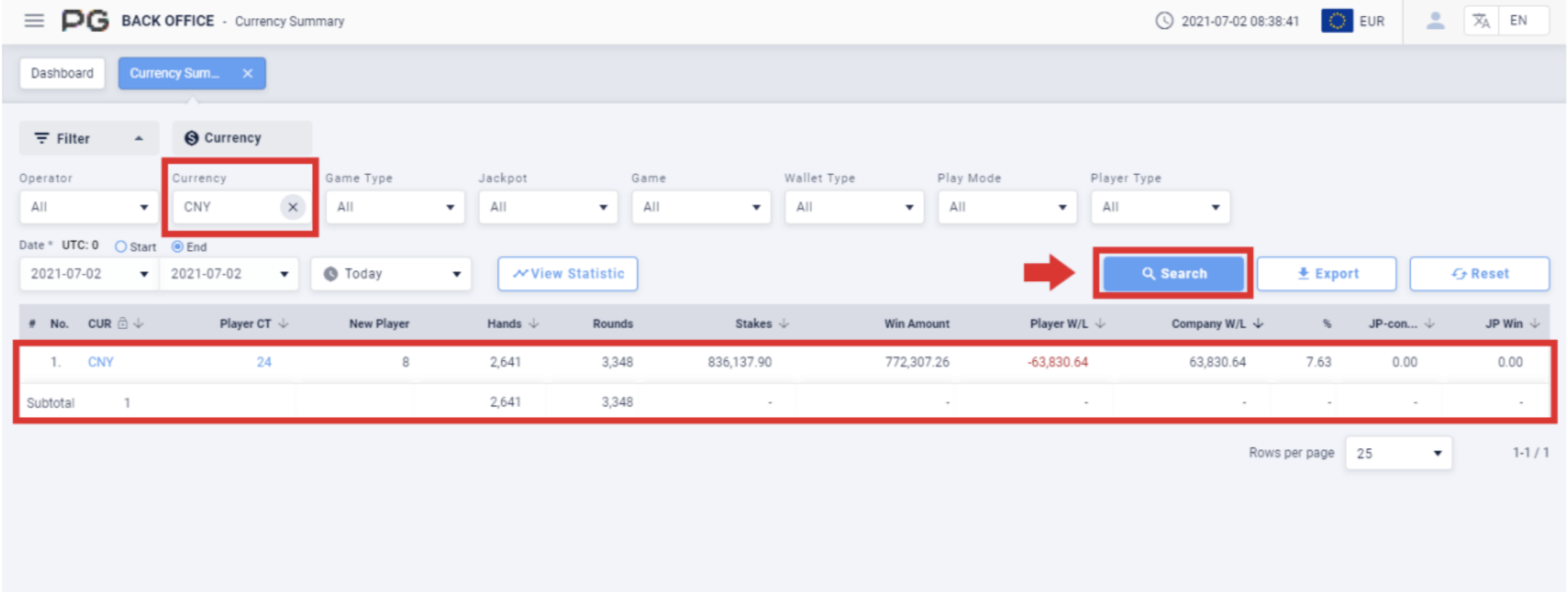
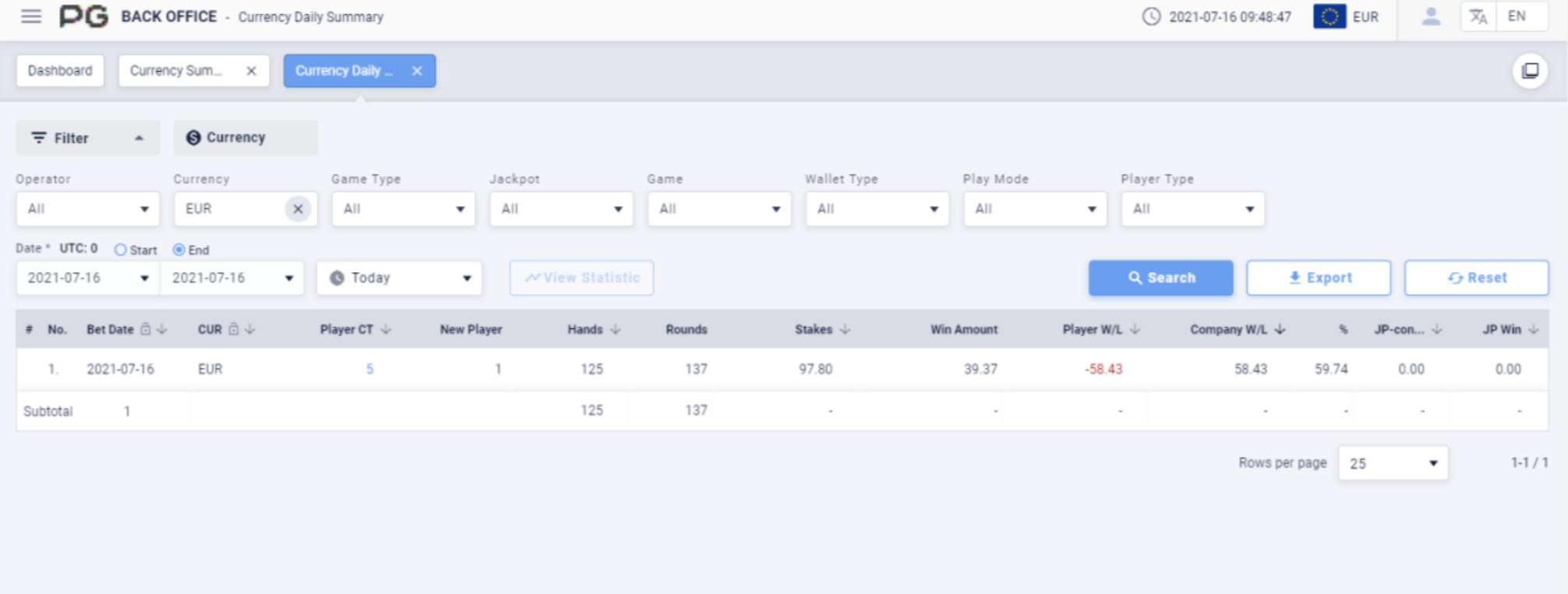
After obtaining the report, click on the currency code to jump to the Currency Daily Summary tab to get the corresponding report result based on the selected currency.
Click the currency (take EUR as an example):
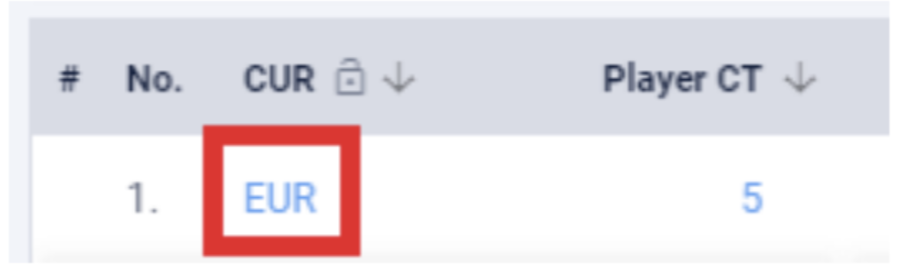
Jump to the Currency Daily Summary page:
2.2.2 Currency Daily Summary
Users can click on “Currency Daily Summary” to open the currency daily summary page. A new tab will be opened beside the Dashboard tab. Click on the X symbol to close the tab. Each tab can be closed separately.
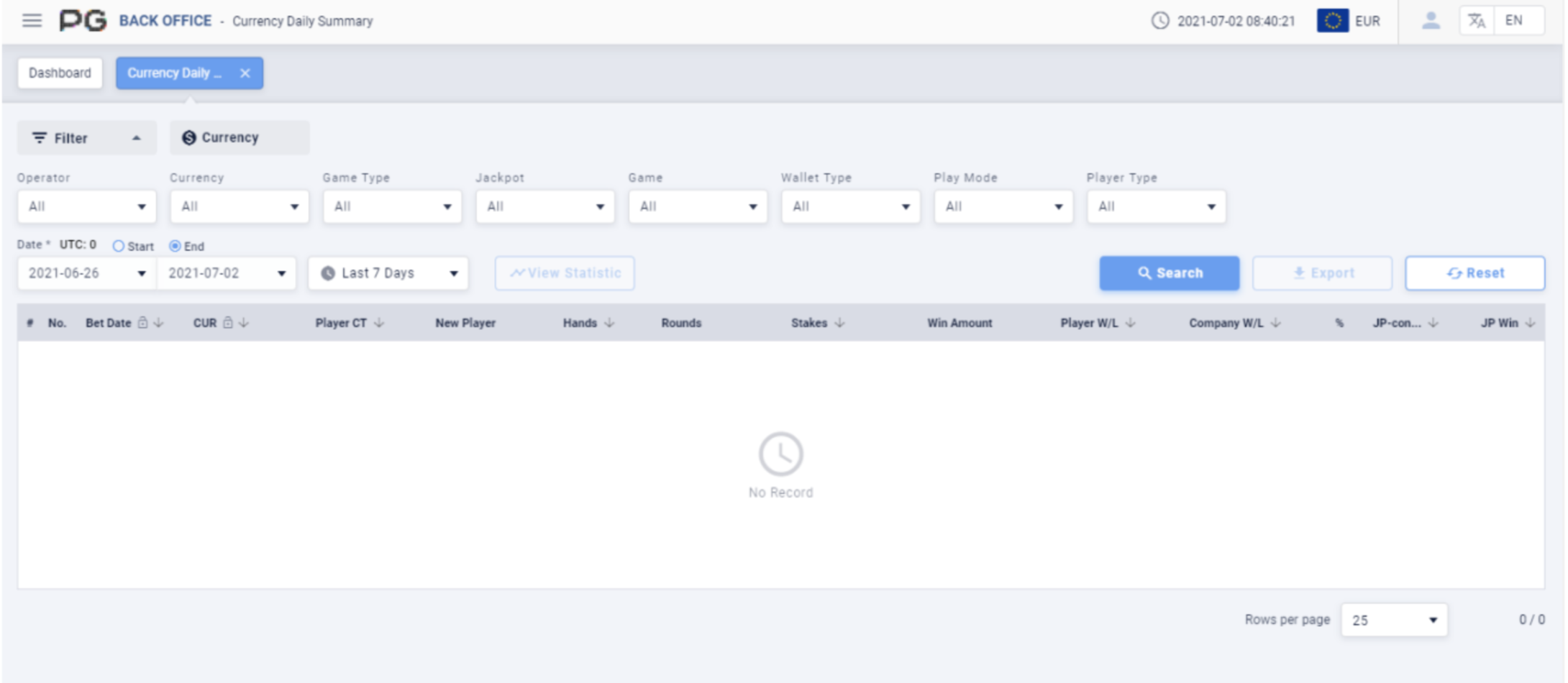
Once the Currency Daily Summary tab is opened, fill in the following details:
(Customized Settings)
Operator: Fill in the operator and sub-operator’s name.
Currency: Select the currency.
Game Type: Select Slot Game, Card Game or Multiplayer Game.
Jackpot: Select None or Jackpot.
Game: Select a specific game.
Wallet Type: Select Cash, Bonus and Free Game. May select 3 at the same time.
Play Mode: Select Normal or Cash Bonus.
Player Type: Select Live or Test Accounts.
Date/Time: The default date of the report will be Last 7 Days. The time period can be customized. (Select Today, Yesterday, Last 7 Days, Last 30 Days or This Month). Filter the report by the “Start” or “End” time of the bets.
Once the details above are filled in, click “Search” to generate the final report.
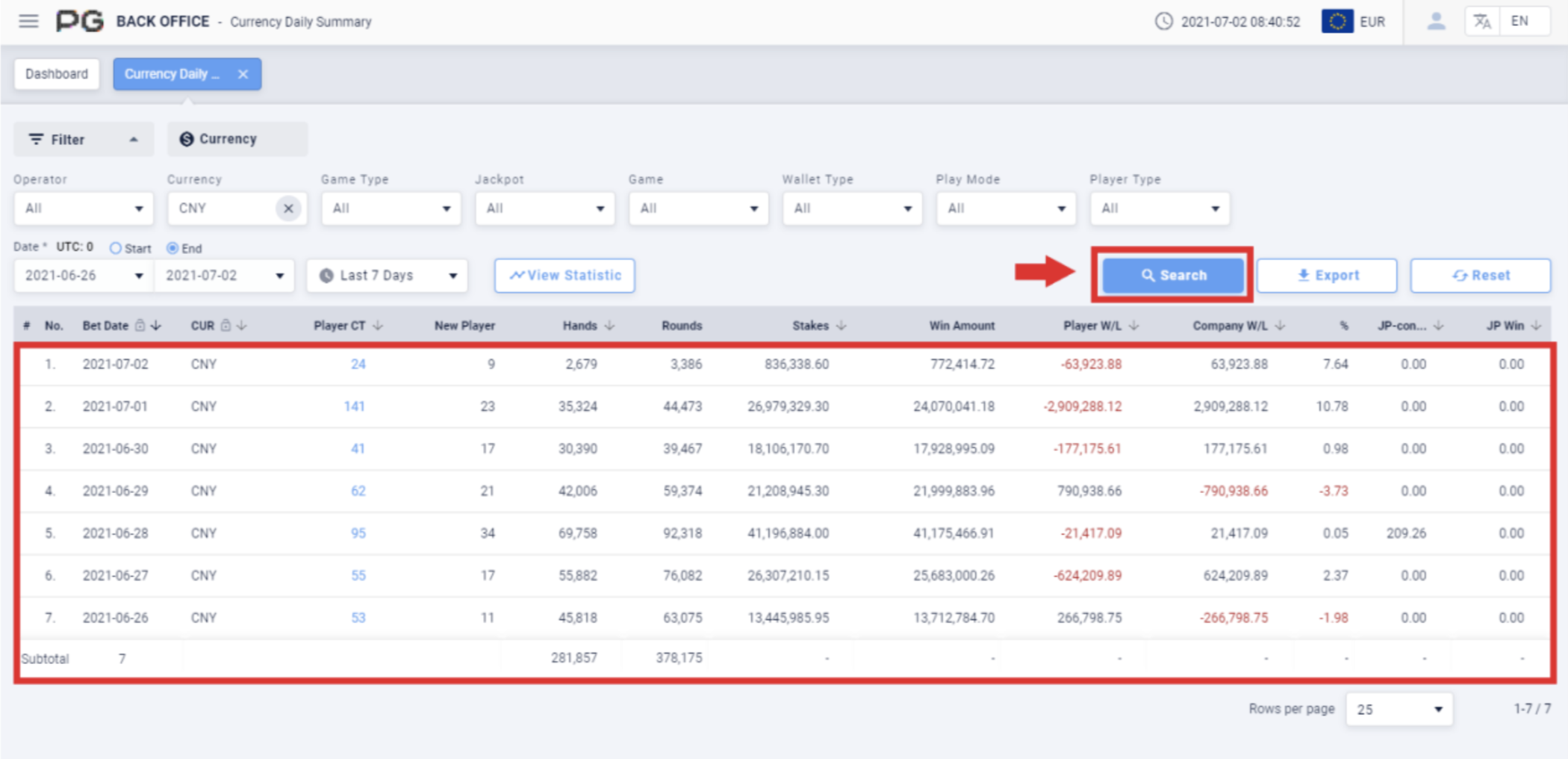
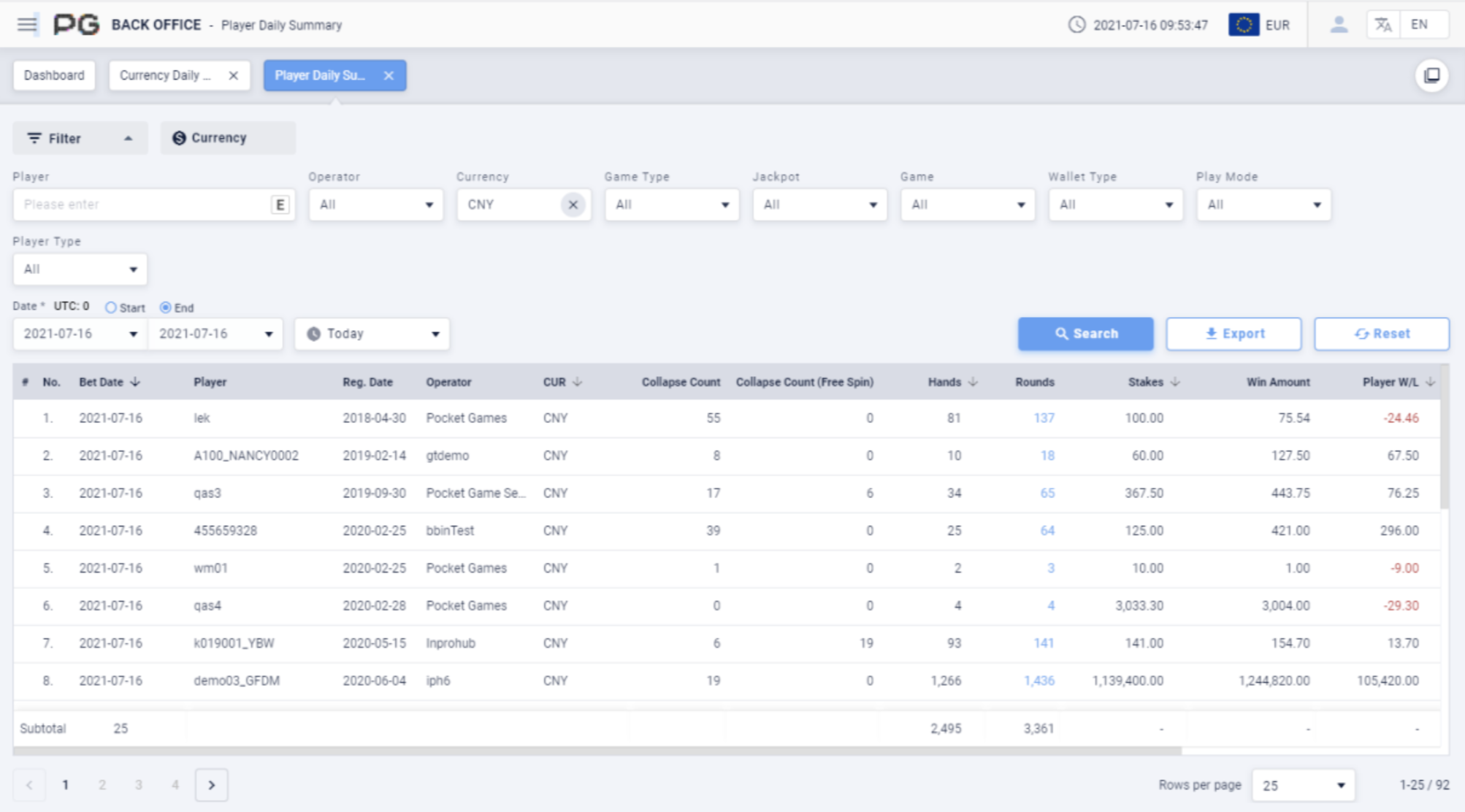
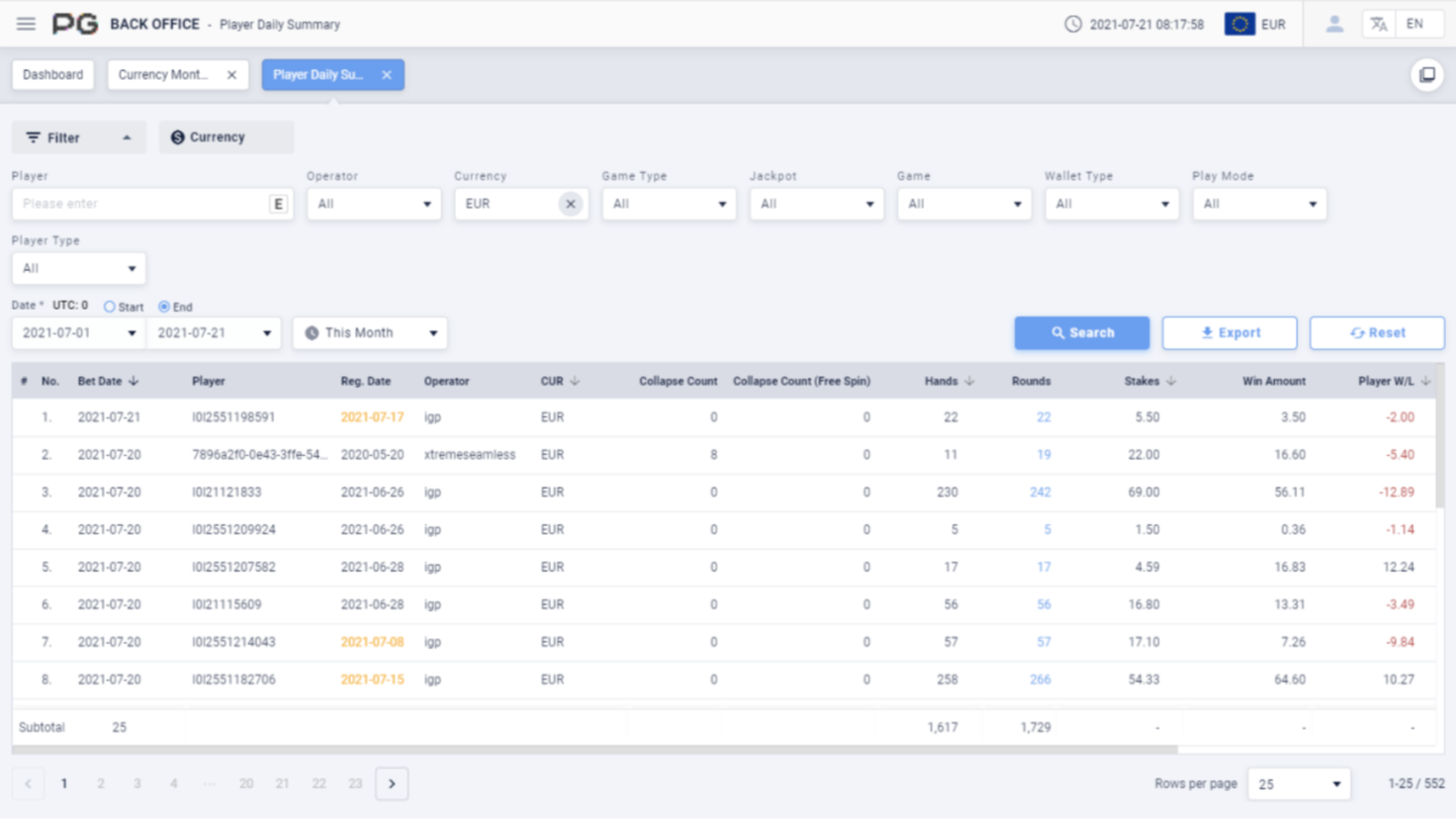
After obtaining the report, click on the Player Count to jump to the Player Daily Summary tab to get the corresponding report result.
Click on Player Count:
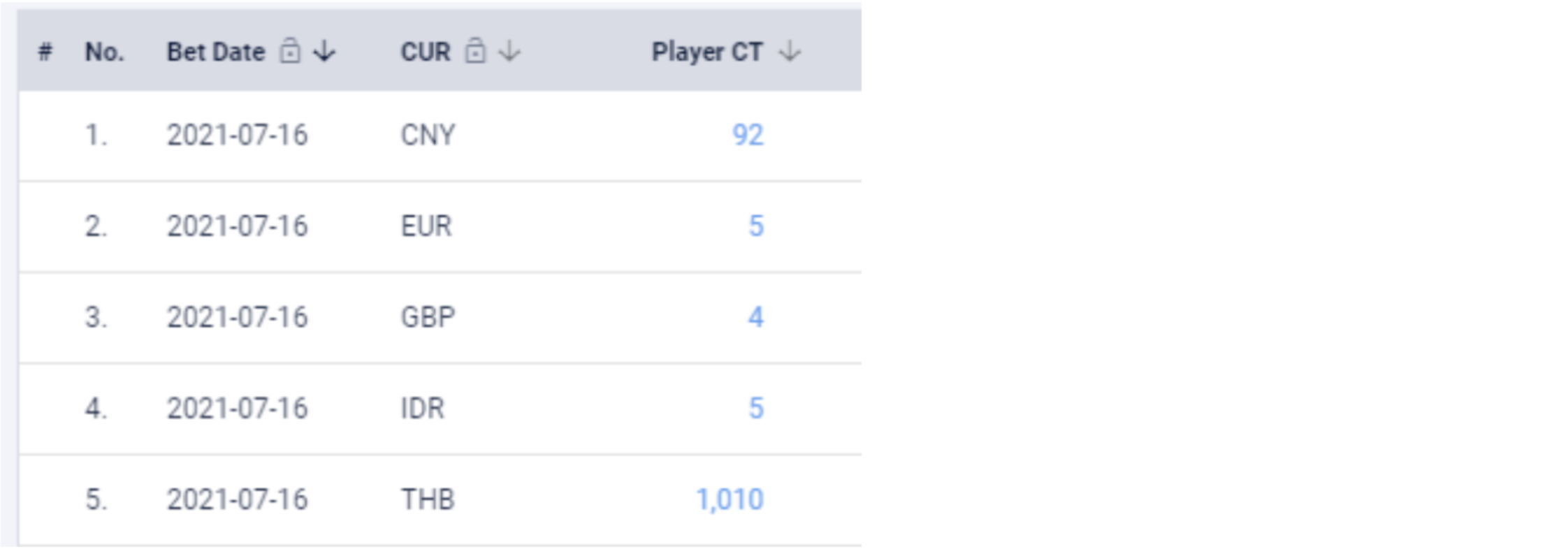
Jump to Player Daily Summary page:
2.2.3 Currency Monthly Summary
Users can click on “Currency Monthly Summary” to open the currency monthly summary page. A new tab will be opened beside the Dashboard tab. Click on the X symbol to close the tab. Each tab can be closed separately.
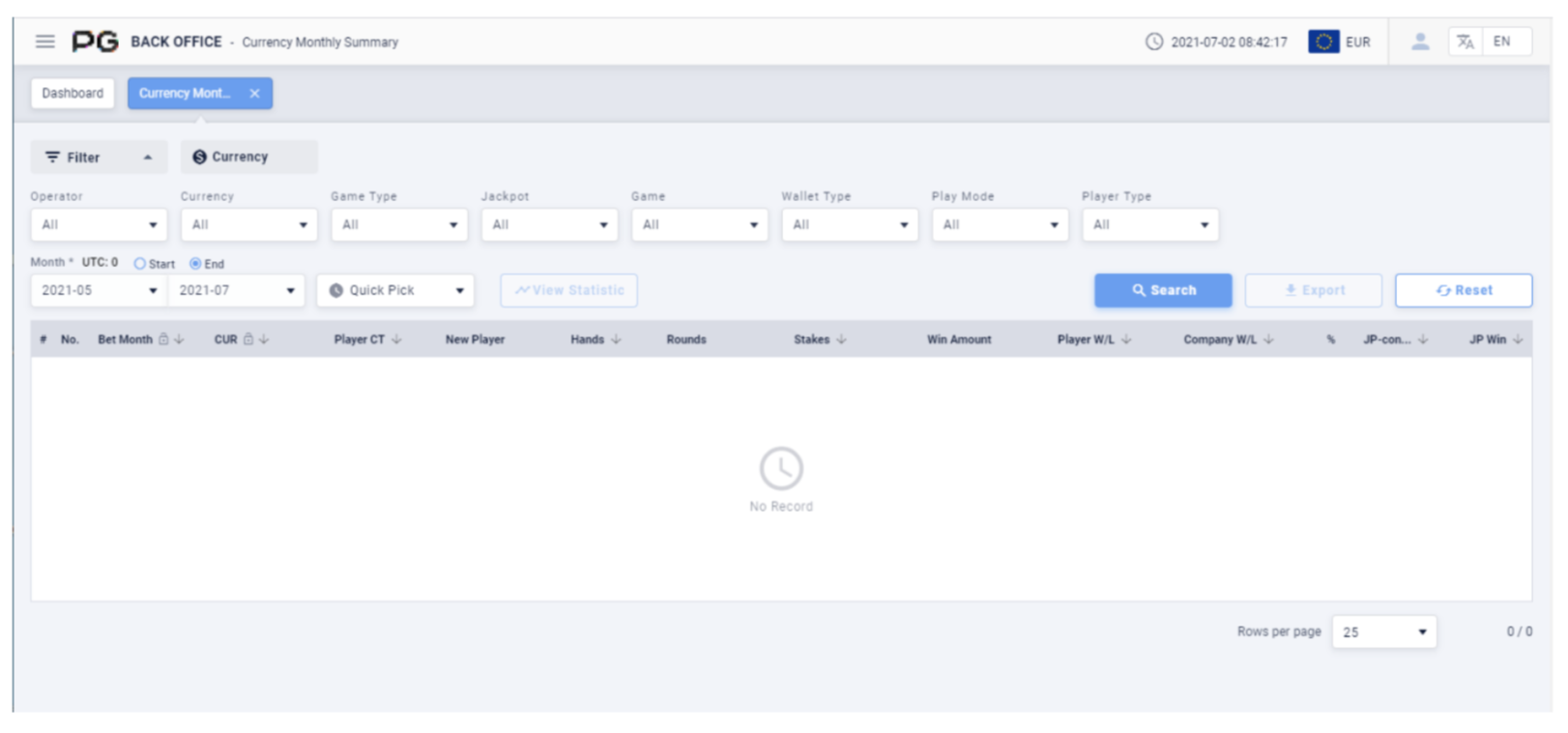
Once the Currency Monthly Summary tab is opened, fill in the following details:
(Customized Settings)
Operator: Fill in the operator and sub-operator’s name.
Currency: Select the currency.
Game Type: Select Slot Game, Card Game or Multiplayer Game.
Jackpot: Select None or Jackpot.
Game: Select a specific game.
Wallet Type: Select Cash, Bonus and Free Game. May select 3 at the same time.
Play Mode: Select Normal or Cash Bonus.
Player Type: Select Live or Test Accounts.
Date/Time: There is no default date for the report. The time period can be customized. (Select Quick Pick, then This Month or Last Month). Filter the report by the “Start” or “End” time of the bets.
Once the details above are filled in, click “Search” to generate the final report.
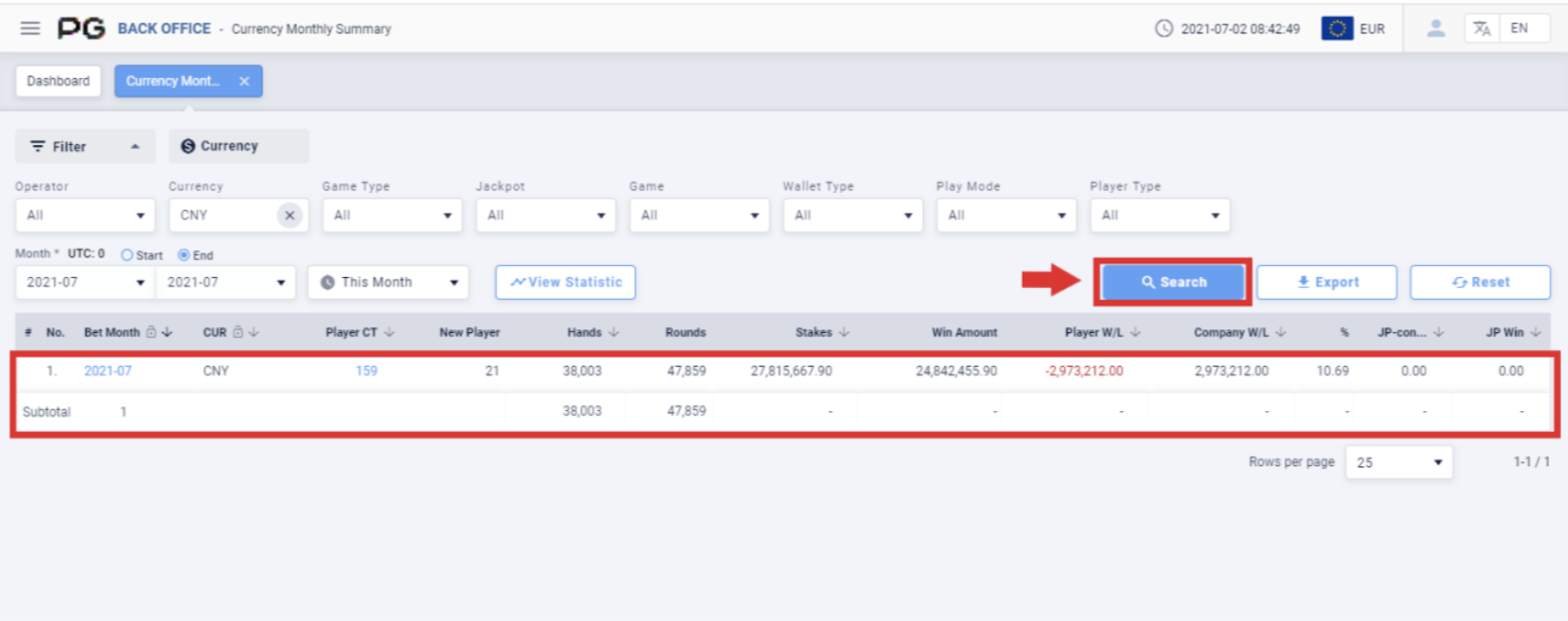
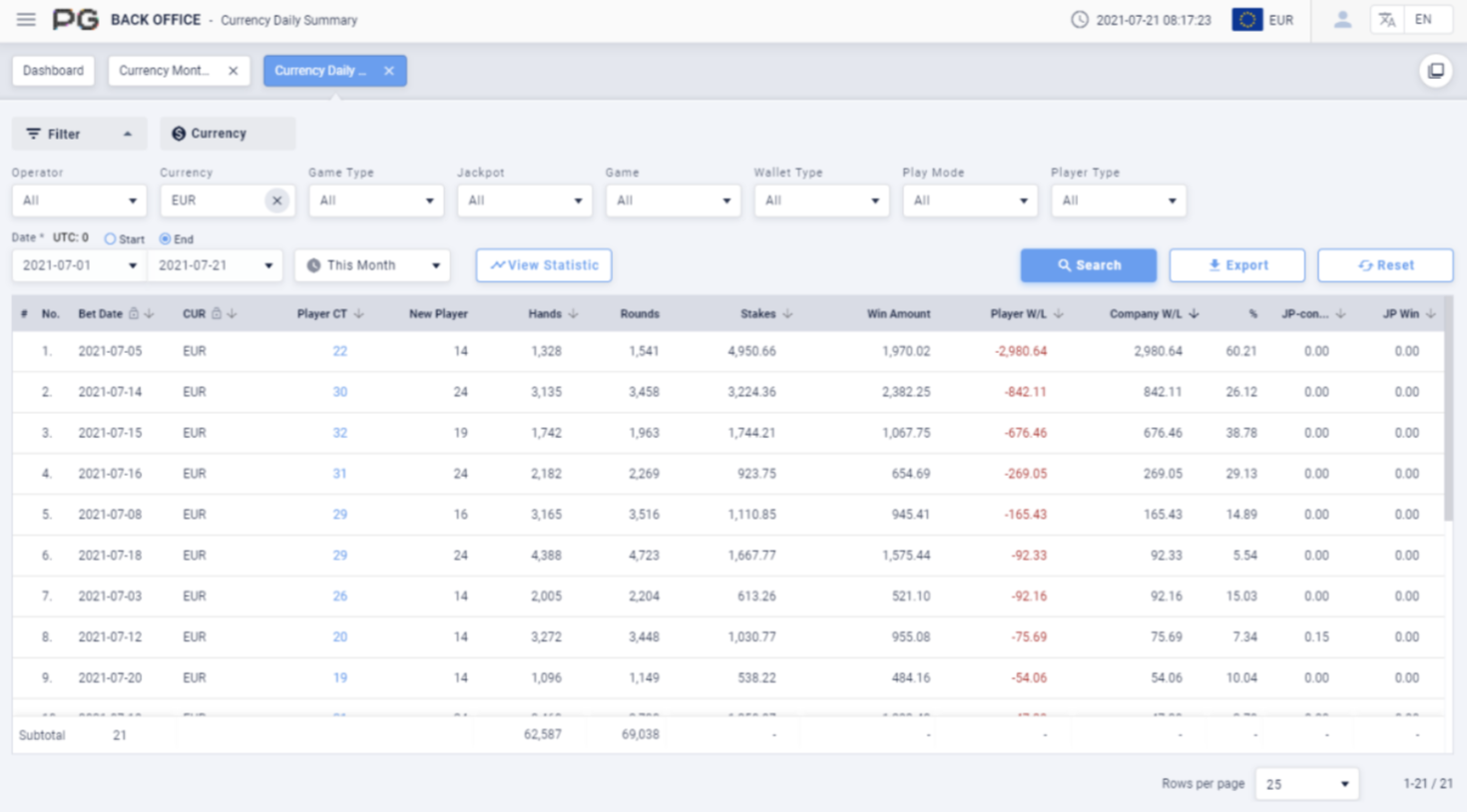
After obtaining the report, click on the Bet Month to jump to the Currency Daily Summary tab; click on the Player Count to jump to the Player Daily Summary tab to get the corresponding report result.
Jump to Currency Daily Summary page:
Jump to Player Daily Summary page:
2.3 Game
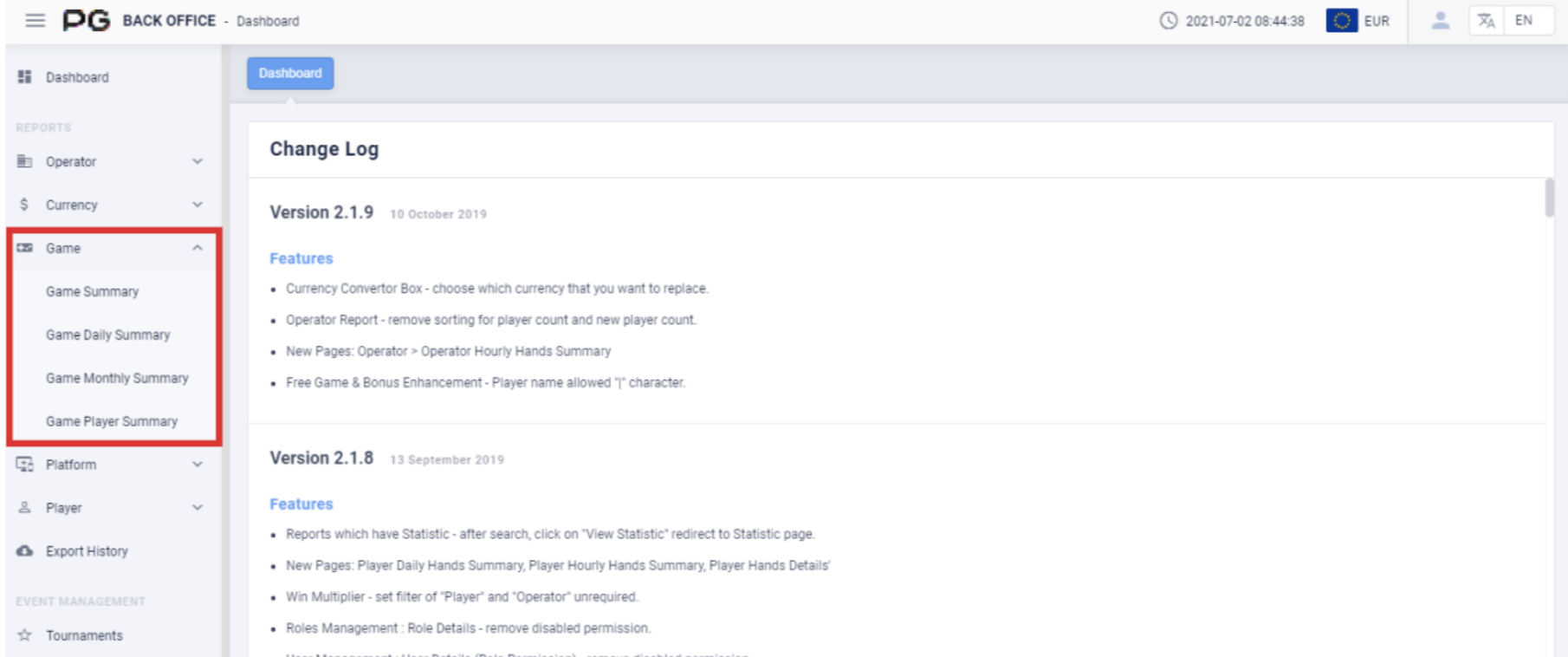
Users can use reports to check the data for a specific time. Click on “Game”, and
select the report category: Game Summary, Game Daily Summary, Game
Monthly Summary, and Game Player Summary. (Please refer to the red box in
Screenshot).
2.3.1 Game Summary
Users can click on “Game Summary” to open the game summary page. A new tab
will be opened beside the Dashboard tab. Click on the X symbol to close the tab.
Each tab can be closed separately.
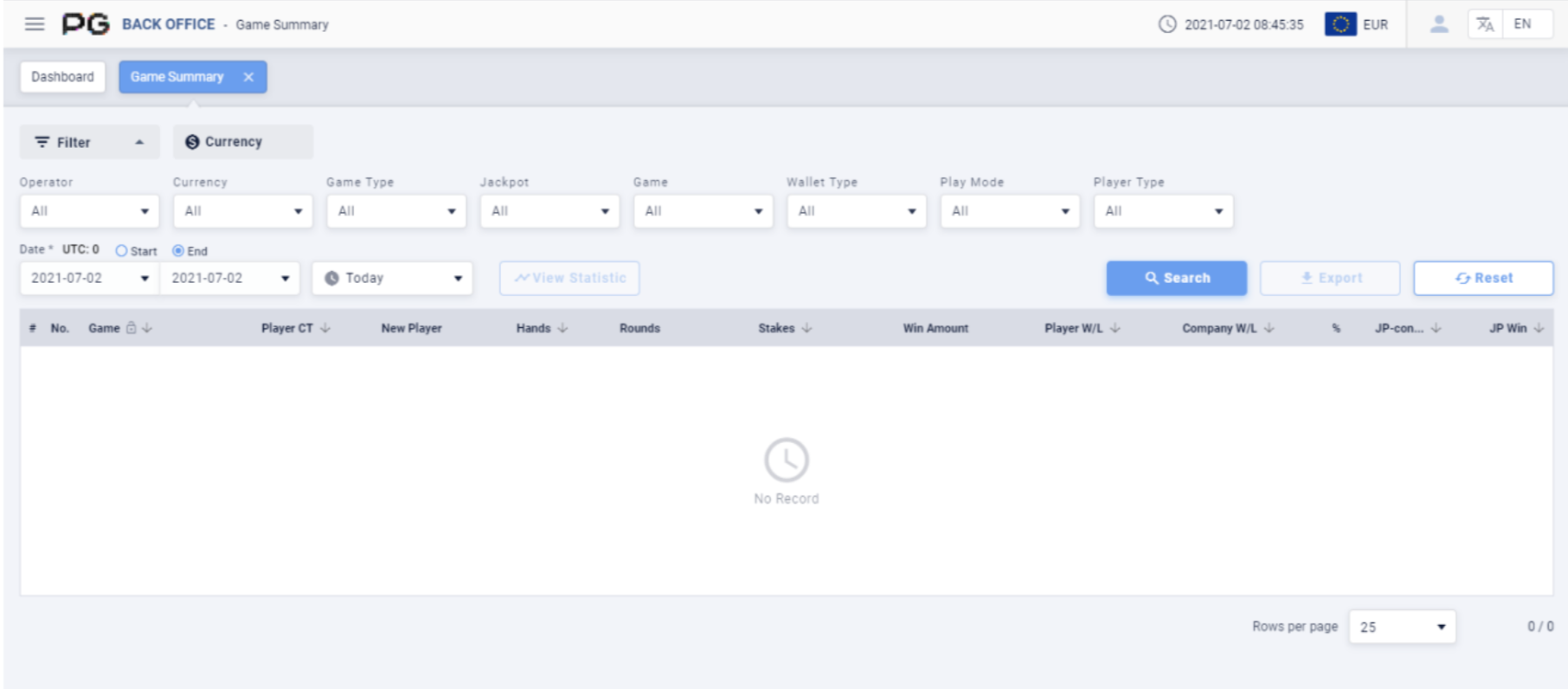
Once the Operator Summary tab is opened, fill in the following details:
(Customized Settings)
Operator: Fill in the operator and sub-operator’s name.
Currency: Select the currency.
Game Type: Select Slot Game, Card Game or Multiplayer Game.
Jackpot: Select None or Jackpot.
Game: Select a specific game.
Wallet Type: Select Cash, Bonus and Free Game. May select 3 at the same time.
Play Mode: Select Normal or Cash Bonus.
Player Type: Select Live or Test Accounts.
Date/Time: The default date of the report will be Today’s date. The time period can
be customized. (Select Today, Yesterday, Last 7 Days, Last 30 Days or This Month).
Filter the report by the “Start” or “End” time of the bets.
Once the details above are filled in, click “Search” to generate the final report.
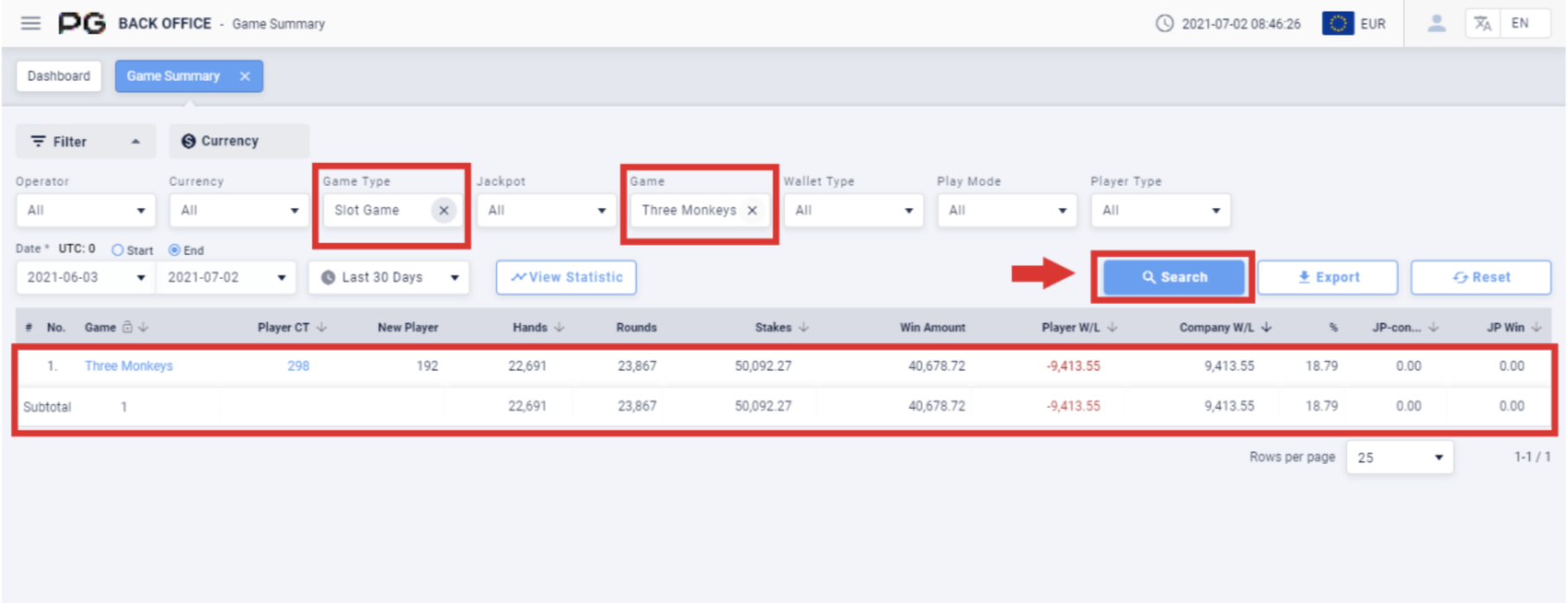
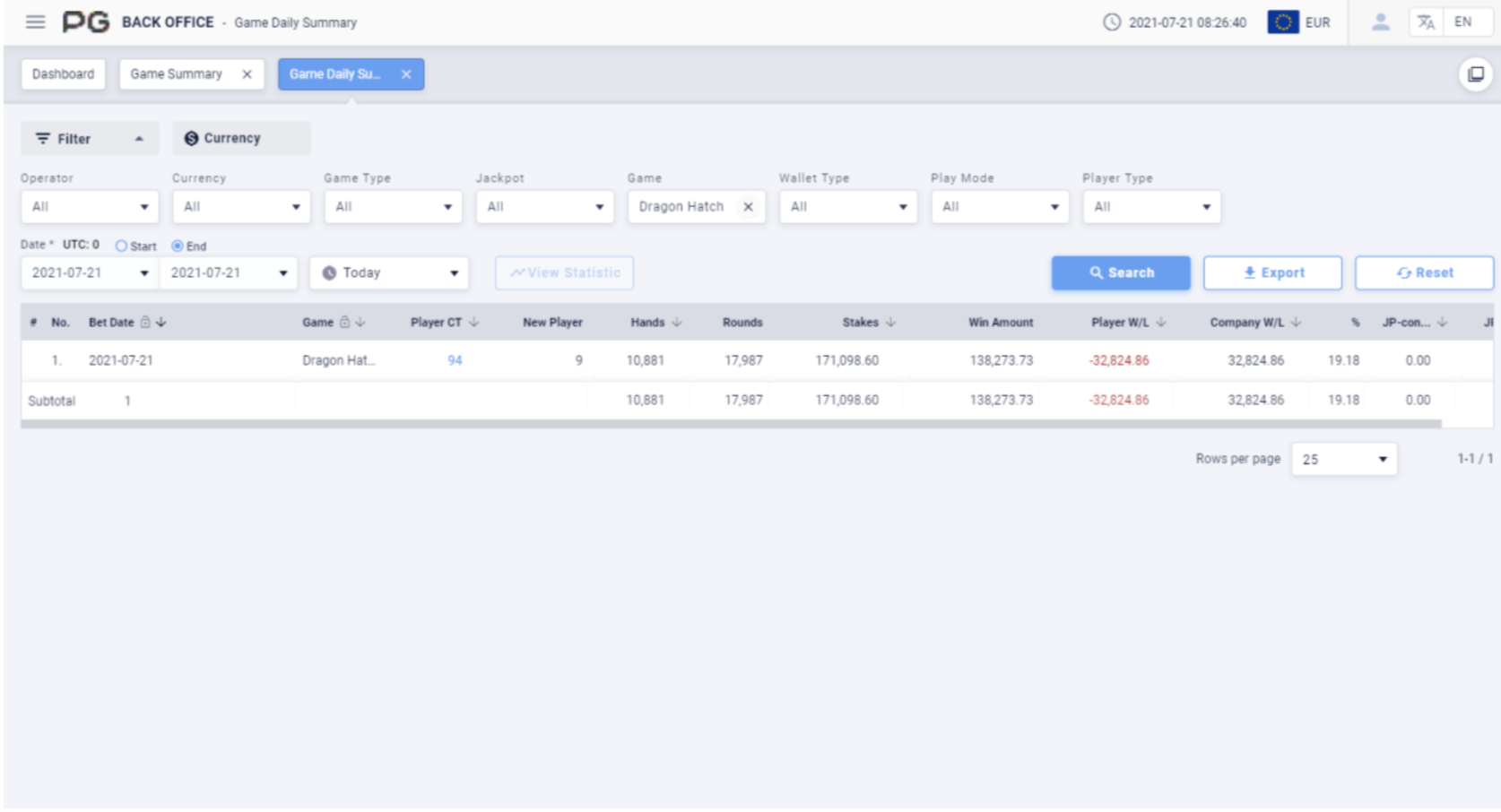
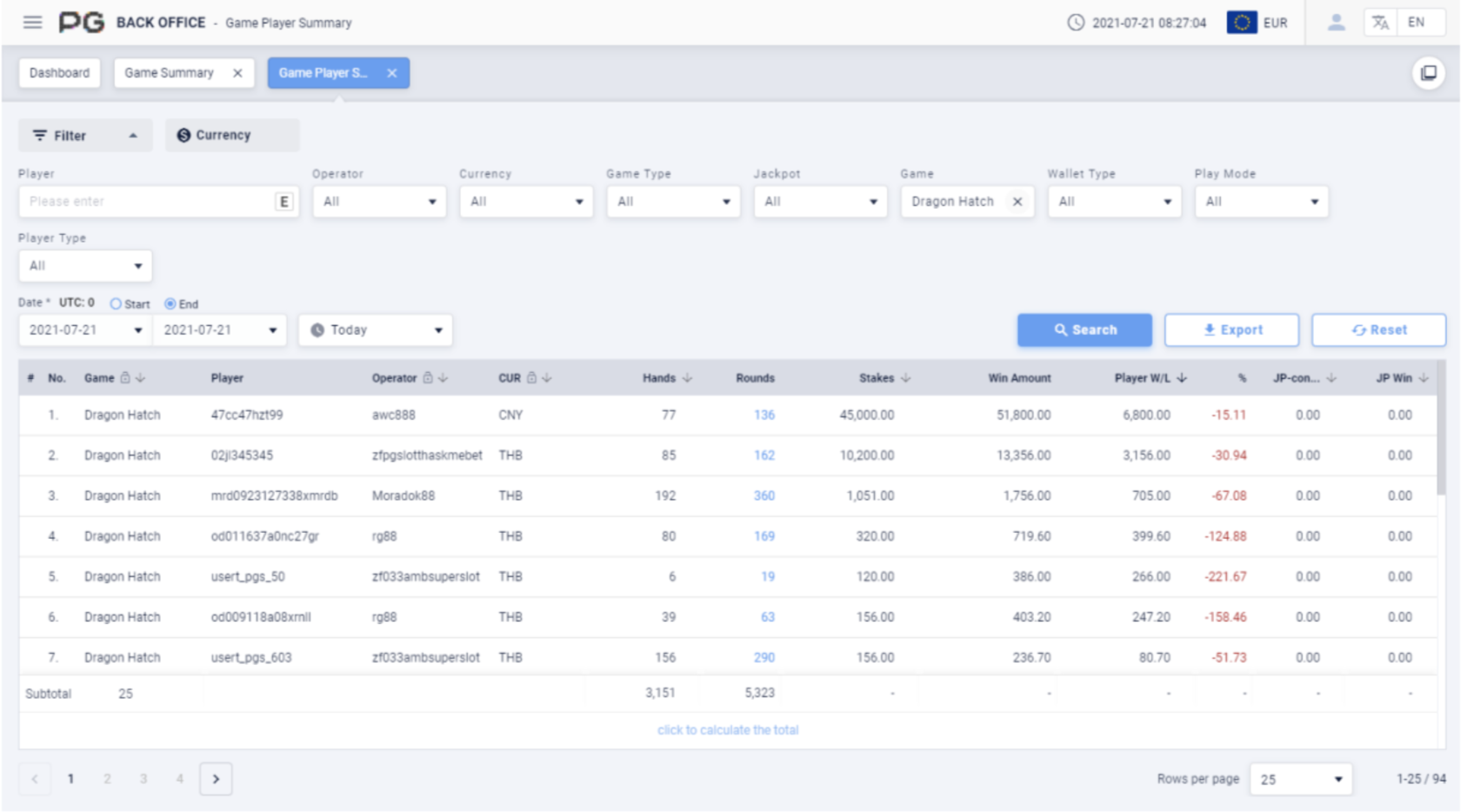
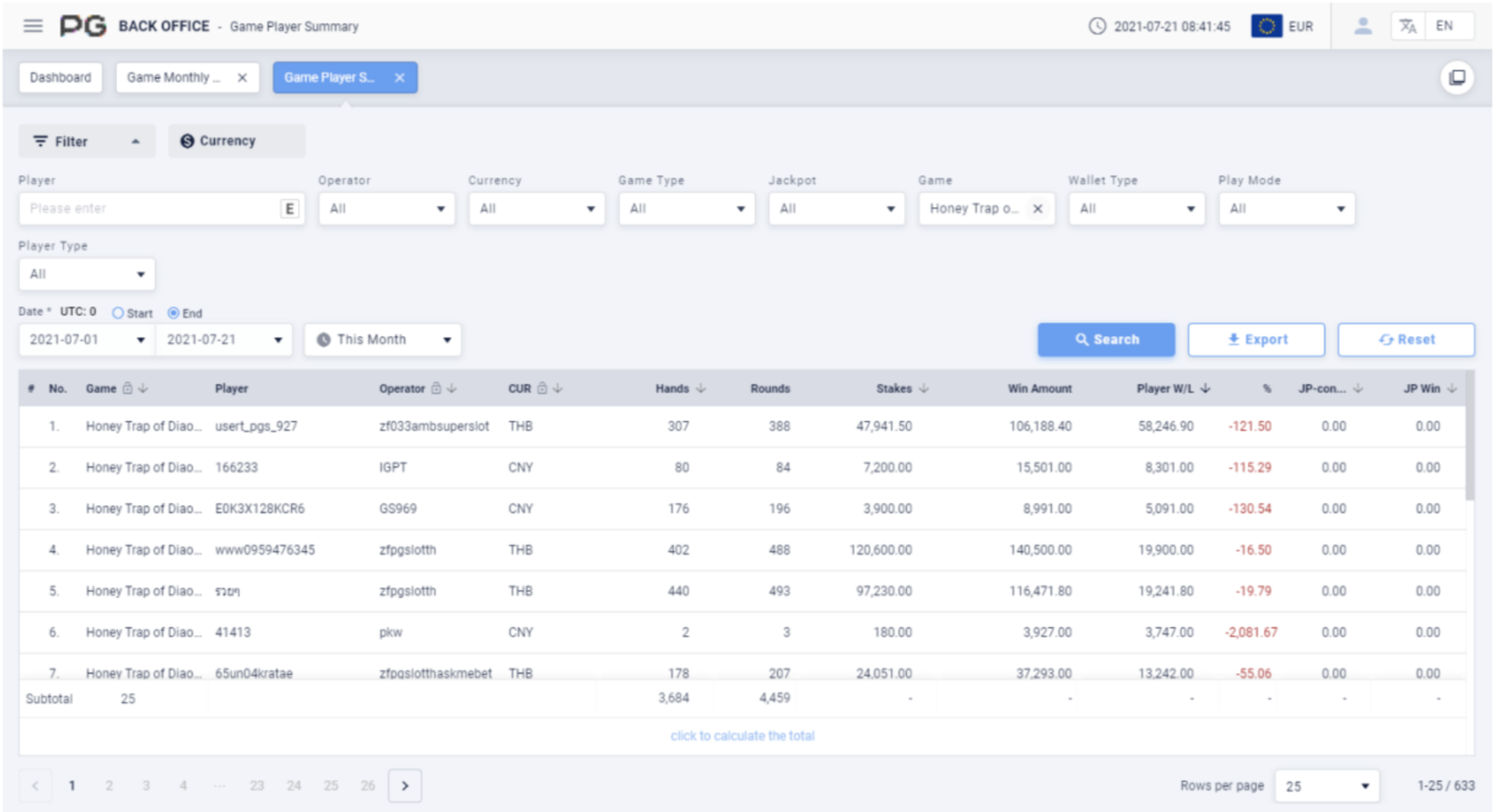
After obtaining the report, click on the Game to jump to the Game Daily Summary
tab; click on the Player Count to jump to the Game Player Summary tab to get the
corresponding report result.
Jump to Game Daily Summary
Jump to Game Player Summary
2.3.2 Game Daily Summary
Users can click on “Game Daily Summary” to open the game daily summary page. A
new tab will be opened beside the Dashboard tab. Click on the X symbol to close the
tab. Each tab can be closed separately.
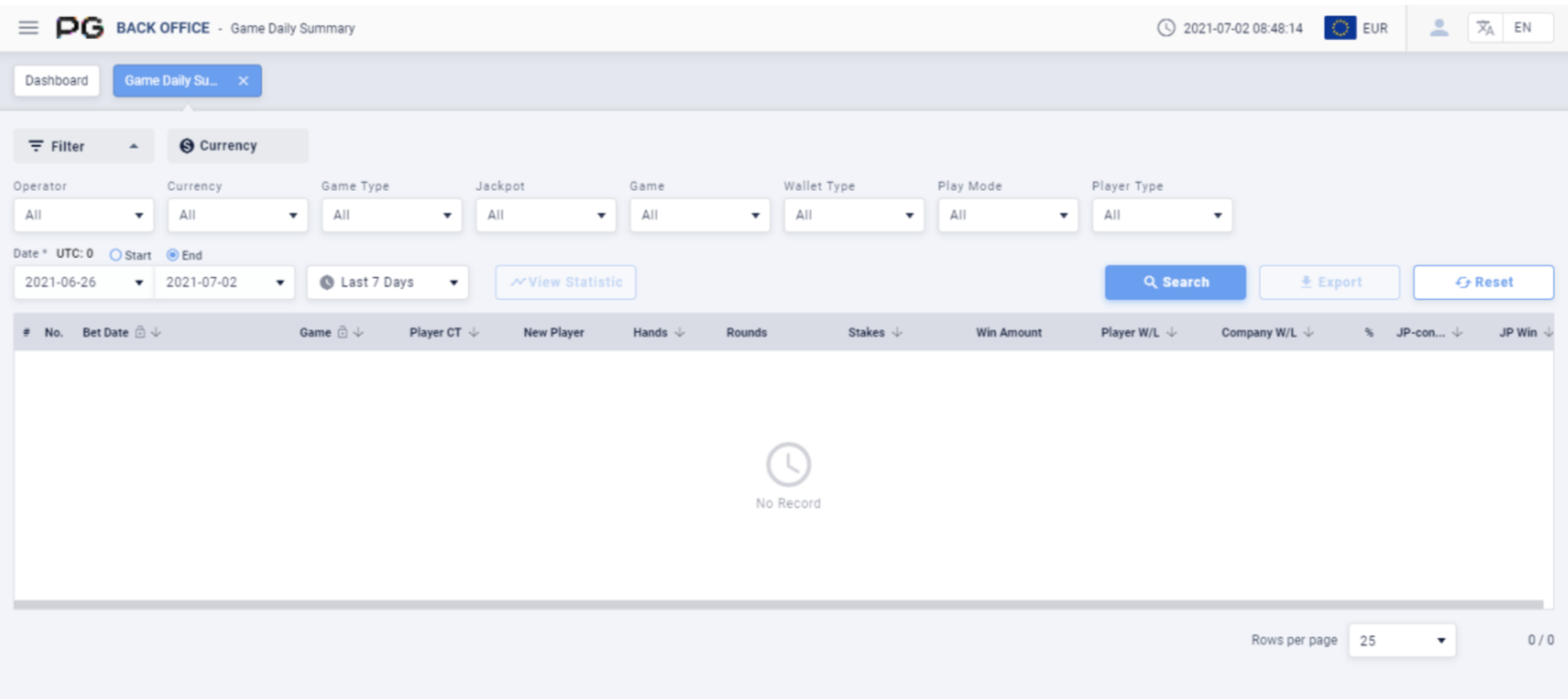
Once the Game Daily Summary tab is opened, fill in the following details:
(Customized Settings)
Operator: Fill in the operator and sub-operator’s name.
Currency: Select the currency.
Game Type: Select Slot Game, Card Game or Multiplayer Game.
Jackpot: Select None or Jackpot.
Game: Select a specific game.
Wallet Type: Select Cash, Bonus and Free Game. May select 3 at the same time.
Play Mode: Select Normal or Cash Bonus.
Player Type: Select Live or Test Accounts.
Date/Time: The default date of the report will be Last 7 Days. The time period can
be customized. (Select Today, Yesterday, Last 7 Days, Last 30 Days or This Month).
Filter the report by the “Start” or “End” time of the bets.
Once the details above are filled in, click “Search” to generate the final report.
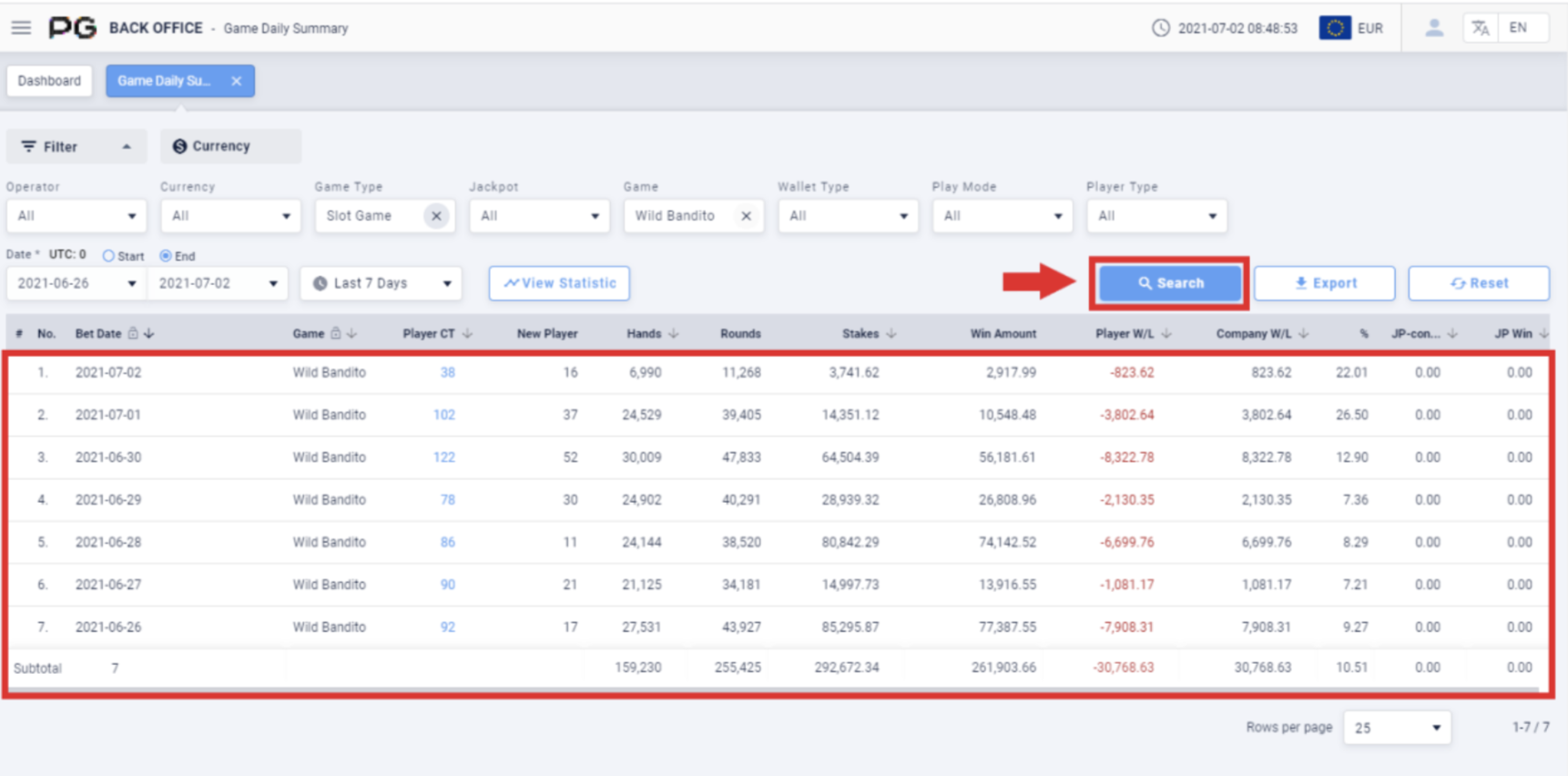
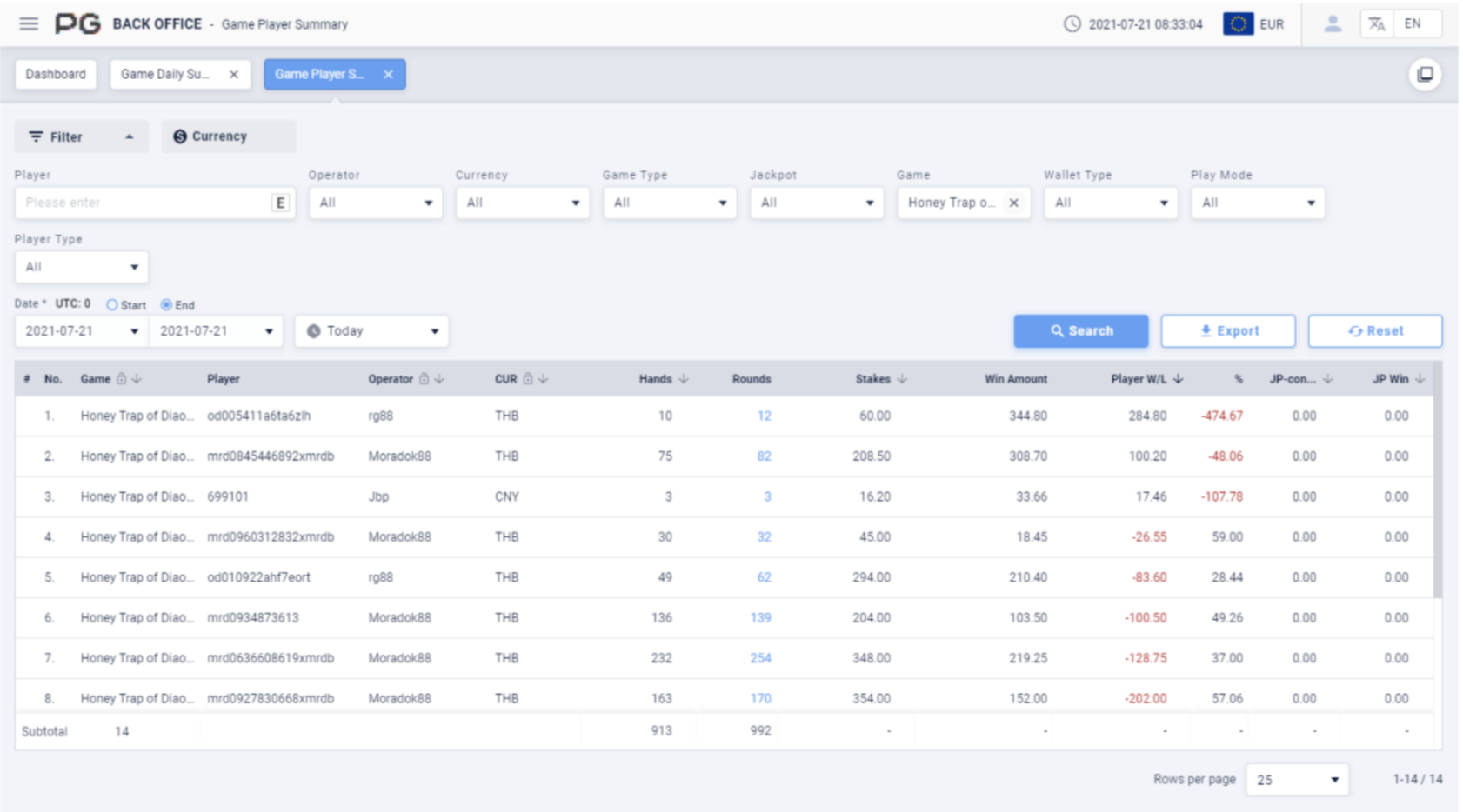
After obtaining the report, click on the Player Count to jump to the Game Player Summary tab to get the corresponding report result.
Jump to Game Player Summary page:
2.3.3 Game Monthly Summary
Users can click on “Game Monthly Summary” to open the game monthly summary
page. A new tab will be opened beside the Dashboard tab. Click on the X symbol to
close the tab. Each tab can be closed separately.
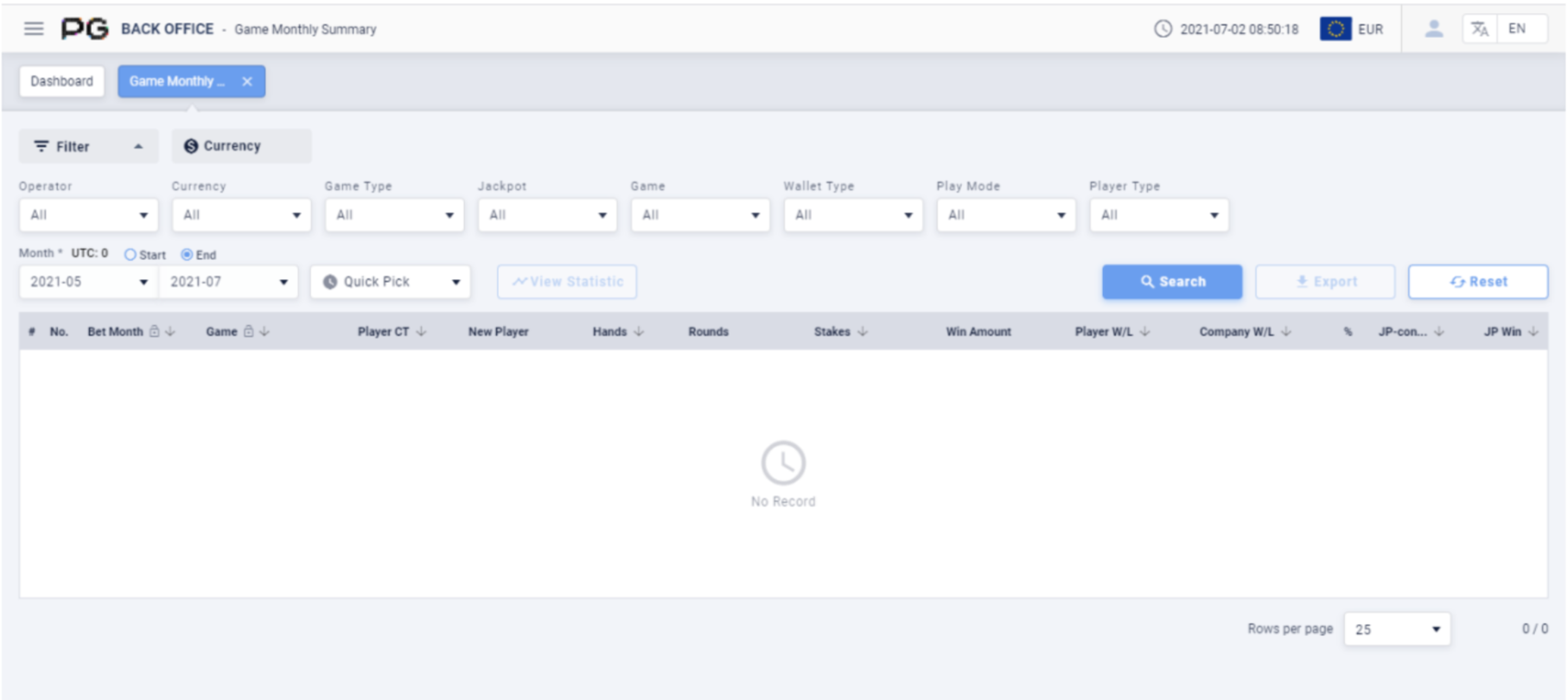
Once the Game Monthly Summary tab is opened, fill in the following details:
(Customized Settings)
Operator: Fill in the operator and sub-operator’s name.
Currency: Select the currency.
Game Type: Select Slot Game, Card Game or Multiplayer Game.
Jackpot: Select None or Jackpot.
Game: Select a specific game.
Wallet Type: Select Cash, Bonus and Free Game. May select 3 at the same time.
Play Mode: Select Normal or Cash Bonus.
Player Type: Select Live or Test Accounts.
Date/Time: There is no default date for the report. The time period can be
customized. (Select Quick Pick, then This Month or Last Month). Filter the report by
the “Start” or “End” time of the bets.
Once the details above are filled in, click “Search” to generate the final report.
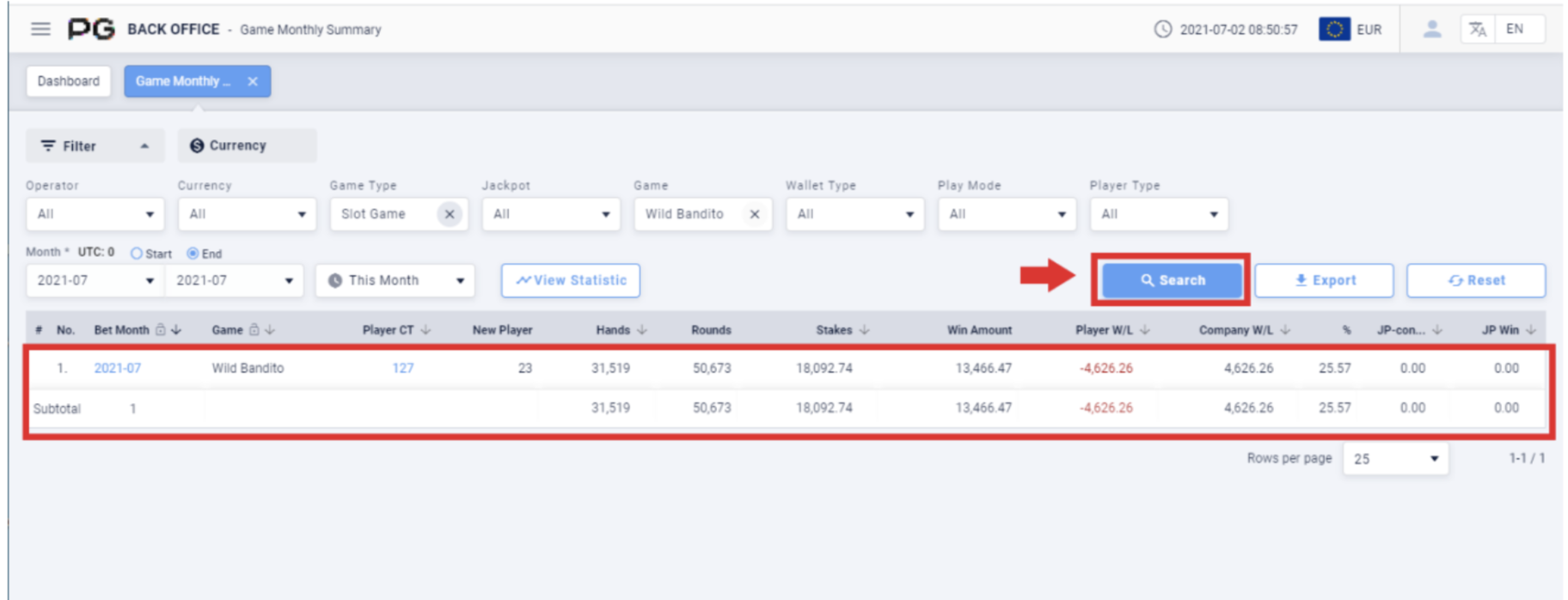
After obtaining the report, click on the Bet Month to jump to the Game Daily
Summary tab; click on the Player Count to jump to the Game Player Summary tab
to get the corresponding report result.
Jump to Game Daily Summary page:
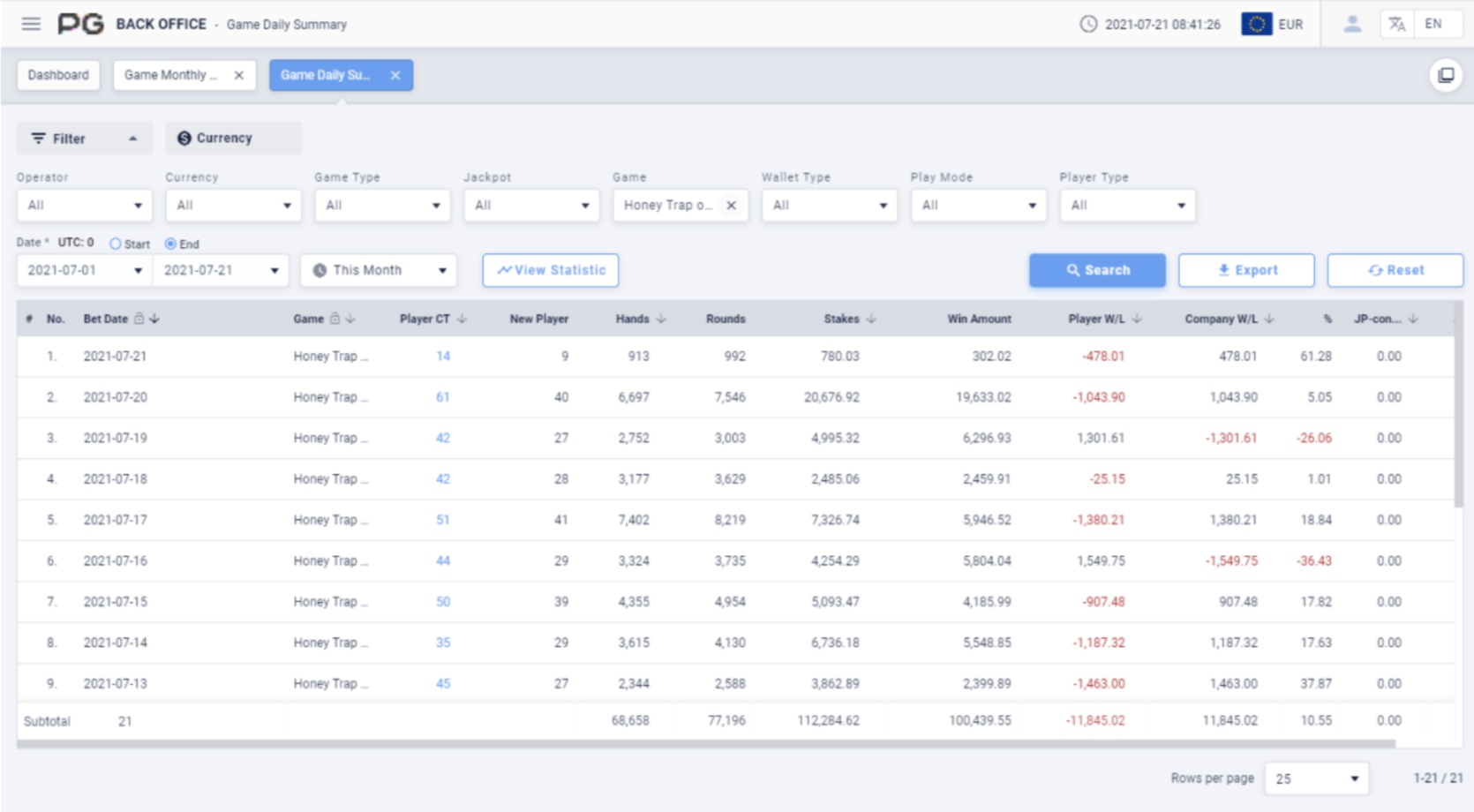
Jump to Game Player Summary page:
2.3.4 Game Player Summary
Users can click on “Game Player Summary” to open the game player summary
page. A new tab will be opened beside the Dashboard tab. Click on the X symbol to
close the tab. Each tab can be closed separately.
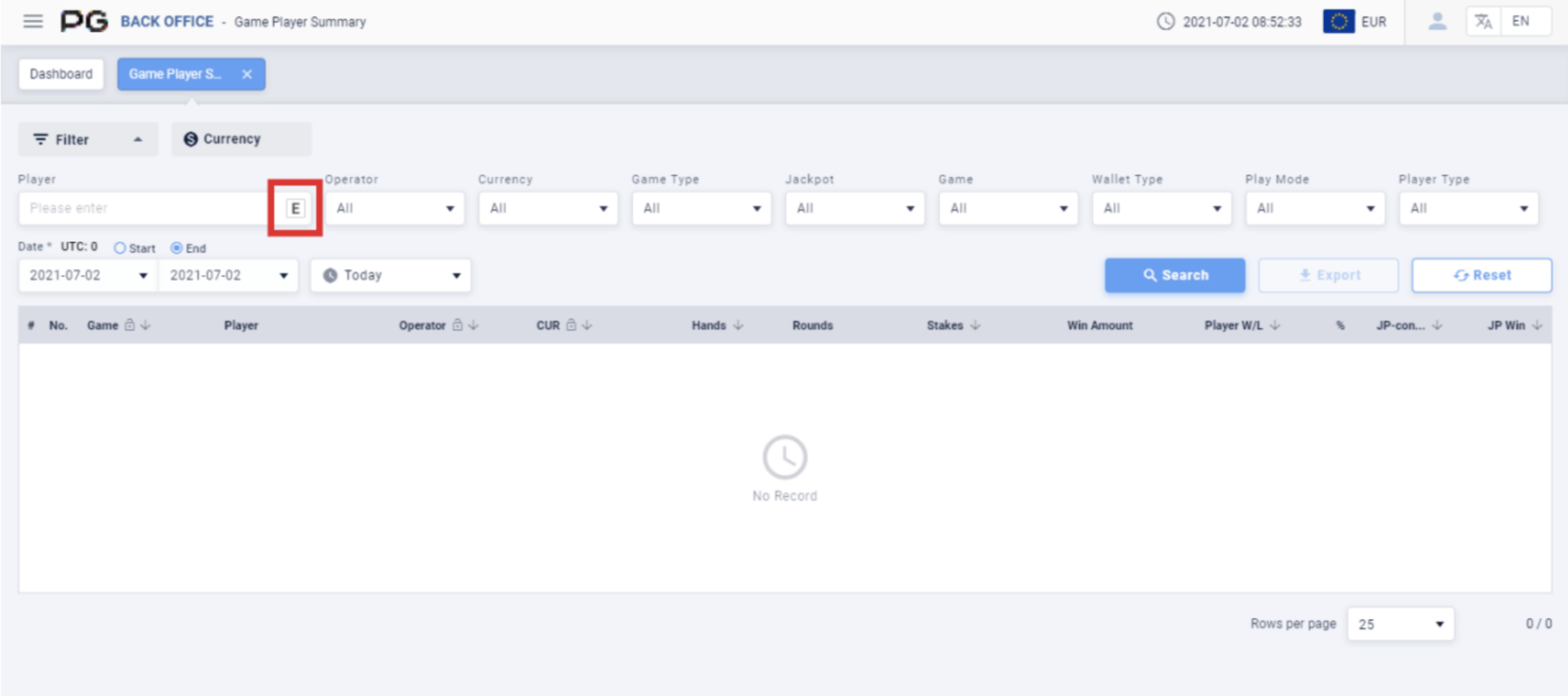
Once the Game Player Summary tab is opened, fill in the following details:
(Customized Settings)
Player: Fill in the player’s name. E to search the exact match of the player’s name
(Please refer to Screenshot). P is to search by using match prefix of the player.
Operator: Fill in the operator and sub-operator’s name.
Currency: Select the currency.
Game Type: Select Slot Game, Card Game or Multiplayer Game.
Jackpot: Select None or Jackpot.
Game: Select a specific game.
Wallet Type: Select Cash, Bonus and Free Game. May select 3 at the same time.
Play Mode: Select Normal or Cash Bonus.
Player Type: Select Live or Test Accounts.
Date/Time: The default date of the report will be Today’s date. The time period can
be customized. (Select Today, Yesterday, Last 7 Days, Last 30 Days or This Month).
Filter the report by the “Start” or “End” time of the bets.
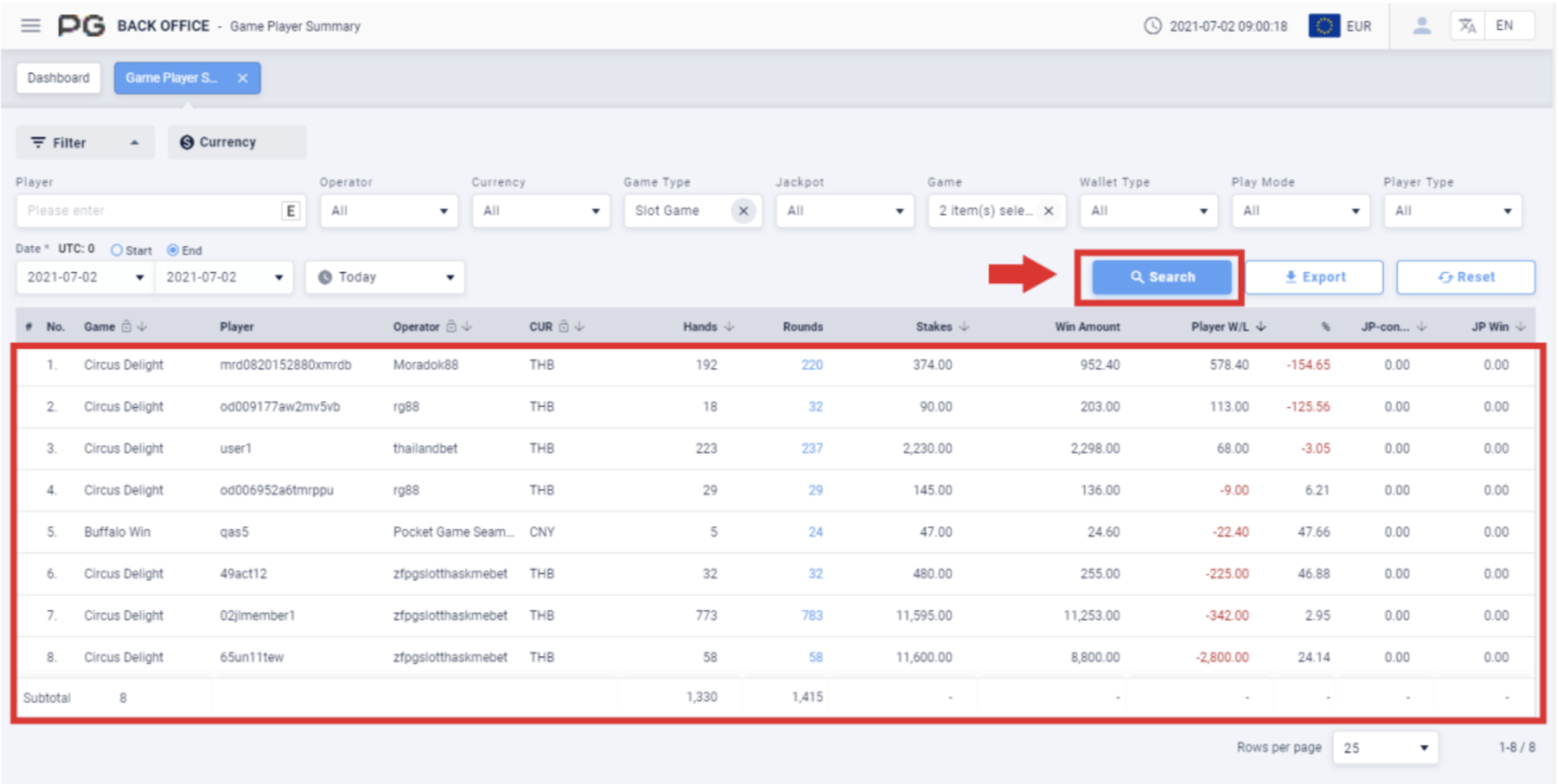
Once the details above are filled in, click “Search” to generate the final report.
2.4 Platform
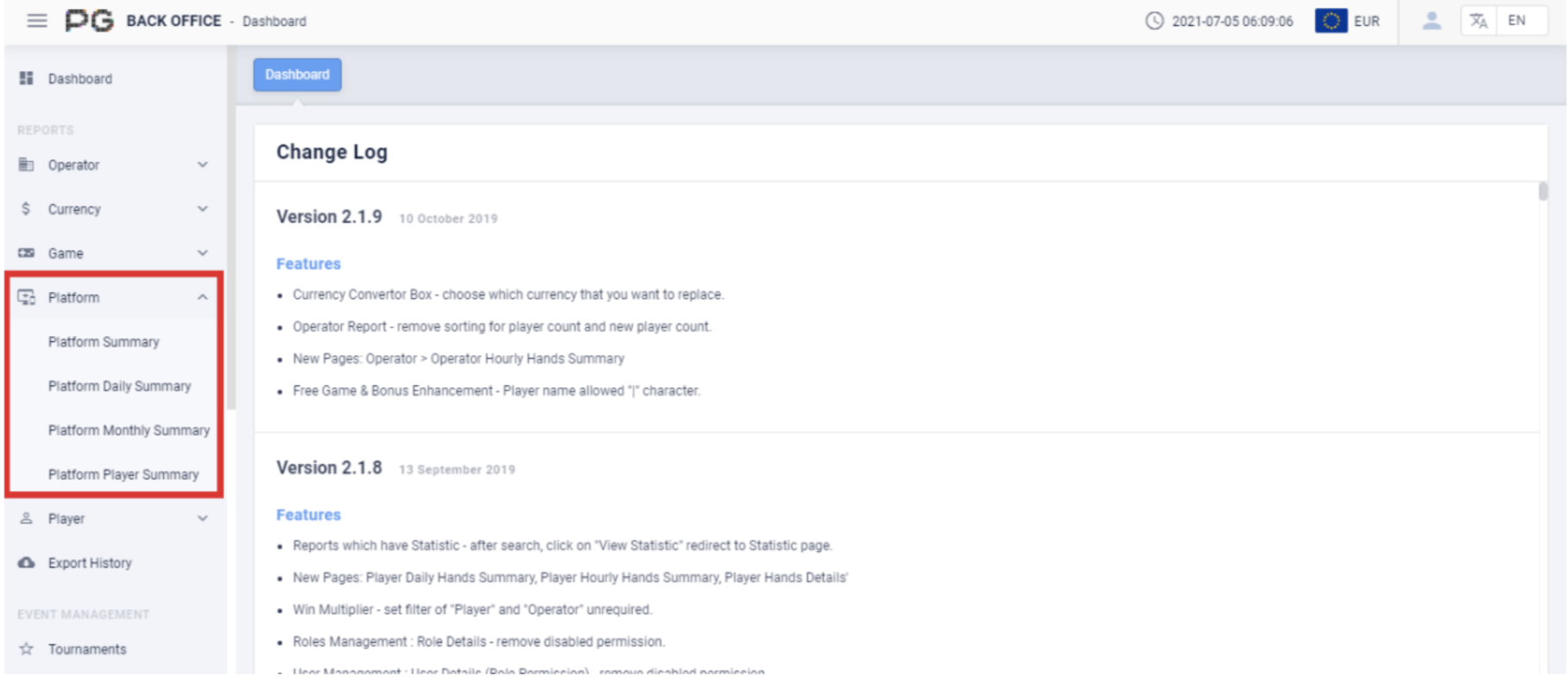
Users can use reports to check the data for a specific time. Click on “Platform”, and
select the report category: Platform Summary, Platform Daily Summary, Platform
Monthly Summary, and b. (Please refer to the red box in
Screenshot).
2.4.1 Platform Summary
Users can click on “Platform Summary” to open the platform summary page. A new
tab will be opened beside the Dashboard tab. Click on the X symbol to close the tab.
Each tab can be closed separately.
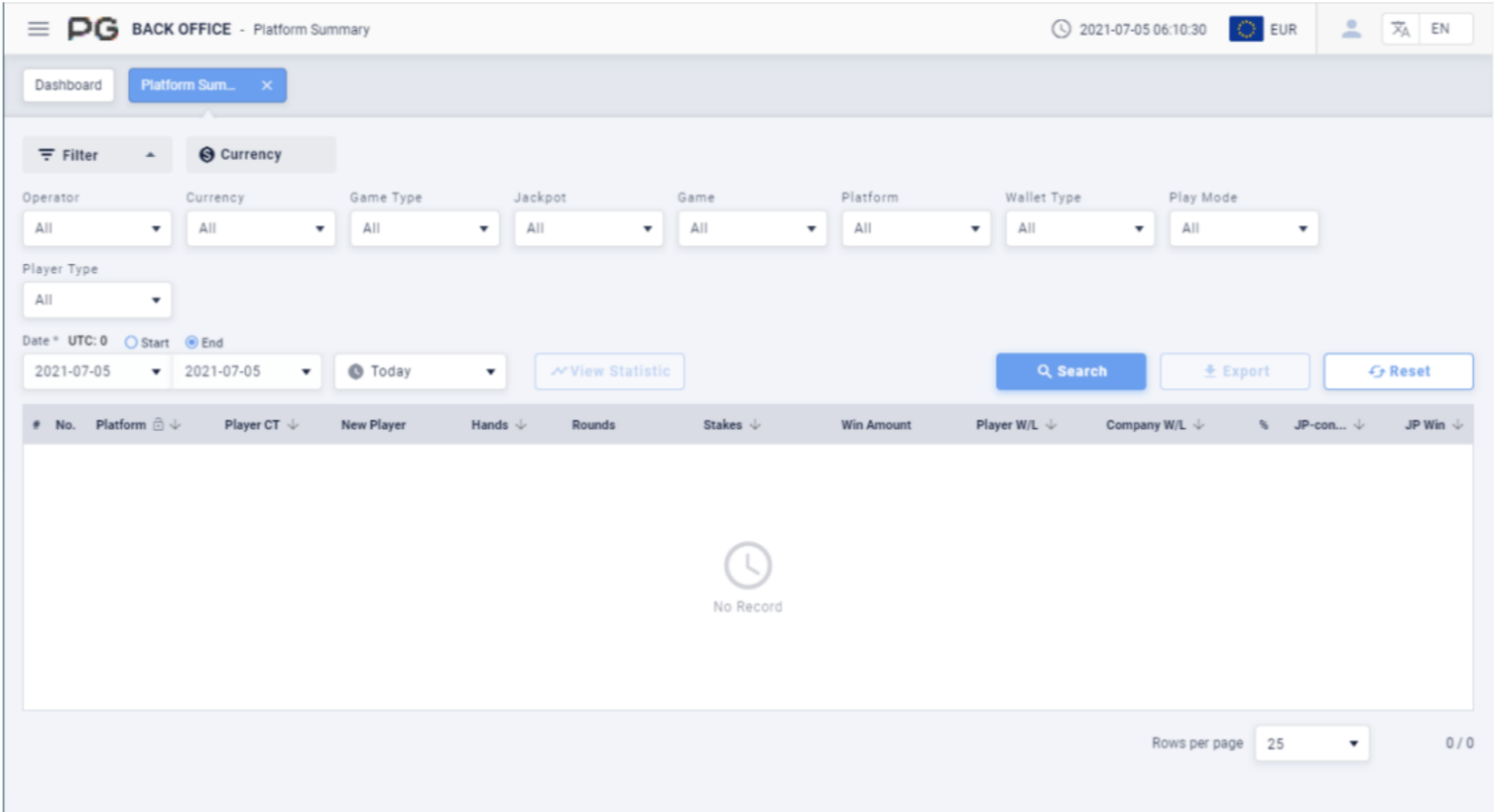
Once the Platform Summary tab is opened, fill in the following details:
(Customized Settings)
Operator: Fill in the operator and sub-operator’s name.
Currency: Select the currency.
Game Type: Select Slot Game, Card Game or Multiplayer Game.
Jackpot: Select None or Jackpot.
Game: Select a specific game.
Platform: Select Web, Cordova, Native, Electron or other platforms.
Wallet Type: Select Cash, Bonus and Free Game. May select 3 at the same time.
Play Mode: Select Normal or Cash Bonus.
Player Type: Select Live or Test Accounts.
Date/Time: The default date of the report will be Today’s date. The time period can
be customized. (Select Today, Yesterday, Last 7 Days, Last 30 Days or This Month).
Filter the report by the “Start” or “End” time of the bets.
Once the details above are filled in, click “Search” to generate the final report.
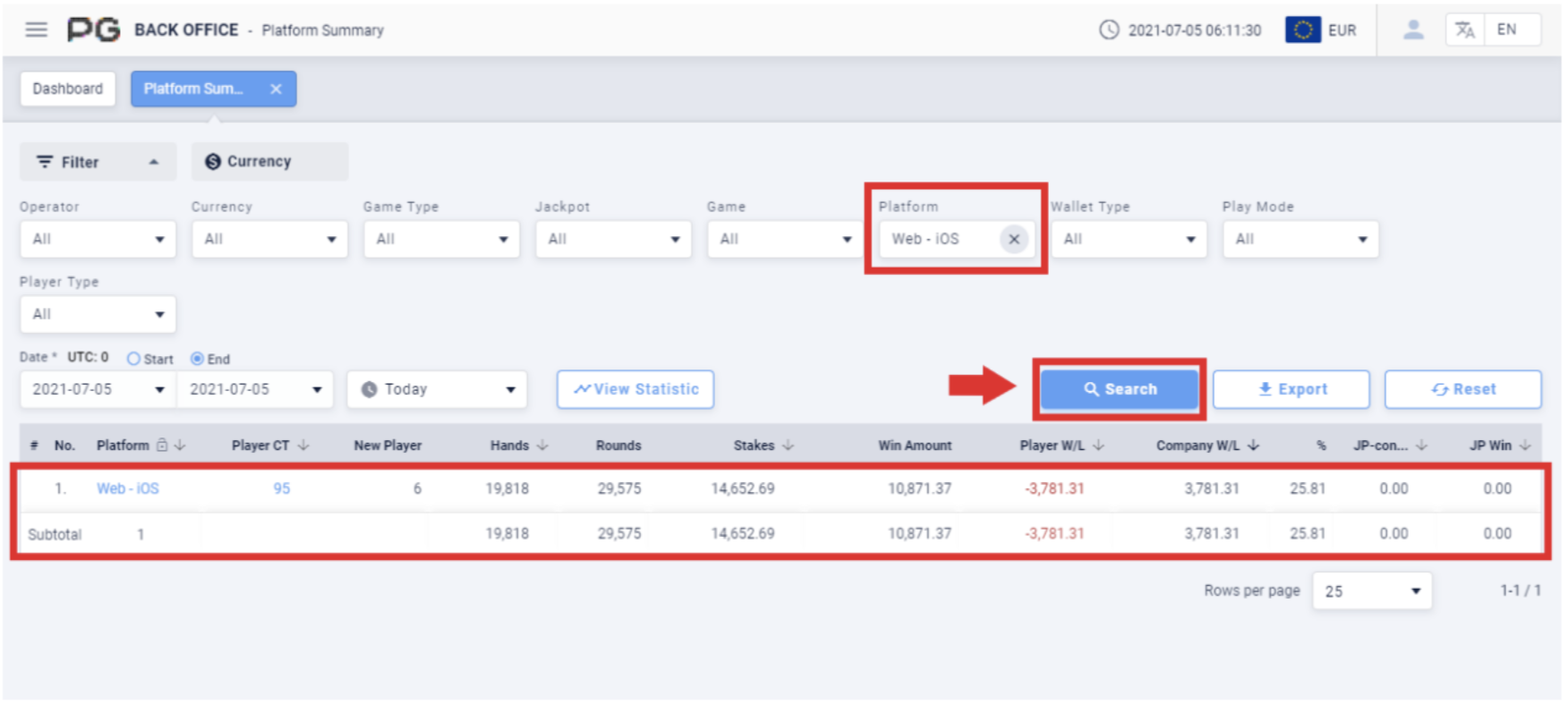
After obtaining the report, click on the Platform to jump to the Platform Daily
Summary tab; click on the Player Count to jump to the Platform Player Summary
tab to get the corresponding report result.
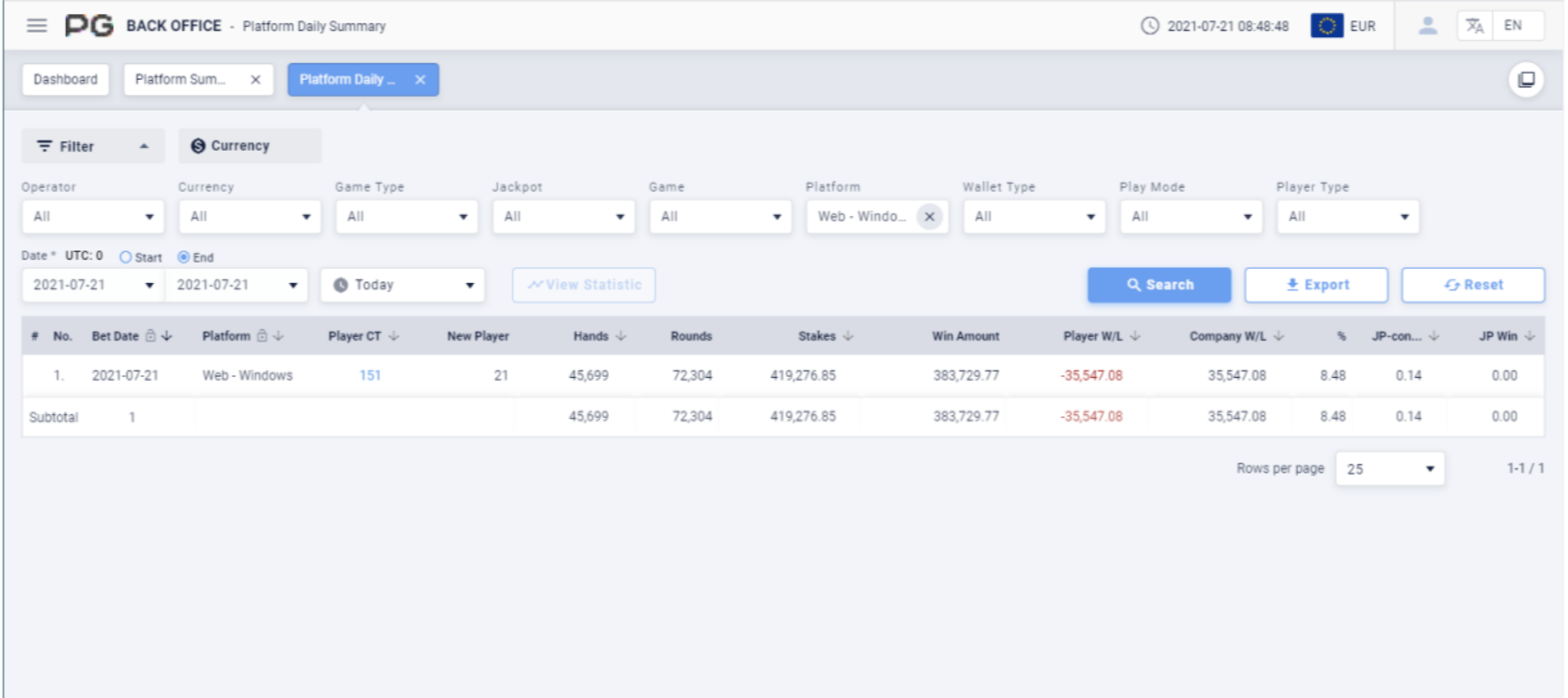
Jump to Platform Daily Summary page:
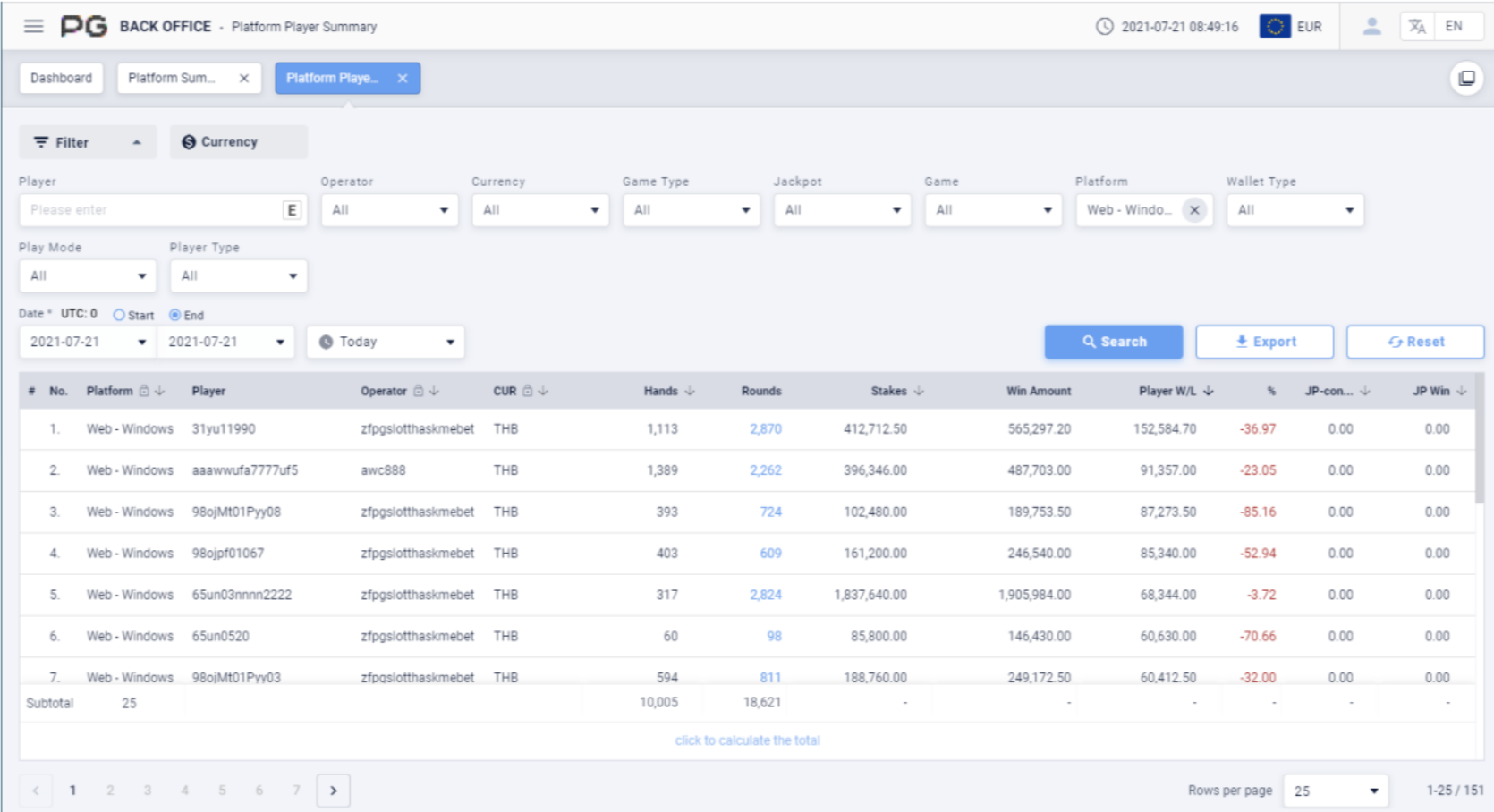
Jump to Platform Player Summary page:
2.4.2 Platform Daily Summary
Users can click on “Platform Daily Summary” to open the platform daily summary
page. A new tab will be opened beside the Dashboard tab. Click on the** X** symbol to
close the tab. Each tab can be closed separately.
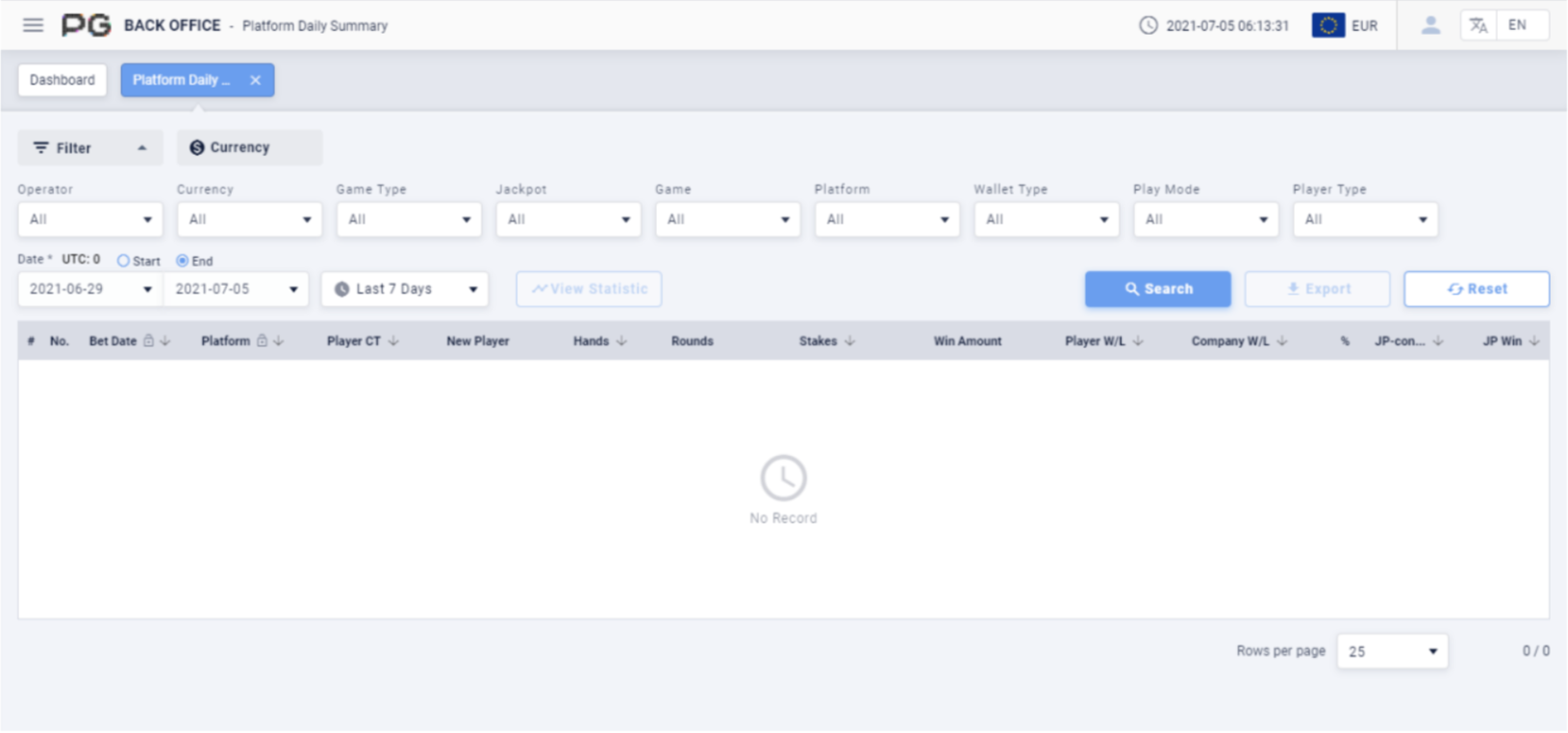
Once the Platform Daily Summary tab is opened, fill in the following details:
(Customized Settings)
Operator: Fill in the operator and sub-operator’s name.
Currency: Select the currency.
Game Type: Select Slot Game, Card Game or Multiplayer Game.
Jackpot: Select None or Jackpot.
Game: Select a specific game.
Platform: Select Web, Cordova, Native, Electron or other platforms.
Wallet Type: Select Cash, Bonus and Free Game. May select 3 at the same time.
Play Mode: Select Normal or Cash Bonus.
Player Type: Select Live or Test Accounts.
Date/Time: The default date of the report will be Last 7 Days. The time period can
be customized. (Select Today, Yesterday, Last 7 Days, Last 30 Days or This Month).
Filter the report by the “Start” or “End” time of the bets.
Once the details above are filled in, click “Search” to generate the final report.
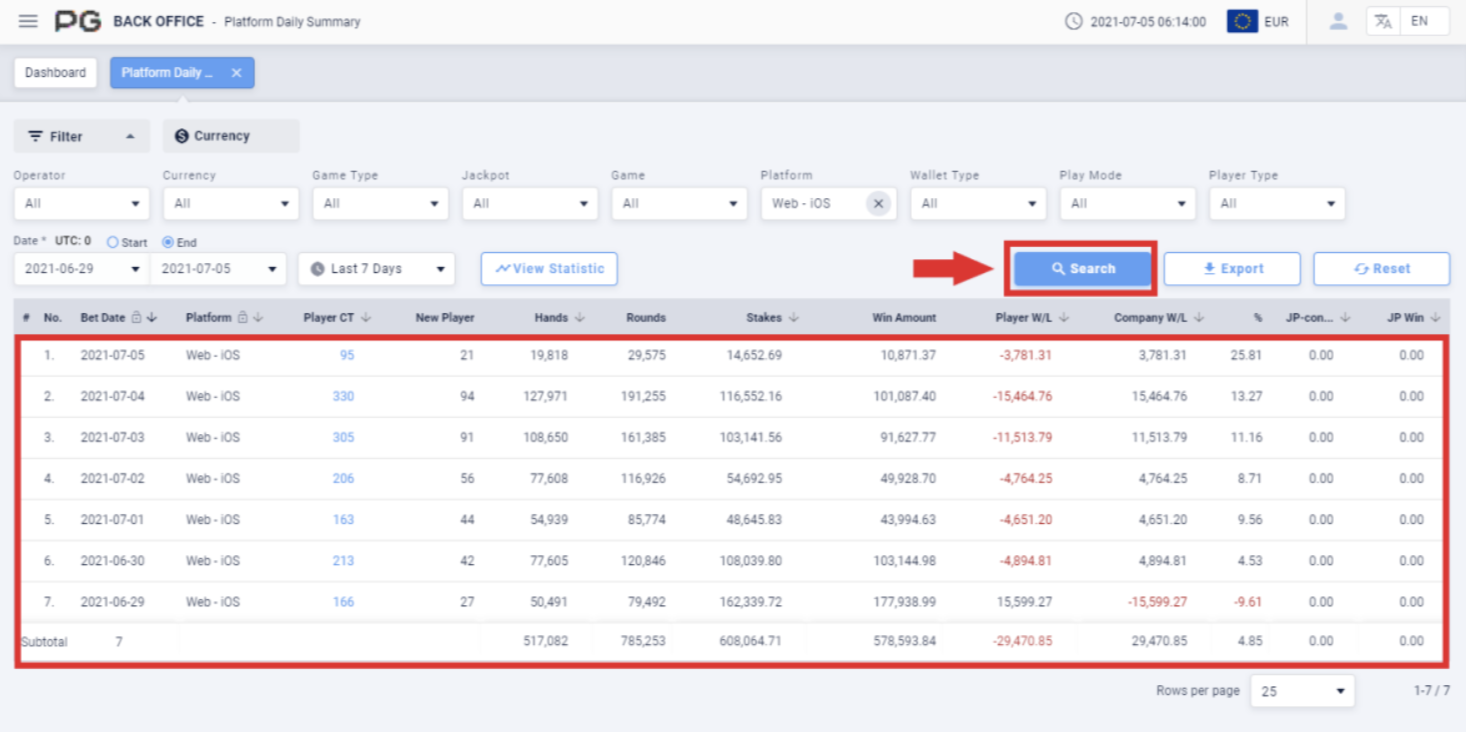
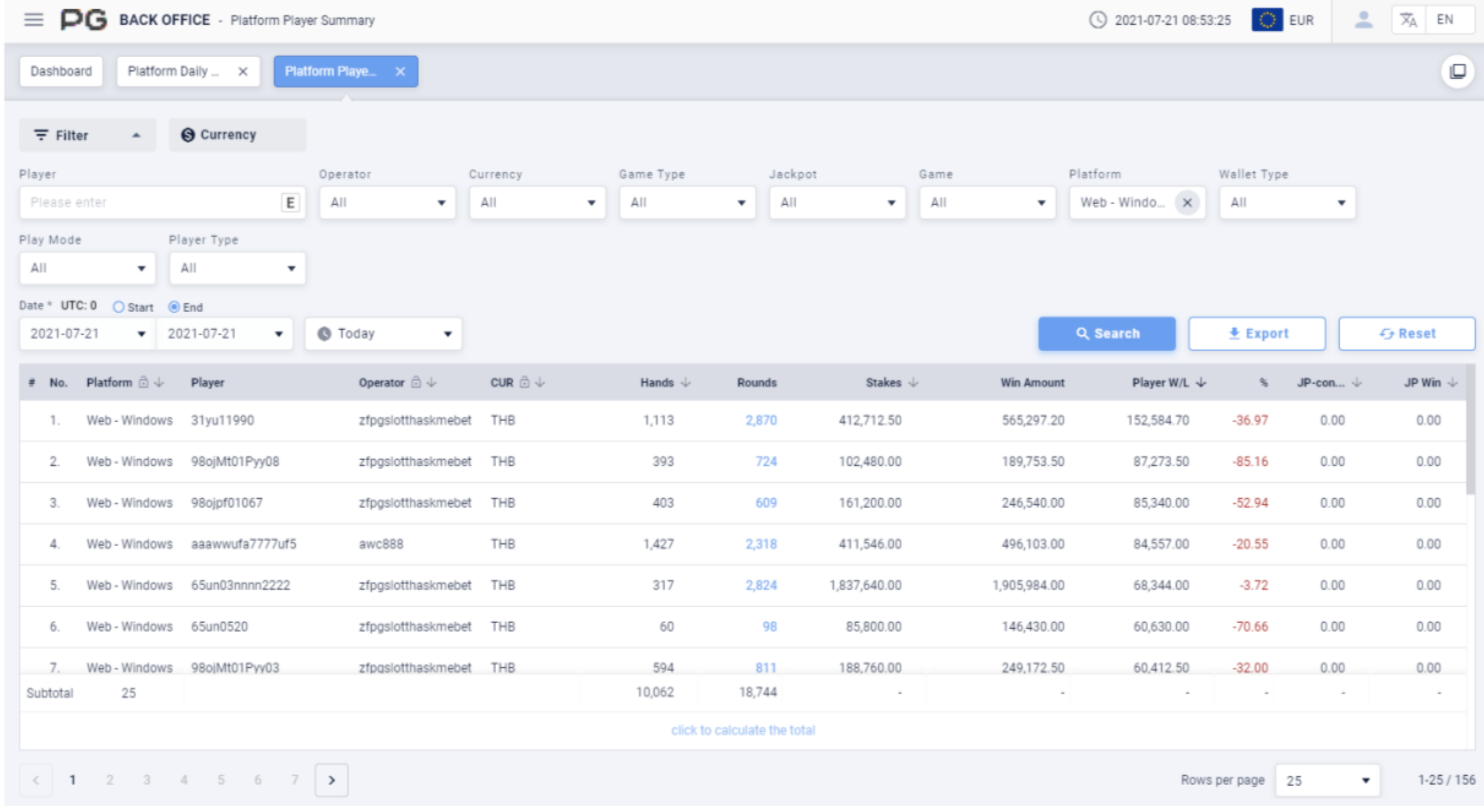
After obtaining the report, click on the Player Count to jump to the Platform Player Summary tab to get the corresponding report result.
Jump to Platform Player Summary page:
2.4.3 Platform Monthly Summary
Users can click on “Platform Monthly Summary” to open the platform monthly
summary page. A new tab will be opened beside the Dashboard tab. Click on the X
symbol to close the tab. Each tab can be closed separately.
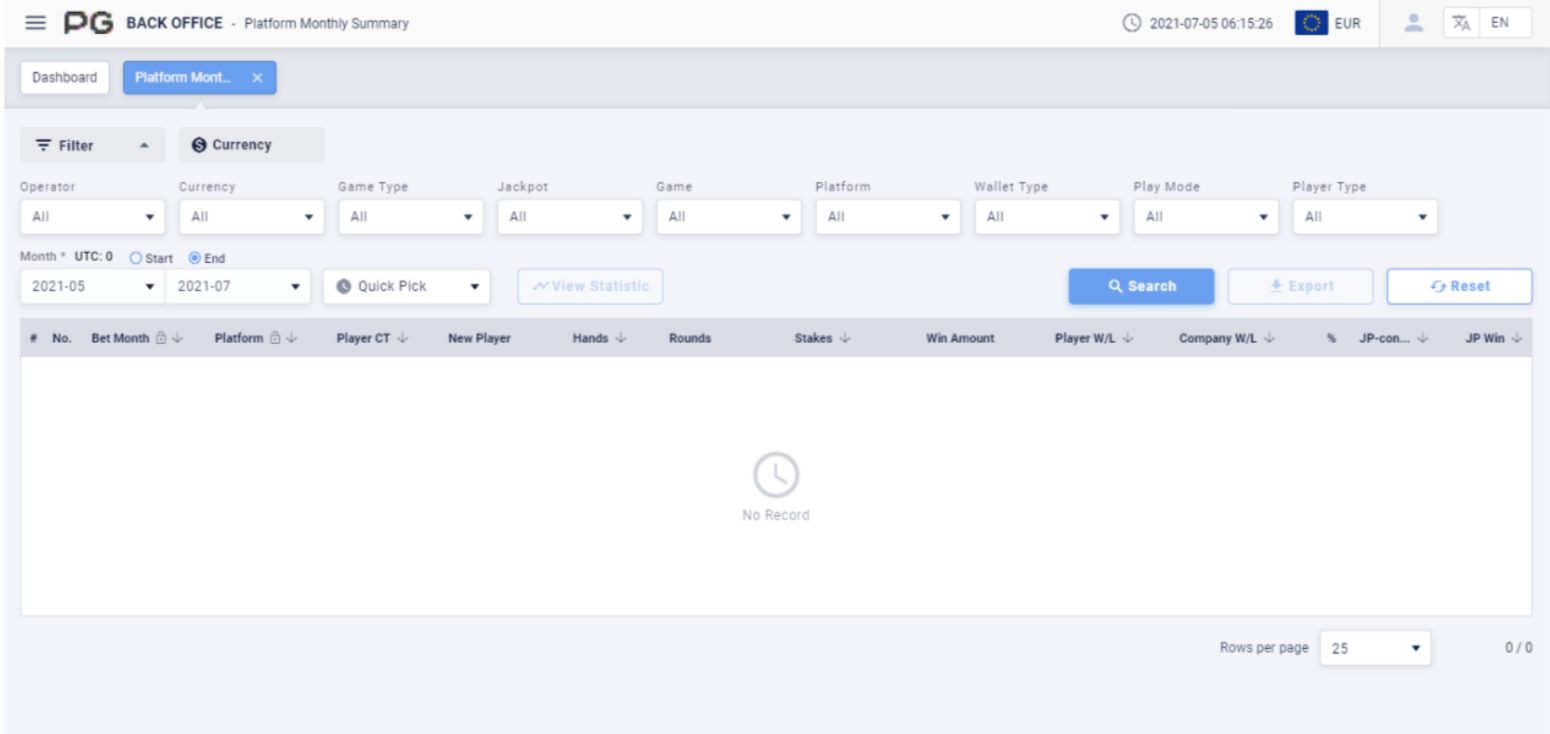
Once the Platform Monthly Summary tab is opened, fill in the following details:
(Customized Settings)
Operator: Fill in the operator and sub-operator’s name.
Currency: Select the currency.
Game Type: Select Slot Game, Card Game or Multiplayer Game.
Jackpot: Select None or Jackpot.
Game: Select a specific game.
Platform: Select Web, Cordova, Native, Electron or other platforms.
Wallet Type: Select Cash, Bonus and Free Game. May select 3 at the same time.
Play Mode: Select Normal or Cash Bonus.
Player Type: Select Live or Test Accounts.
Date/Time: There is no default date for the report. The time period can be
customized. (Select Quick Pick, then This Month or Last Month). Filter the report by
the “Start” or “End” time of the bets.
Once the details above are filled in, click “Search” to generate the final report.
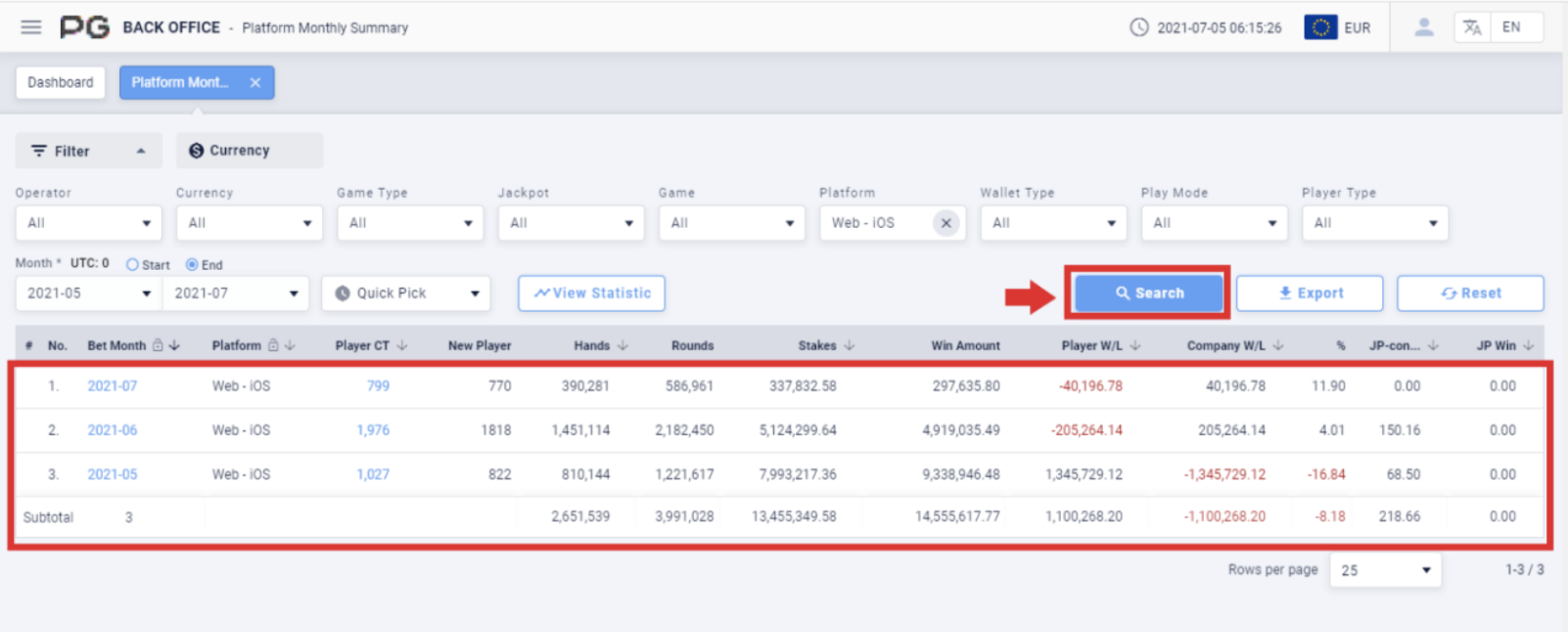
After obtaining the report, click on the Bet Month to jump to the Platform Daily Summary tab; click on the Player Count to jump to the Platform Player Summary
tab to get the corresponding report result.
Jump to Platform Daily Summary page:
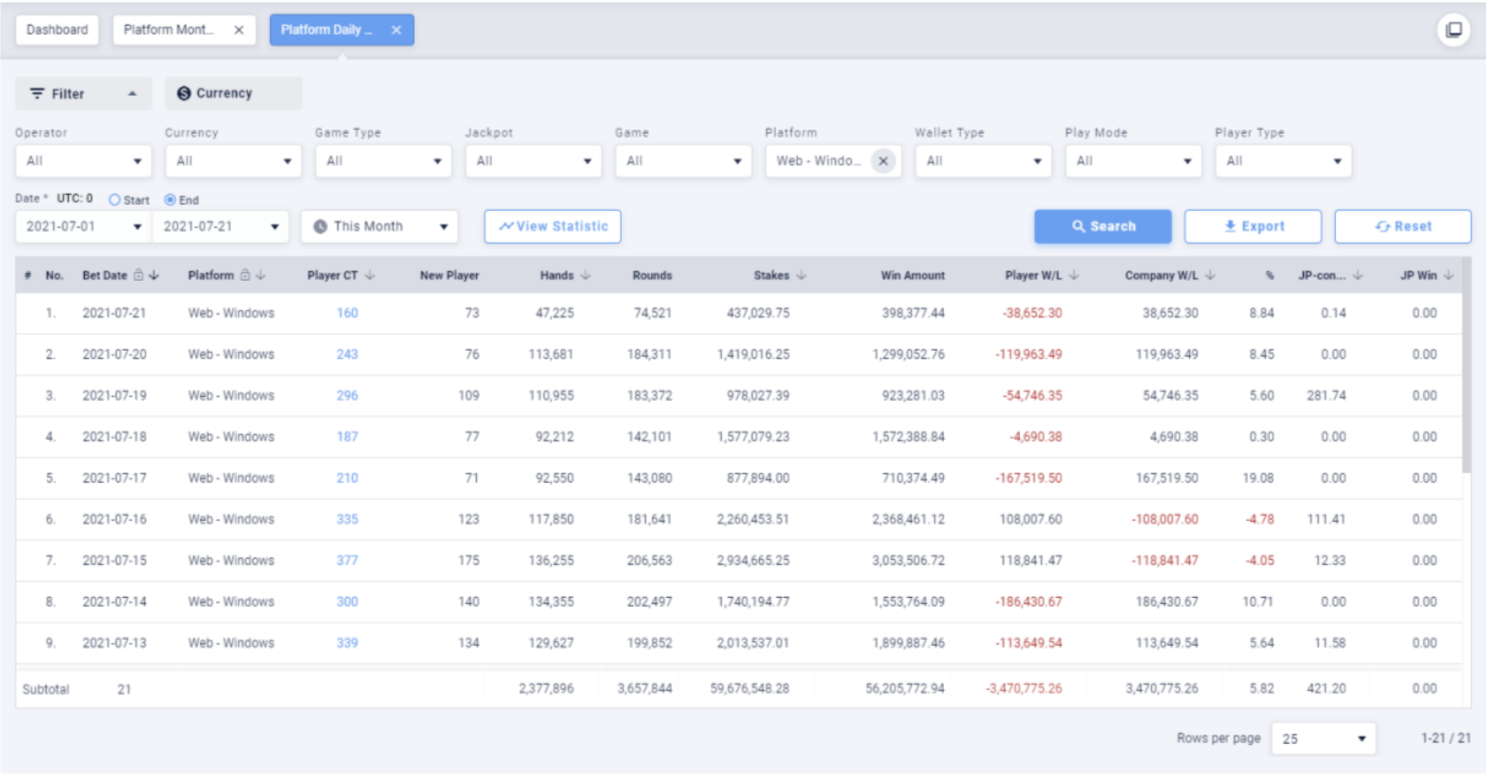
Jump to Platform Player Summary page
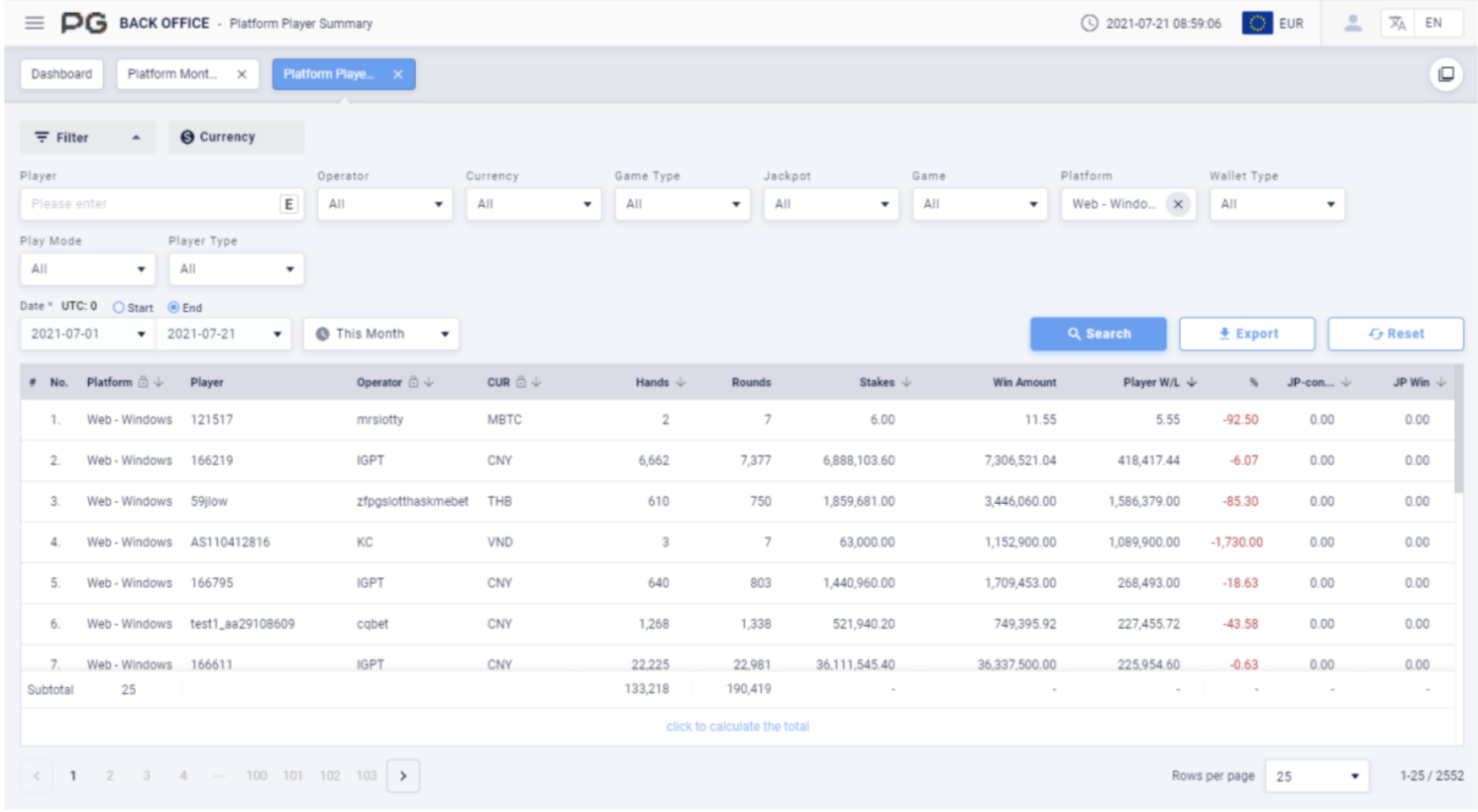
2.4.4 Platform Player Summary
Users can click on “Platform Player Summary” to open the platform player summary
page. A new tab will be opened beside the Dashboard tab. Click on the X symbol to
close the tab. Each tab can be closed separately.
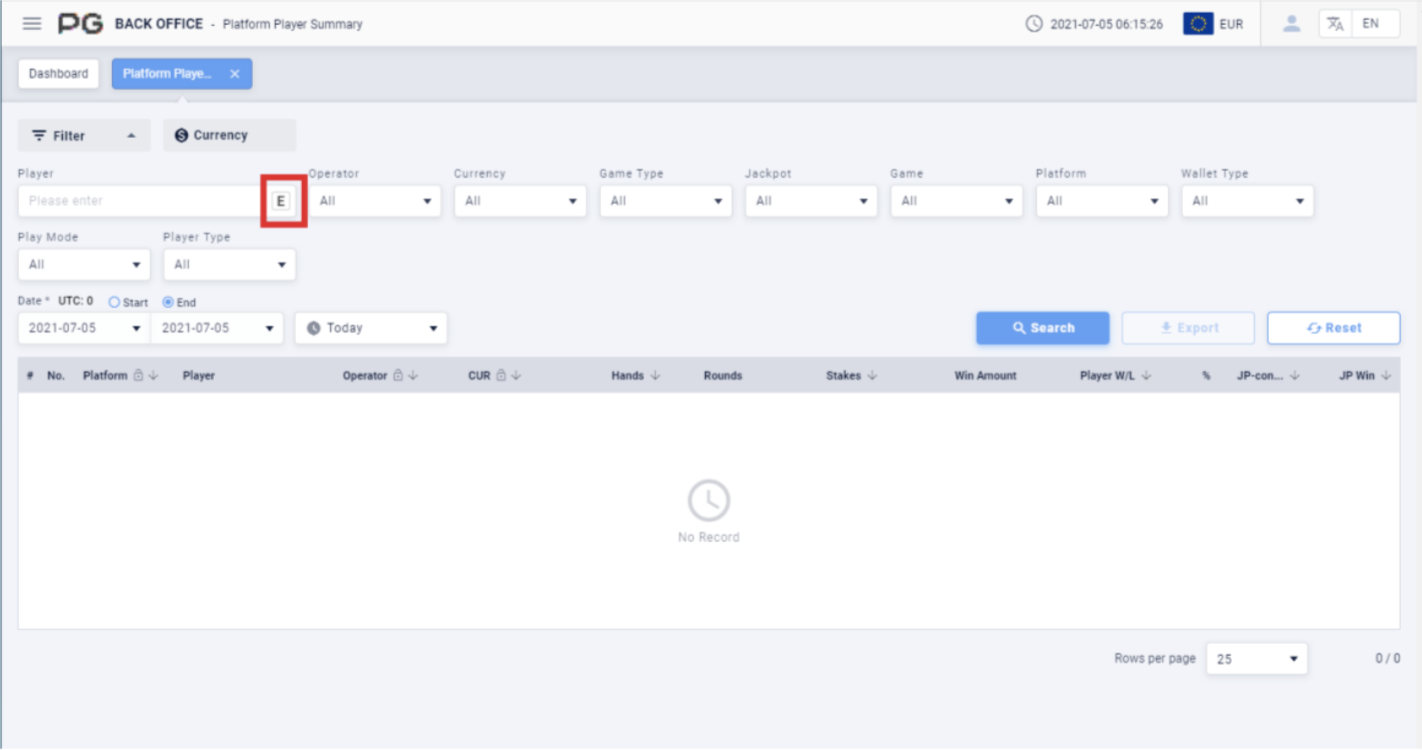
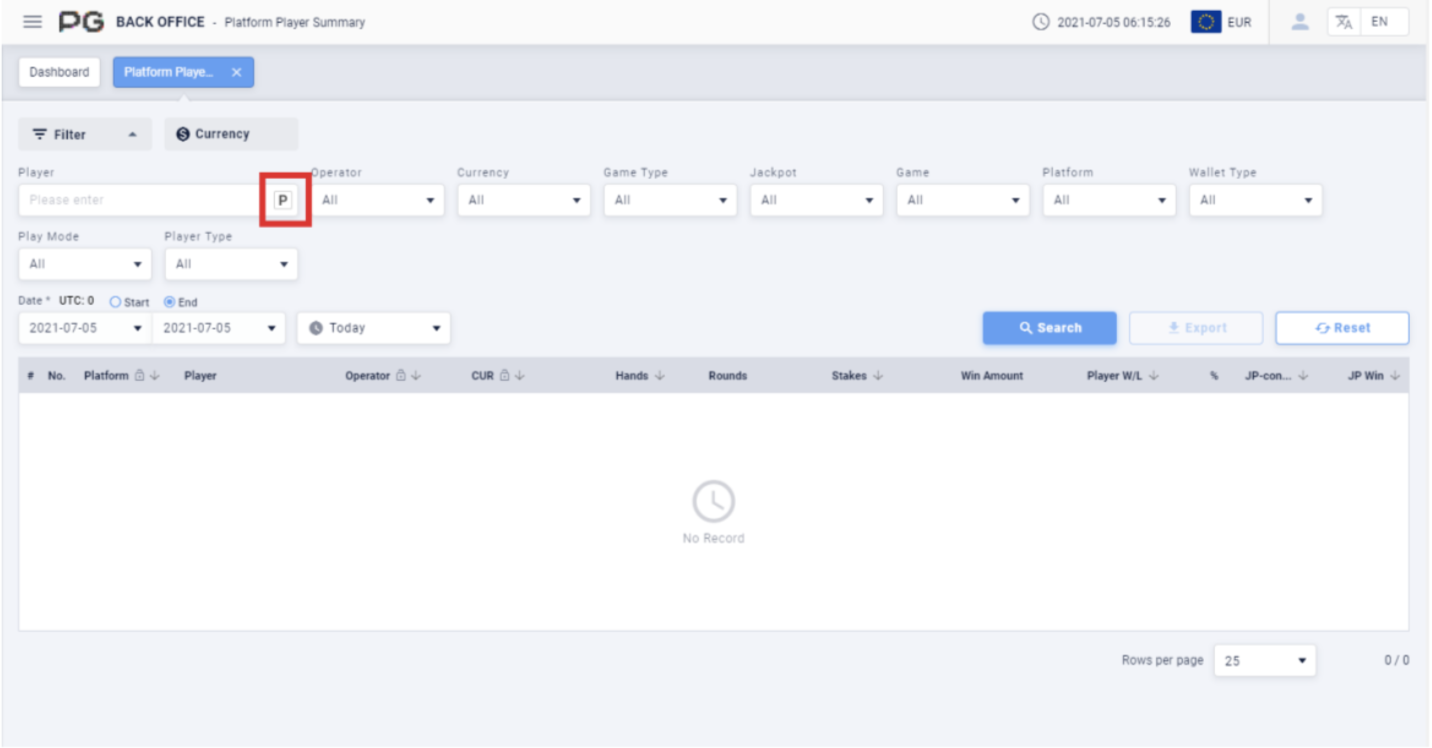
Once the Platform Player Summary tab is opened, fill in the following details:
(Customized Settings)
Player: Fill in the player’s name. E to search the exact match of the player’s name.
(Please refer to Screenshot). P is to search by using match prefix of the player.
(Please refer to Screenshot).
Operator: Fill in the operator and sub-operator’s name.
Currency: Select the currency.
Game Type: Select Slot Game, Card Game or Multiplayer Game.
Jackpot: Select None or Jackpot.
Game: Select a specific game.
Platform: Select Web, Cordova, Native, Electron or other platforms.
Wallet Type: Select Cash, Bonus and Free Game. May select 3 at the same time.
Play Mode: Select Normal or Cash Bonus.
Player Type: Select Live or Test Accounts.
Date/Time: The default date of the report will be Today’s date. The time period can
be customized. (Select Today, Yesterday, Last 7 Days, Last 30 Days or This Month).
Filter the report by the “Start” or “End” time of the bets.
Once the details above are filled in, click “Search” to generate the final report.
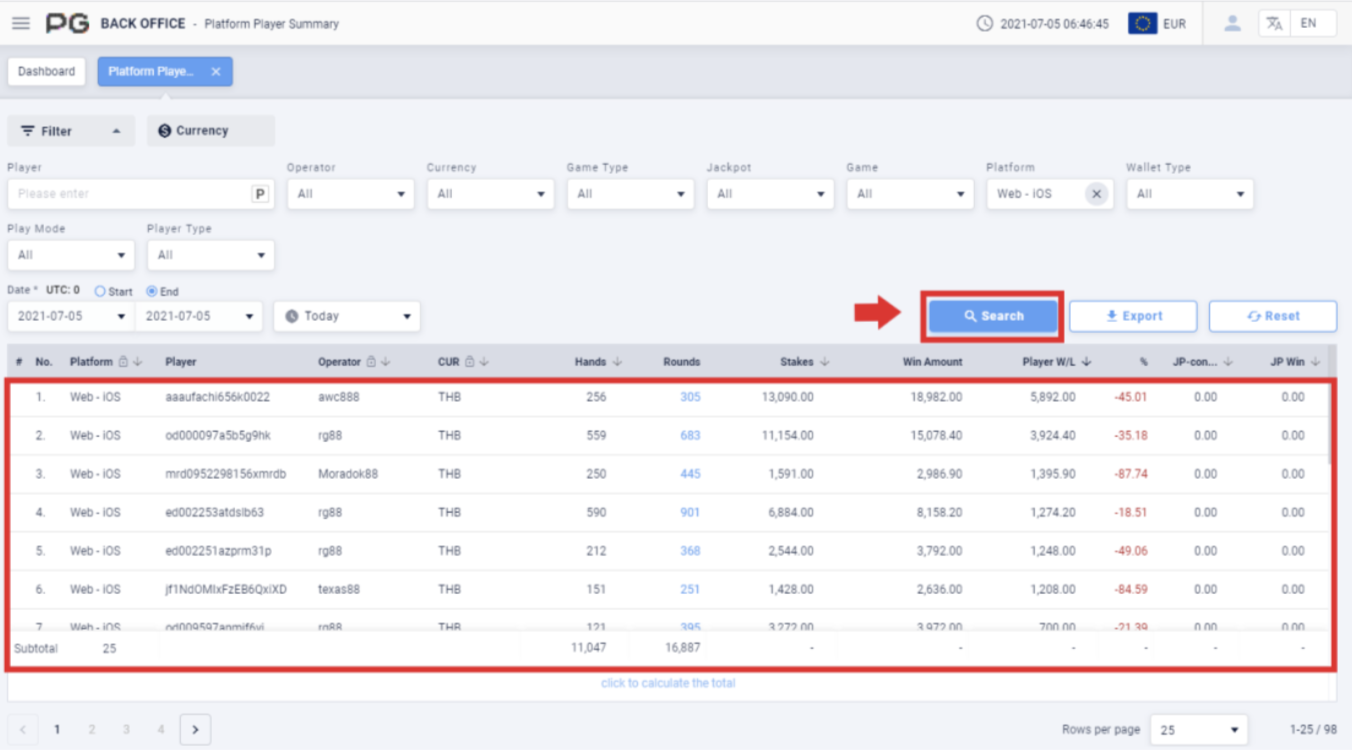
After obtaining the report, click on the Rounds to jump to the Player Bets tab to get
the corresponding report result.
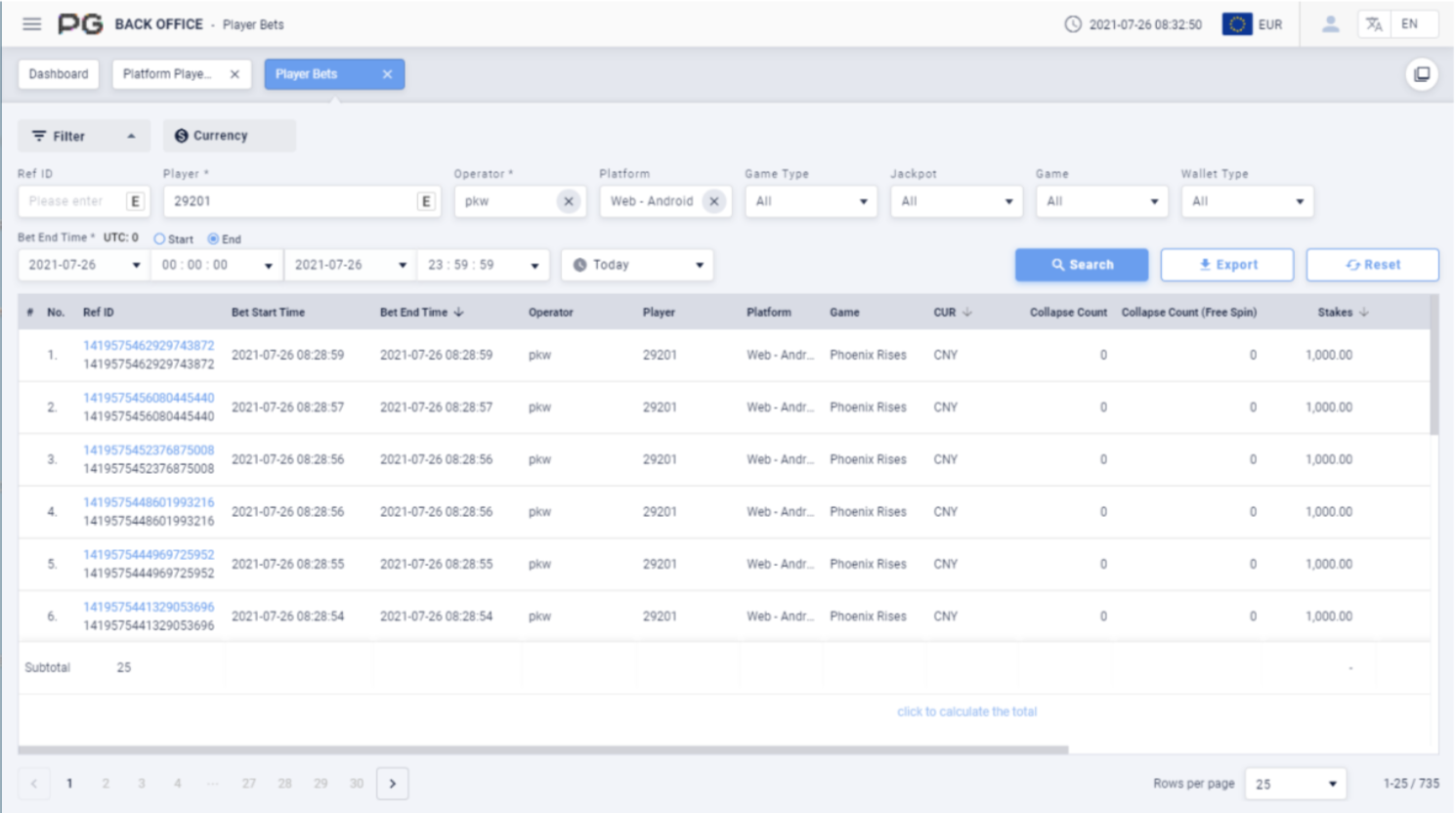
Jump to Player Bets page:
2.5 Player
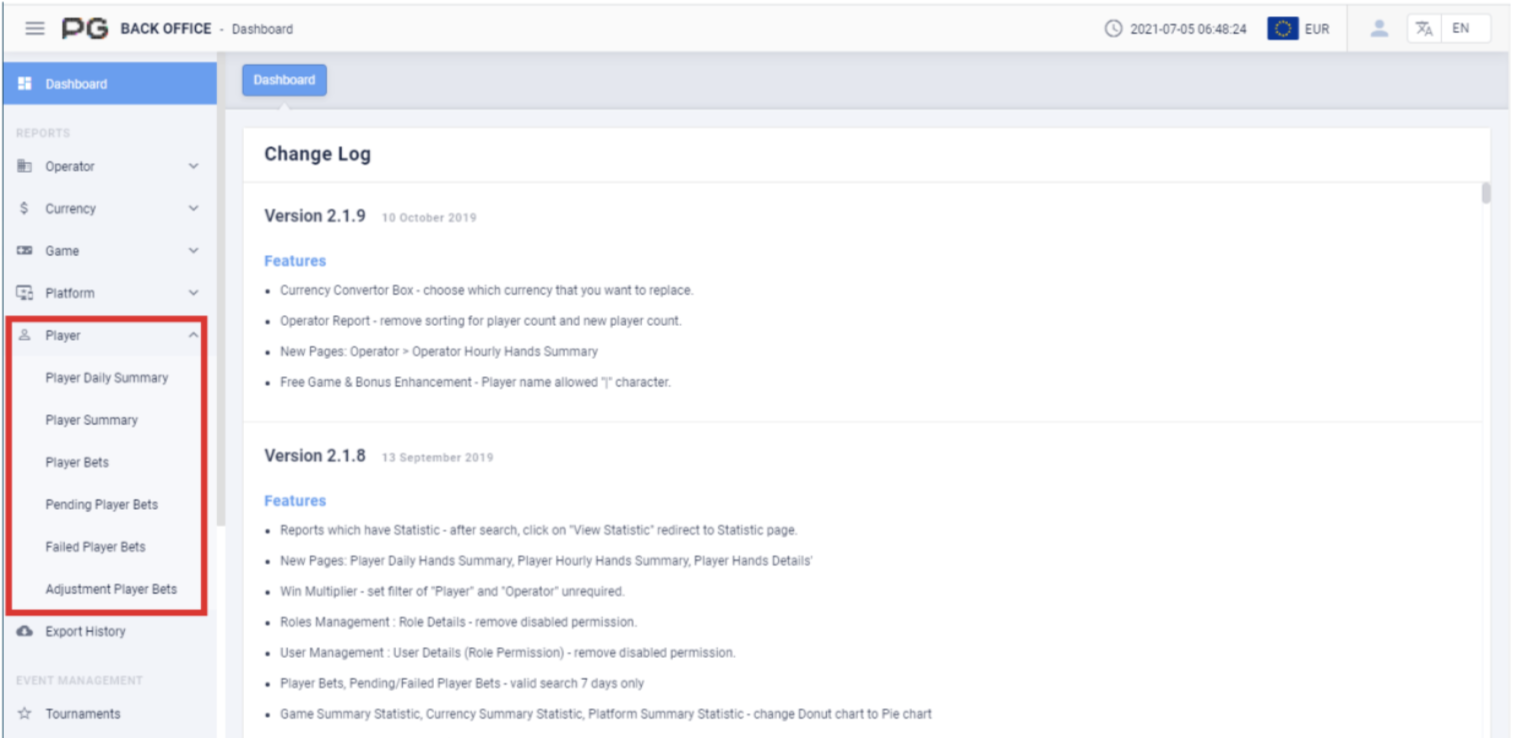
Users can use reports to check the data for a specific time. Click on “Game”, and
select the report category: Player Daily Summary, Player Summary, Player Bets,
Pending Player Bets, Failed Player Bets and Adjustment Player Bets. (Please
refer to the red box in Screenshot).
>
2.5.1 Player Daily Summary
Users can click on “Player Daily Summary” to open the player daily summary page.
A new tab will be opened beside the Dashboard tab. Click on the X symbol to close
the tab. Each tab can be closed separately.
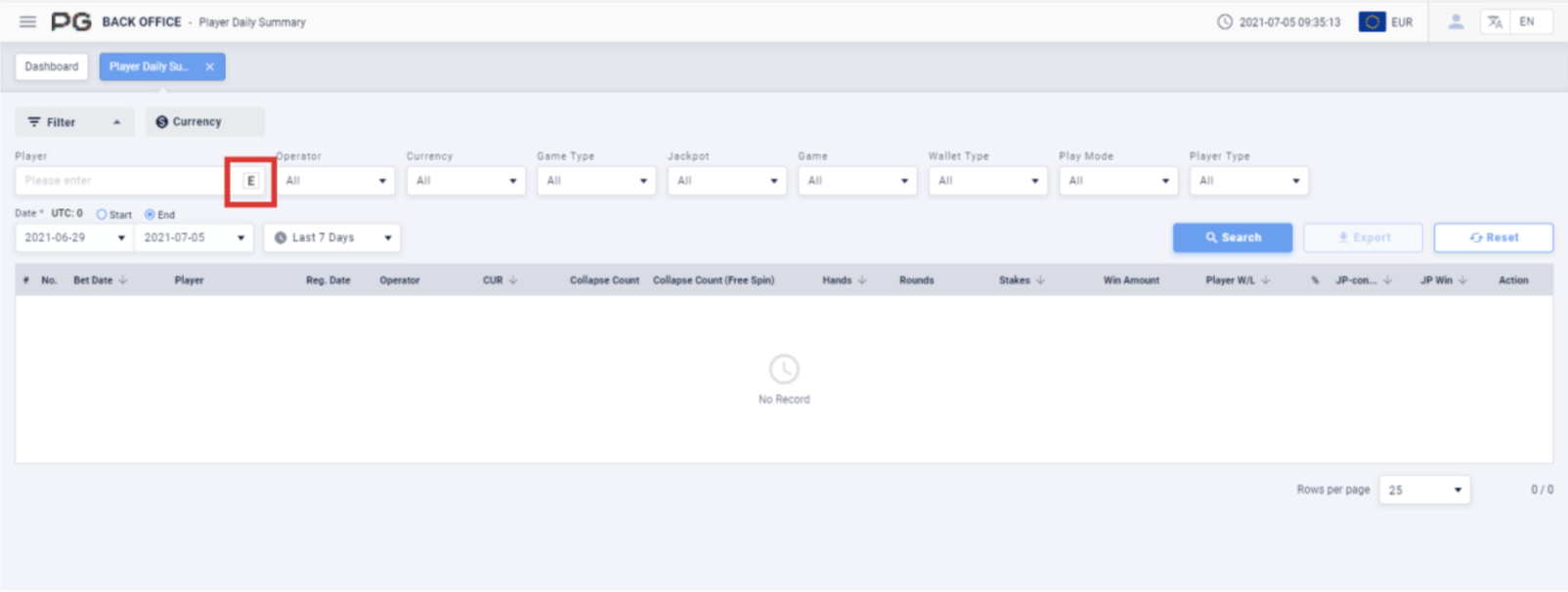
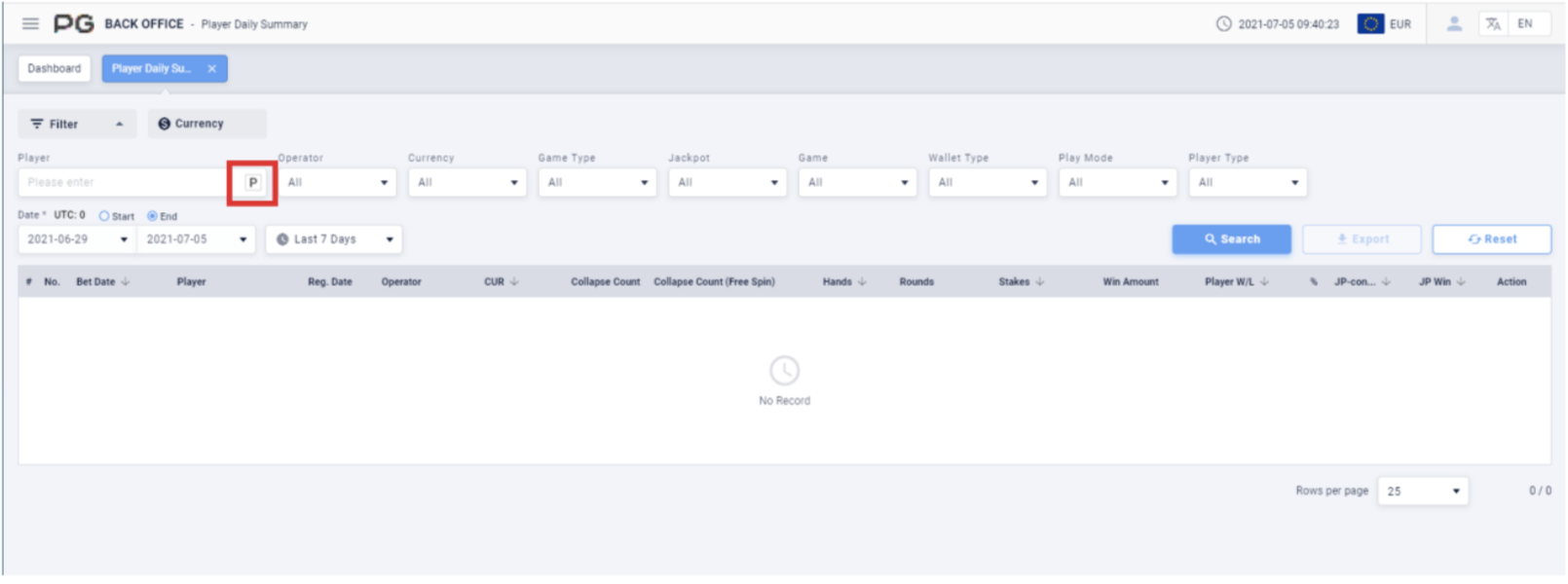
Once the Player Daily Summary tab is opened, fill in the following details:
(Customized Settings)
Player: Fill in the player’s name. E to search the exact match of the player’s name.
(Please refer to Screenshot). P is to search by using match prefix of the player.
(Please refer to Screenshot).
Operator: Fill in the operator and sub-operator’s name.
Currency: Select the currency.
Game Type: Select Slot Game, Card Game or Multiplayer Game.
Jackpot: Select None or Jackpot.
Game: Select a specific game.
Wallet Type: Select Cash, Bonus and Free Game. May select 3 at the same time.
Play Mode: Select Normal or Cash Bonus.
Player Type: Select Live or Test Accounts.
Date/Time: The default date of the report will be Last 7 Days. The time period can
be customized. (Select Today, Yesterday, Last 7 Days, Last 30 Days or This Month).
Filter the report by the “Start” or “End” time of the bets.
Once the details above are filled in, click “Search” to generate the final report.
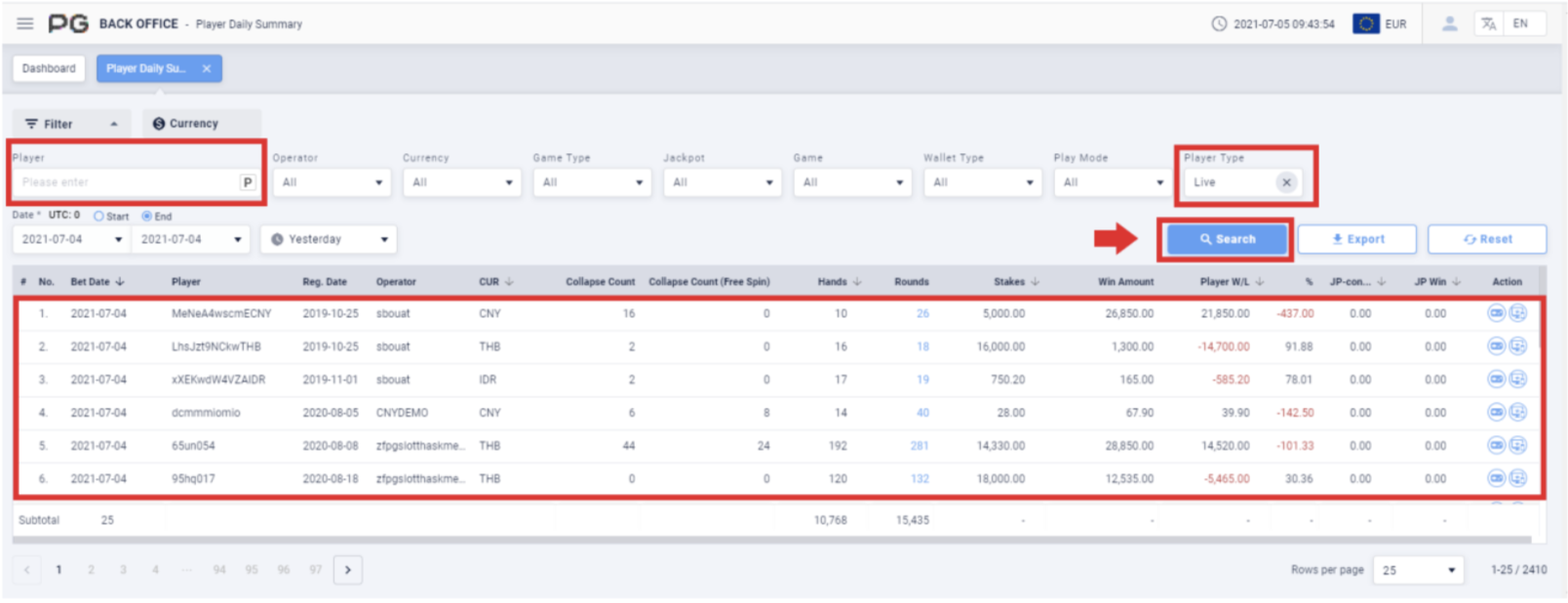
After obtaining the report, click on the Rounds to jump to the Player Bets tab to get
the corresponding report result. (Please refer to Platform Player Summary
Screenshot 59 and Screenshot 60 for more information).
After obtaining the report, click on the icons under “Action” to jump to the
corresponding report page.
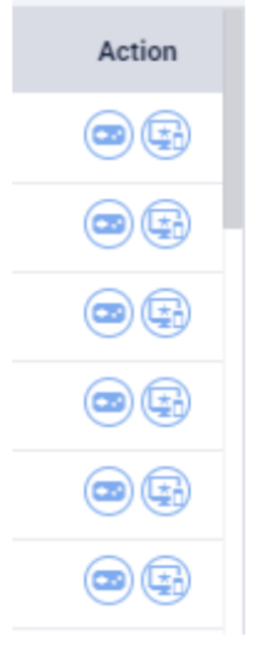
- View Game Player Summary
- View Platform Player Summary
2.5.2 Player Summary
Users can click on “Player Summary” to open the player summary page. A new tab
will be opened beside the Dashboard tab. Click on the X symbol to close the tab.
Each tab can be closed separately.
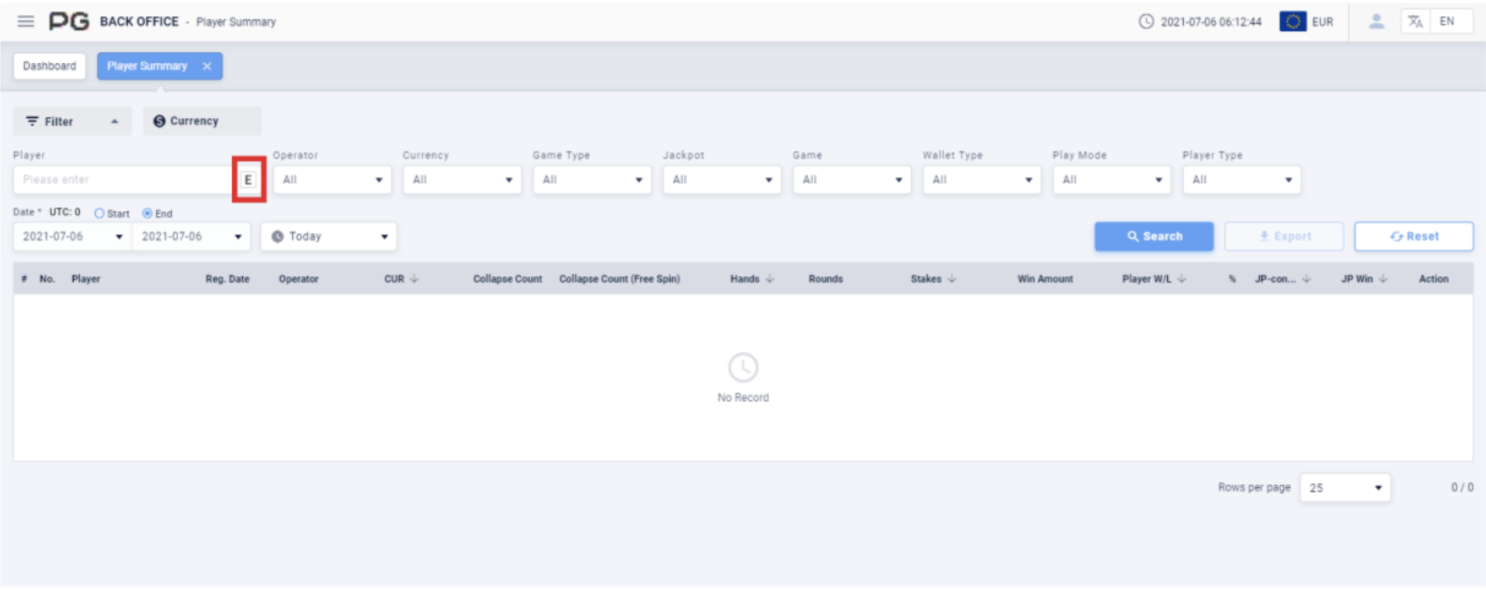
Once the Player Summary tab is opened, fill in the following details:
(Customized Settings)
Player: Select “E” (Screenshot 66 Red Box) to search the exact match of the
player’s name. “P” is to search by using match prefix of the player.
Operator: Fill in the operator and sub-operator’s name.
Currency: Select the currency.
Game Type: Select Slot Game, Card Game or Multiplayer Game.
Jackpot: Select None or Jackpot.
Game: Select a specific game.
Wallet Type: Select Cash, Bonus and Free Game. May select 3 at the same time.
Play Mode: Select Normal or Cash Bonus.
Player Type: Select Live or Test Accounts.
Date/Time: The default date of the report will be Today’s date. The time period can
be customized. (Select Today, Yesterday, Last 7 Days, Last 30 Days or This Month).
Filter the report by the “Start” or “End” time of the bets.
Once the details above are filled in, click “Search” to generate the final report.
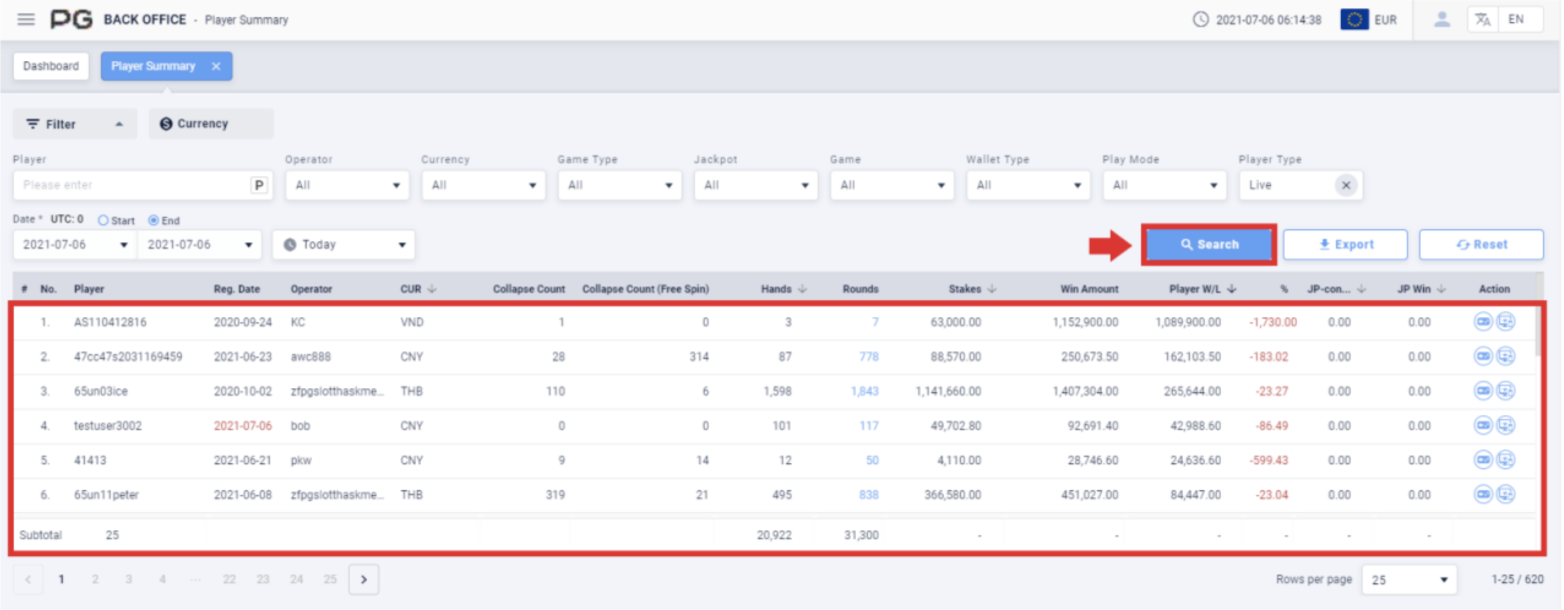
After obtaining the report, click on the Rounds to jump to the Player Bets tab to get
the corresponding report result. (Please refer to Platform Player Summary
Screenshot 59 and Screenshot 60 for more information); click on the icons under
“Action” to jump to the corresponding report page. (Please refer to Screenshot 65 in
Player Daily Summary).
2.5.3 Player Bets
Users can click on “Player Bets” to open the player bets page. A new tab will be
opened beside the Dashboard tab. Click on the X symbol to close the tab. Each tab
can be closed separately.
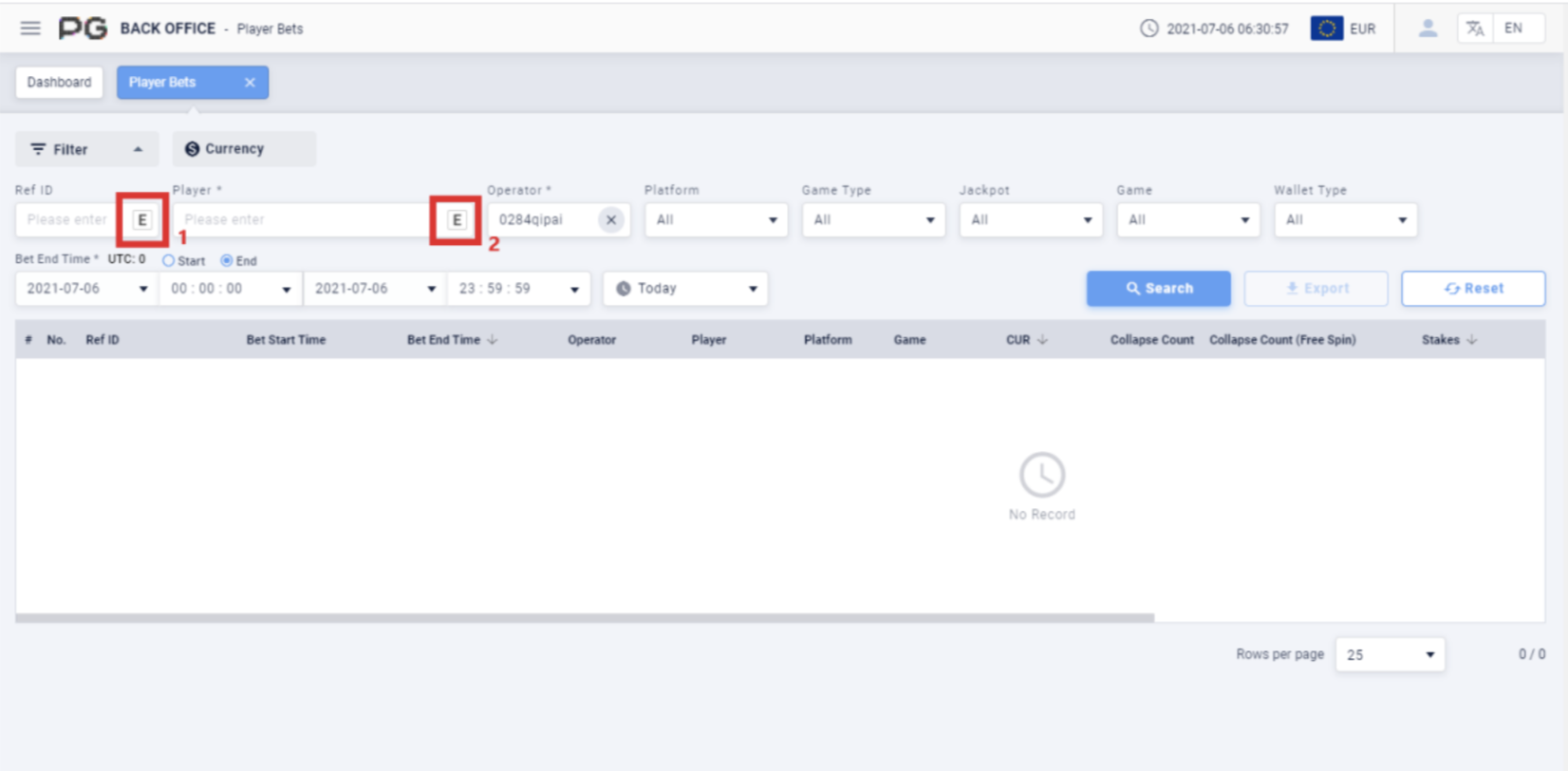
Once the Player Bets tab is opened, fill in the following details:
(Customized Settings)
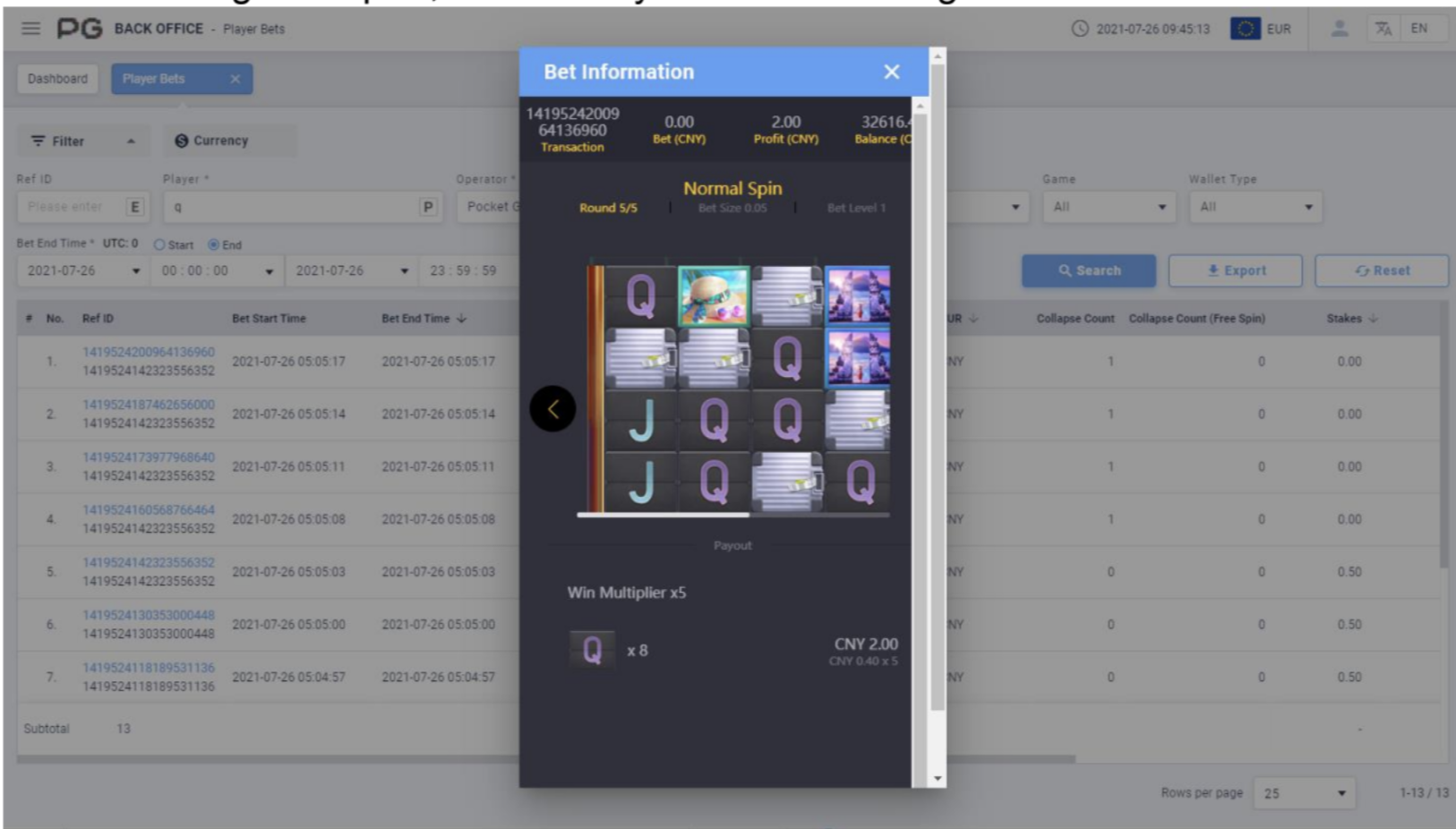
Ref ID: Select “E” (Screenshot 68 Box 1) to exclude feature spins. “I” is to Include
feature spins. Once the ID has been filled in, other boxes can no longer be edited.
Player: Select “E” (Screenshot 68 Box 2) to search the exact match of the player’s
name. “P” is to search by using match prefix of the player.
Operator: The default operator will be one of your own operators. Fill in the operator
or sub-operator’s name of your choice to search.
Platform: Select Web, Cordova, Native, Electron or other platforms.
Game Type: Select Slot Game, Card Game or Multiplayer Game.
Jackpot: Select None or Jackpot.
Game: Select a specific game.
Wallet Type: Select Cash, Bonus and Free Game. May select 3 at the same time.
Bet End Time: The default date of the report will be Today’s date. The time period
can be customized. (Select Today, Yesterday or Last 7 Days). Filter the report by the
“Start” or “End” time of the bets.
Once the details above are filled in, click “Search” to generate the final report.
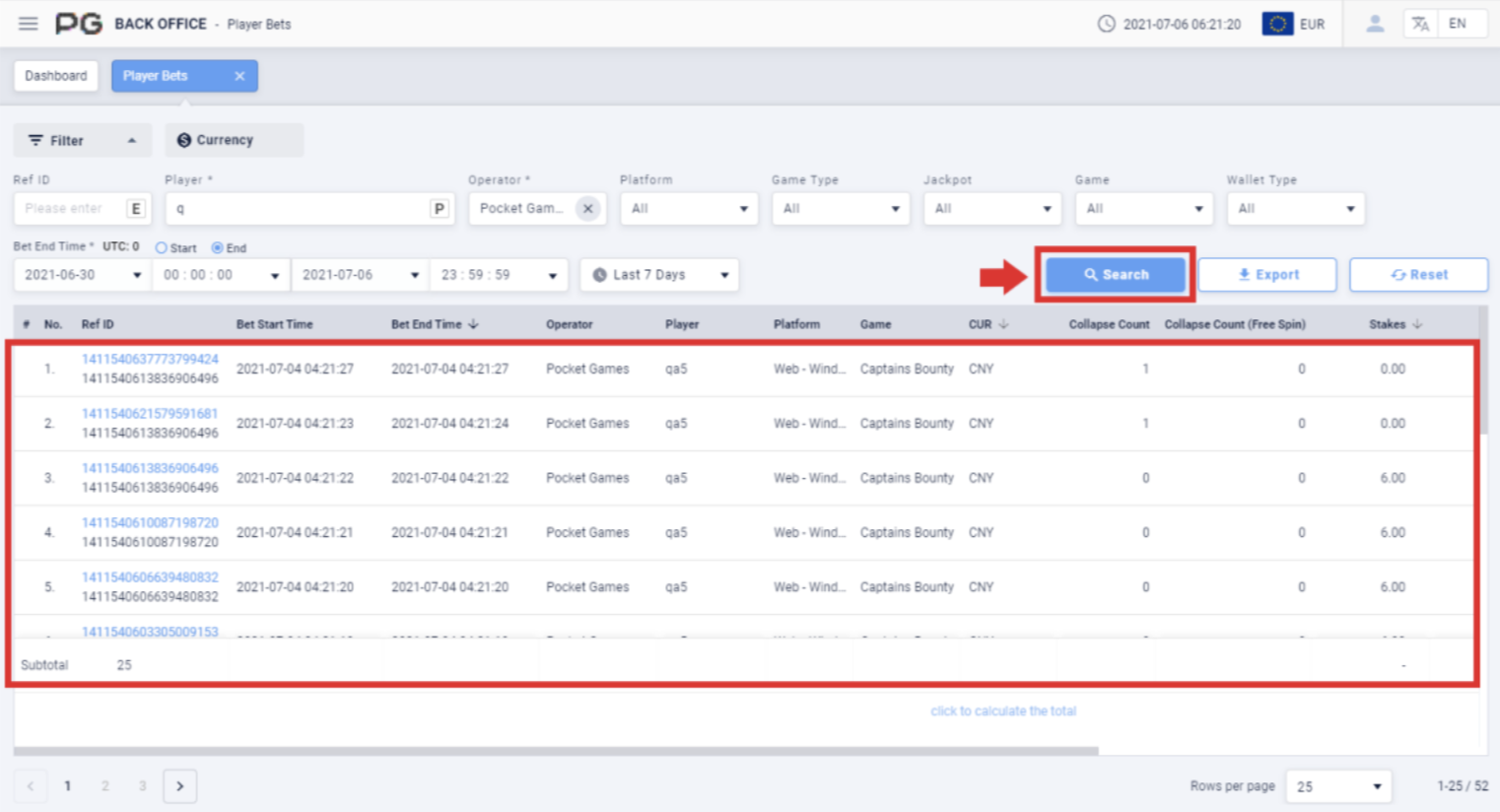
After obtaining the report, click on any of the** Ref ID** to get that ID’s Bet Information.
2.5.4 Pending Player Bets
Users can click on “Pending Player Bets” to open the pending player bets page. A
new tab will be opened beside the Dashboard tab. Click on the X symbol to close the
tab. Each tab can be closed separately.
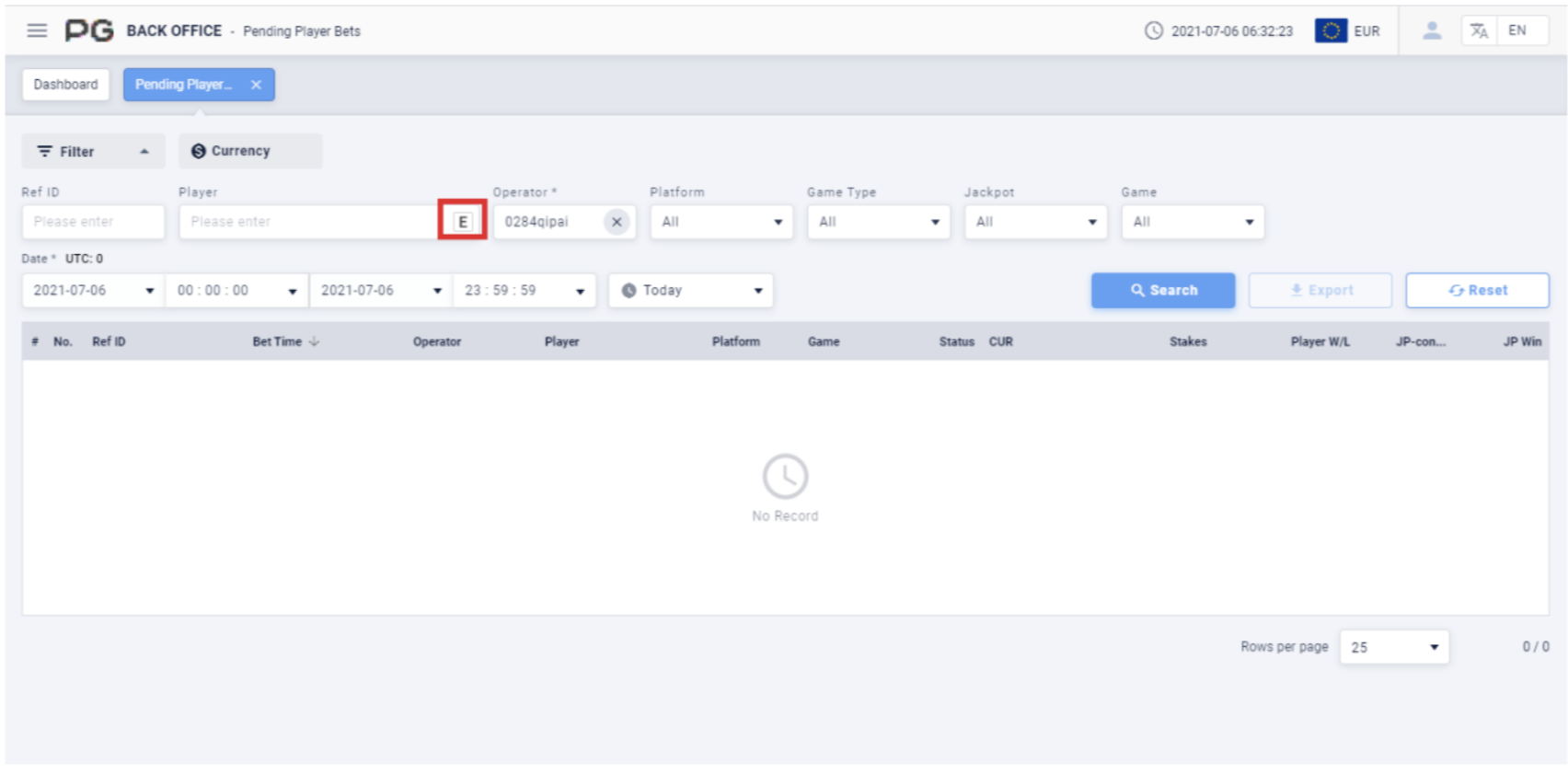
Once the Pending Player Bets tab is opened, fill in the following details:
(Customized Settings)
Ref ID: Fill in the ID of your choice. Once the ID has been filled in, other boxes can
no longer be edited.
Player: Select “E” (Screenshot 71 Red Box) to search the exact match of the
player’s name. “P” is to search by using match prefix of the player.
Operator: The default operator will be one of your own operators. Fill in the operator
or sub-operator’s name of your choice to search.
Platform: Select Web, Cordova, Native, Electron or other platforms.
Game Type: Select Slot Game, Card Game or Multiplayer Game.
Jackpot: Select None or Jackpot.
Game: Select a specific game.
Date/Time: The default date of the report will be Today’s date. The time period can
be customized. (Select Today, Yesterday or Last 7 Days).
Once the details above are filled in, click “Search” to generate the final report.
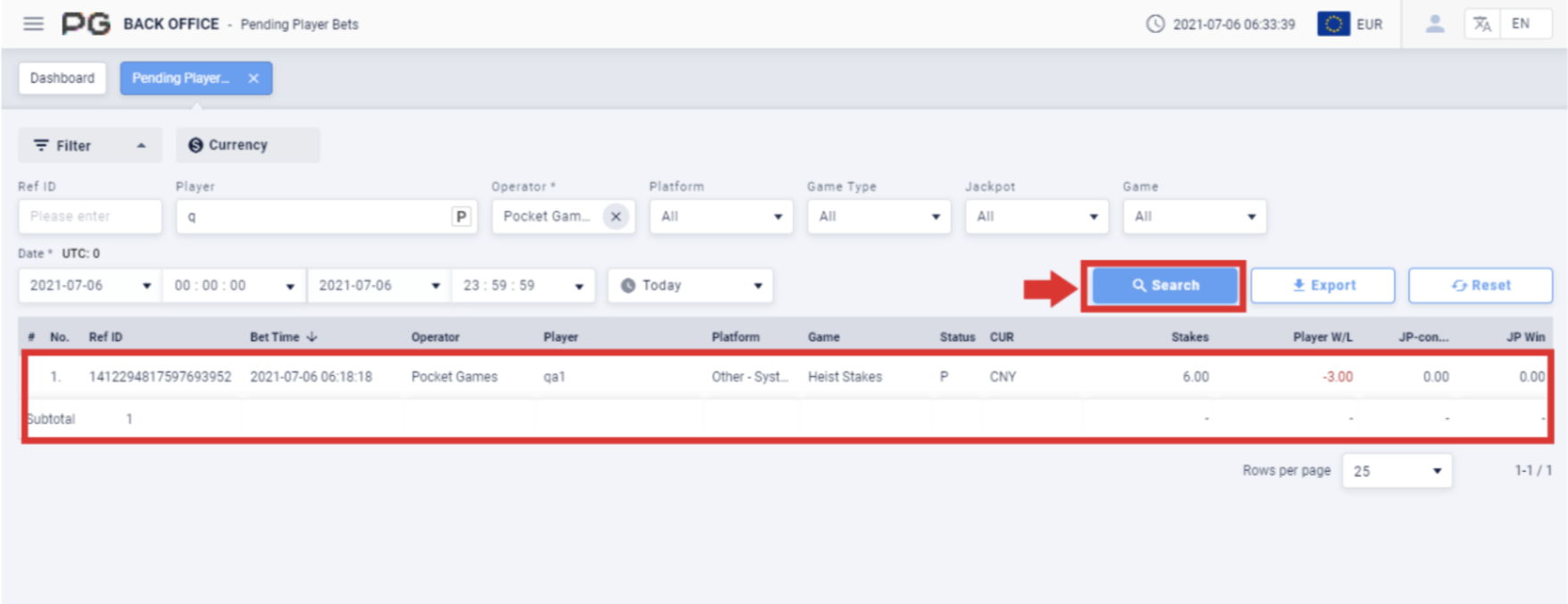
2.5.5 Failed Player Bets
Users can click on “Failed Player Bets” to open the failed player bets page. A new
tab will be opened beside the Dashboard tab. Click on the X symbol to close the tab.
Each tab can be closed separately.
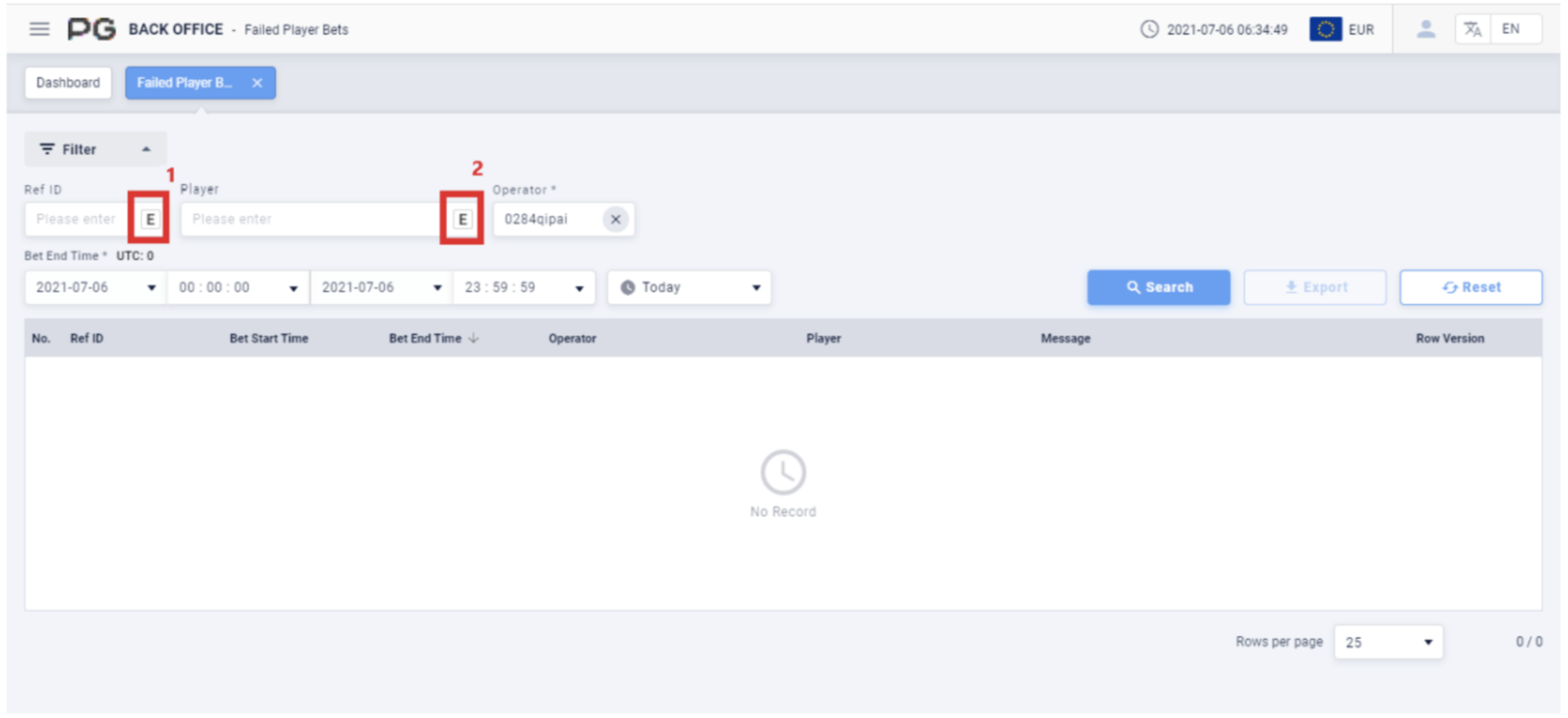
Once the Failed Player Bets tab is opened, fill in the following details:
(Customized Settings)
Ref ID: Select “E” (Screenshot 73 Box 1) to exclude feature spins. “I” is to Include
feature spins. Once the ID has been filled in, other boxes can no longer be edited.
Player: Select “E” (Screenshot 73 Box 2) to search the exact match of the player’s
name. “P” is to search by using match prefix of the player.
Operator: The default operator will be one of your own operators. Fill in the operator
or sub-operator’s name of your choice to search.
Bet End Time: The default date of the report will be Today’s date. The time period
can be customized. (Select Today, Yesterday or Last 7 Days).
Once the details above are filled in, click “Search” to generate the final report.
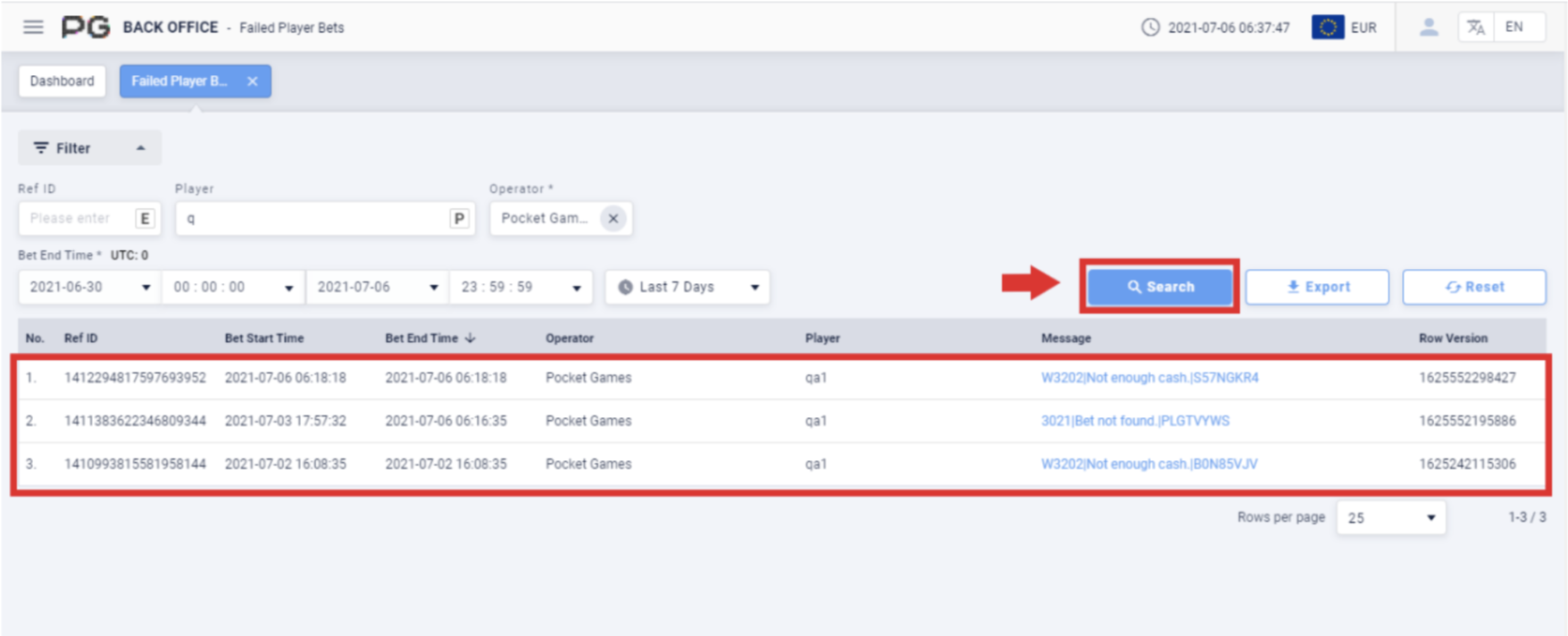
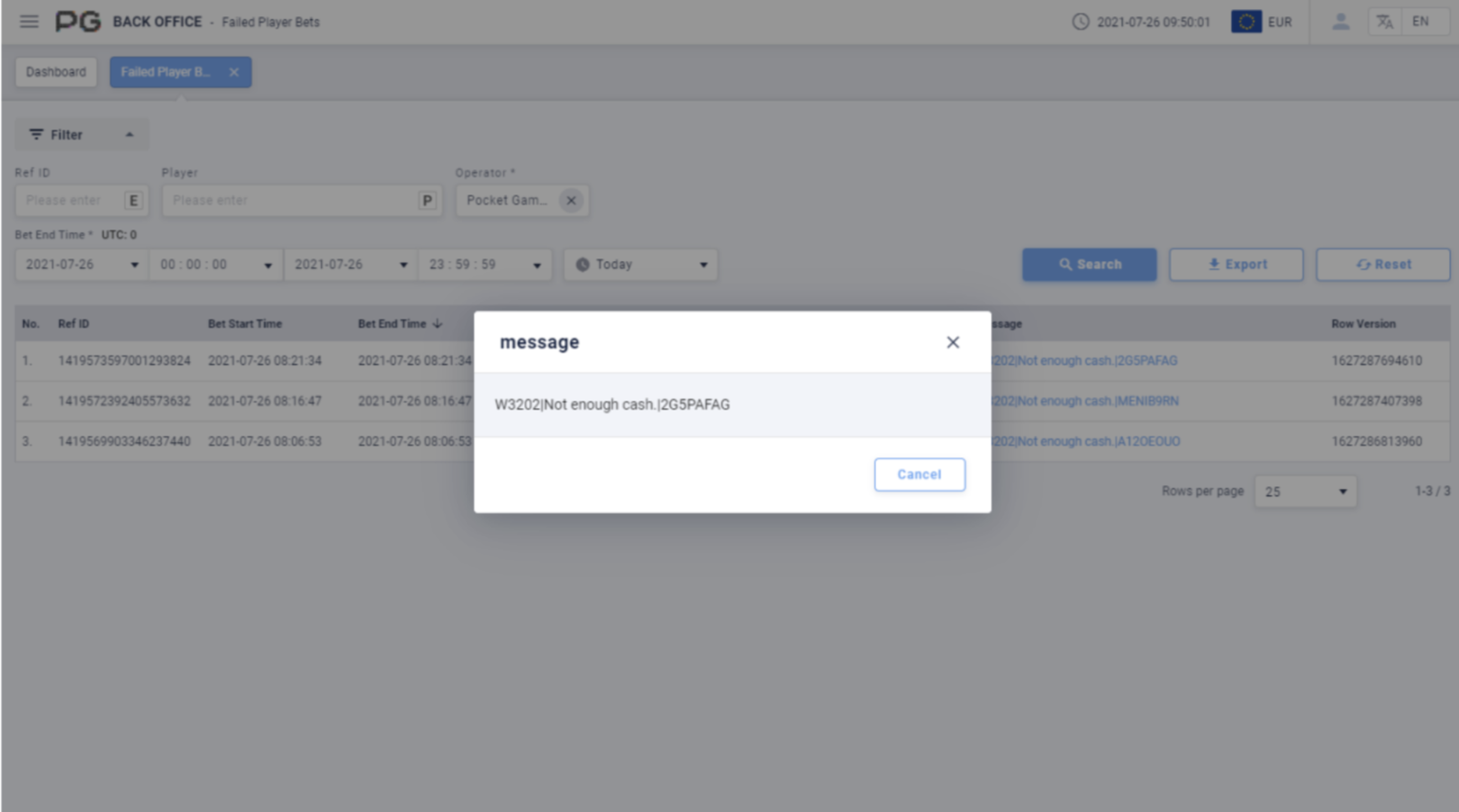
After obtaining the report, click on any of the Message to read the full message.
2.5.6 Adjustment Player Bets
Users can click on “Adjustment Player Bets” to open the adjustment player bets
page. A new tab will be opened beside the Dashboard tab. Click on the X symbol to
close the tab. Each tab can be closed separately.
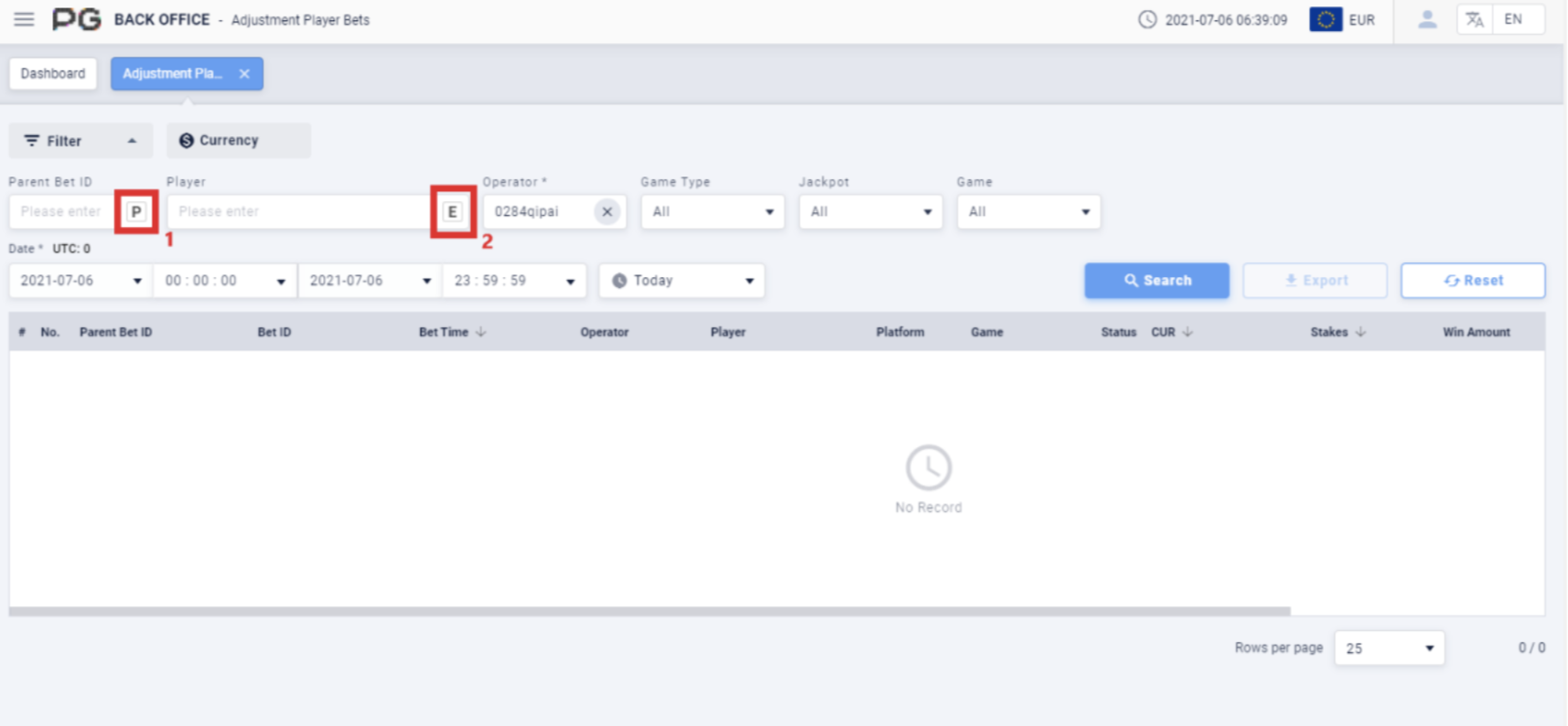
Once the Adjustment Player Bets tab is opened, fill in the following details:
(Customized Settings)
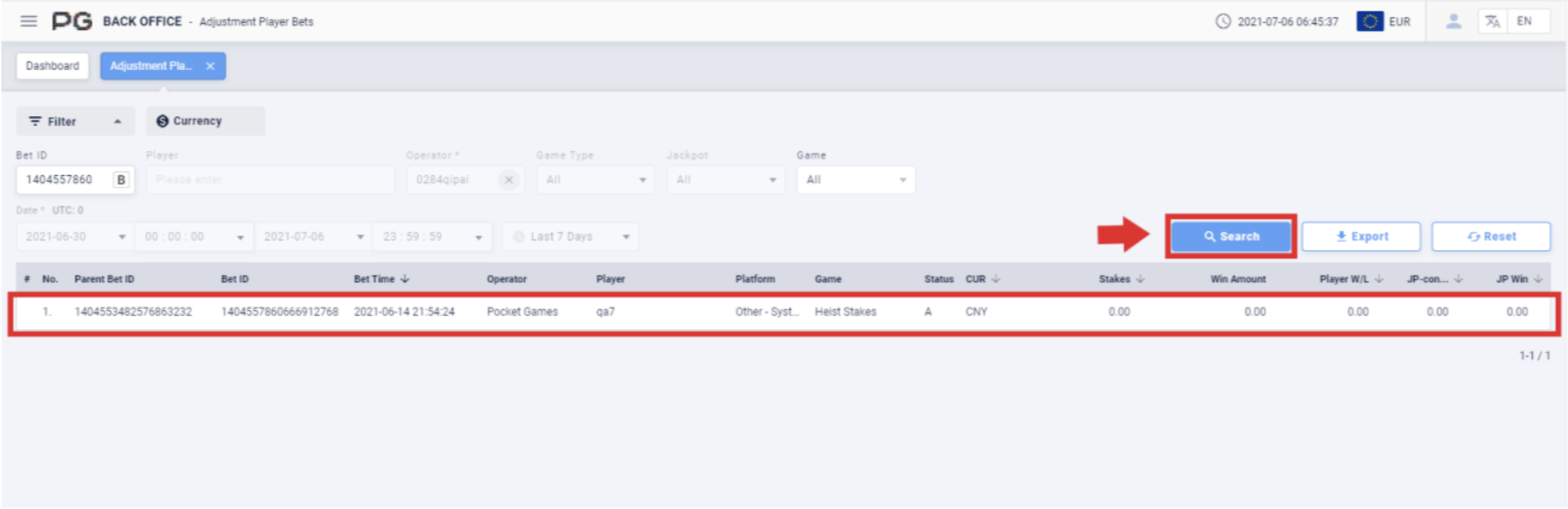
Parent Bet ID: Select “P” (Screenshot 76 Box 1) to show Parent Bet ID. “B” is show
Bet ID. Once the ID has been filled in, other boxes can no longer be edited.
Player: Select “E” (Screenshot 76 Box 2) to search the exact match of the player’s
name. “P” is to search by using match prefix of the player.
Operator: The default operator will be one of your own operators. Fill in the operator
or sub-operator’s name of your choice to search.
Game Type: Select Slot Game, Card Game or Multiplayer Game.
Jackpot: Select None or Jackpot.
Game: Select a specific game.
Date/Time: The default date of the report will be Today’s date. The time period can
be customized. (Select Today, Yesterday or Last 7 Days).
Once the details above are filled in, click “Search” to generate the final report.
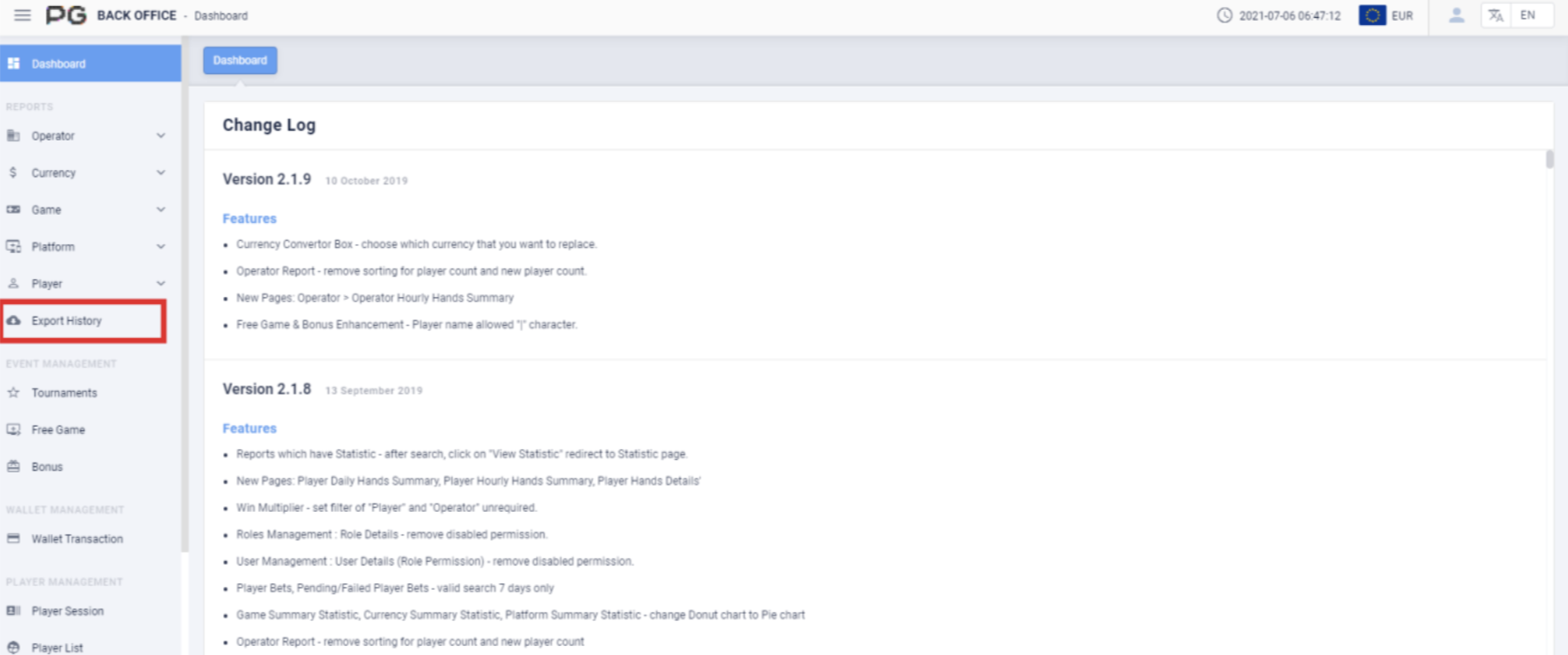
2.6 Export History
Users can use reports to check the data for a specific time. Click on “Export History”
to export a report of a specific category (Please refer to the red box in Screenshot).
Users may go to Export History to check on their report’s download status and
download a physical copy of the report.
Once the Export History tab is opened, fill in the following details:
(Customized Settings)
Status: Select the report status of your choice. (Select Pending, Failed, Completed,
Processing, No Record, Invalid Request or Expired).
Date/Time: The default date of the report will be the Last 7 Days. The time period
can be customized. (Select Today, Yesterday, Last 7 Days, Last 30 Days or This
Month).
Once the details above are filled in, click “Search” to generate the final report.
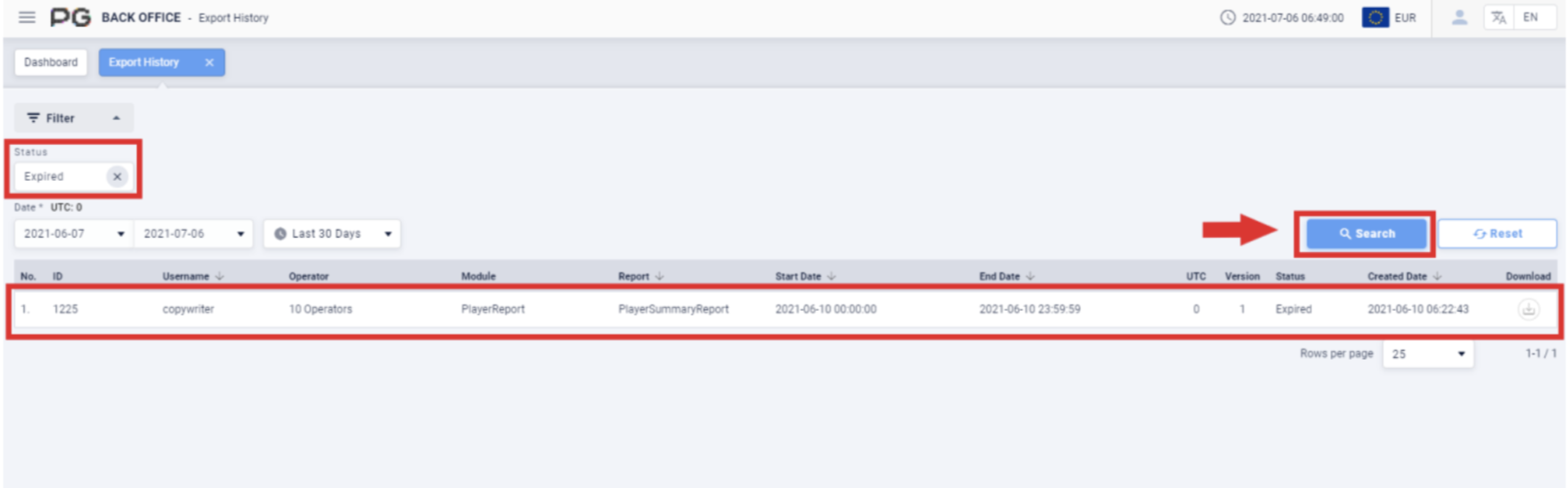
After obtaining the report, click on the icon under the “Download” column to save the report as a compressed file.