4. Wallet Management
4.1 Wallet Transaction
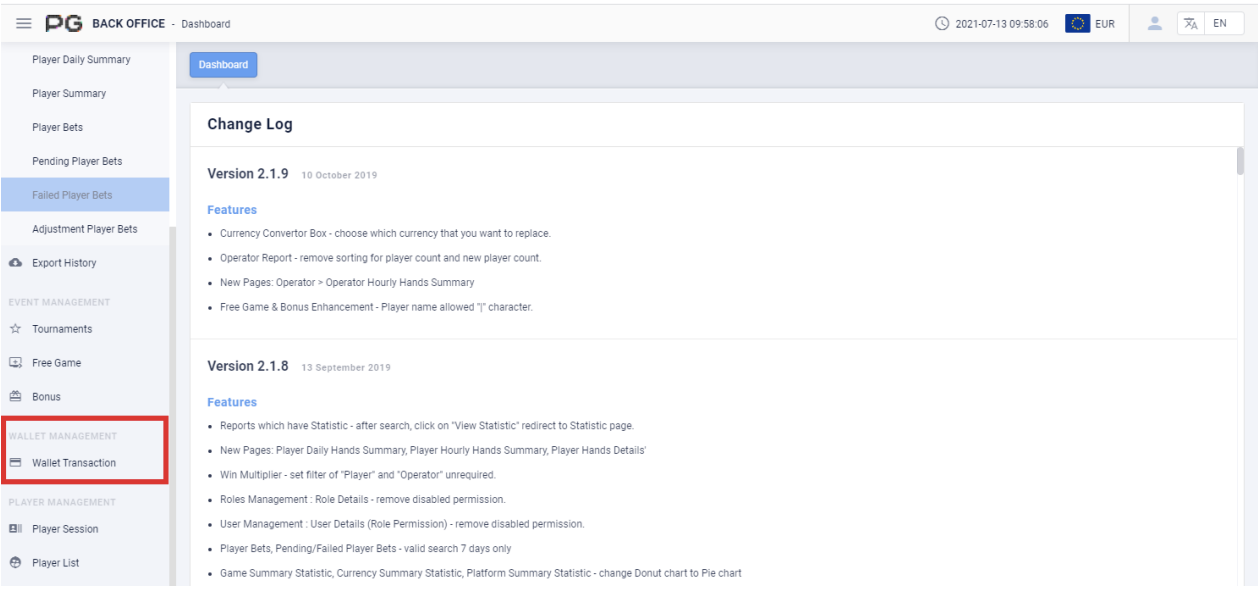
Users can use Wallet Management to check the data of Wallet Transaction reports. Click on “Wallet Transaction” to open the wallet transaction page. A new tab will be opened beside the Dashboard tab. Click on the X symbol to close the tab.Each tab can be closed separately.
Please note that the reports are for Transfer Wallet only.
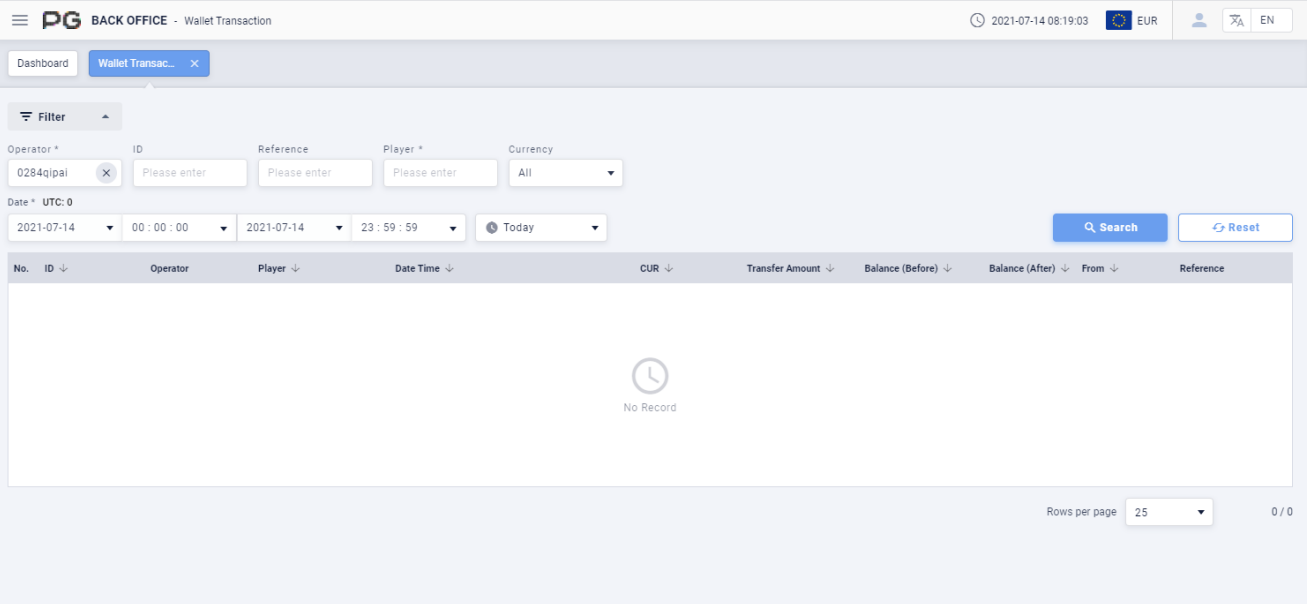
Once the Wallet Transaction tab is opened, fill in the following details:
(Customized Settings)
Operator: The default operator will be one of your own operators. Fill in the operator or sub-operator’s name of your choice to search.
ID: Fill in the Transaction ID. Once the Transaction ID has been filled in, other boxes can no longer be edited. (Not a required field).
Reference: Fill in the Reference. Once the Reference has been filled in, other boxes can no longer be edited. (Not a required field).
Player: Fill in the player’s name. This is a required field.
Currency: Select the currency to be shown in the report.
Date/Time: The default date of the report will be Today’s date. The time period can be customized. (Select Today, Yesterday, Last 7 Days).
Once the details above are filled in, click “Search” to generate the final report.
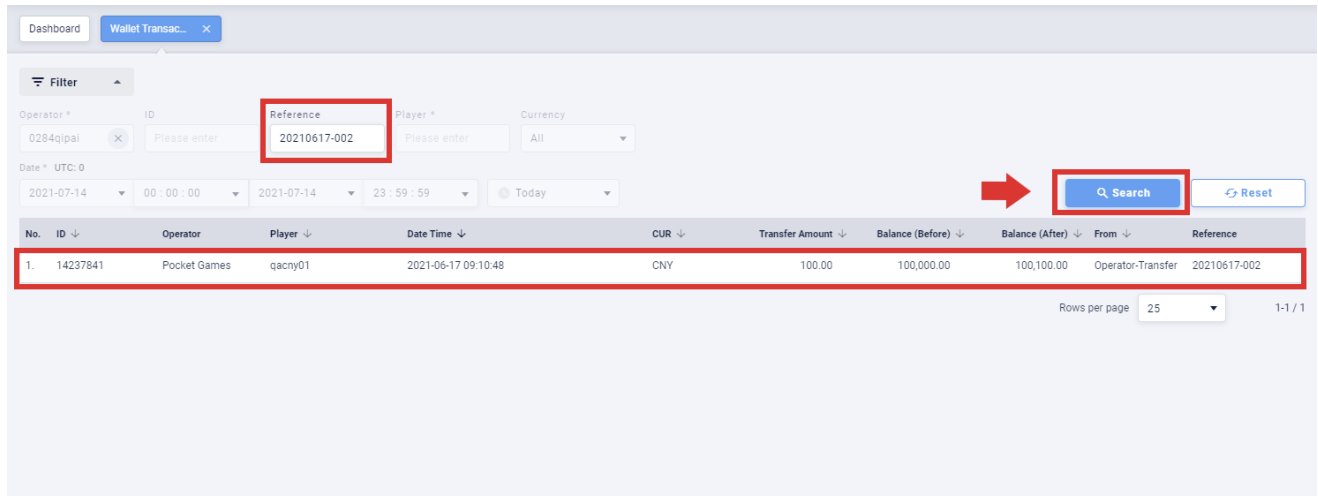
The search result in the Screenshot 87 Wallet Transaction Search Results was obtained by filling in the Reference. After filling in the Reference, other boxes can no longer be edited.