7. Administration
7.1 User Management
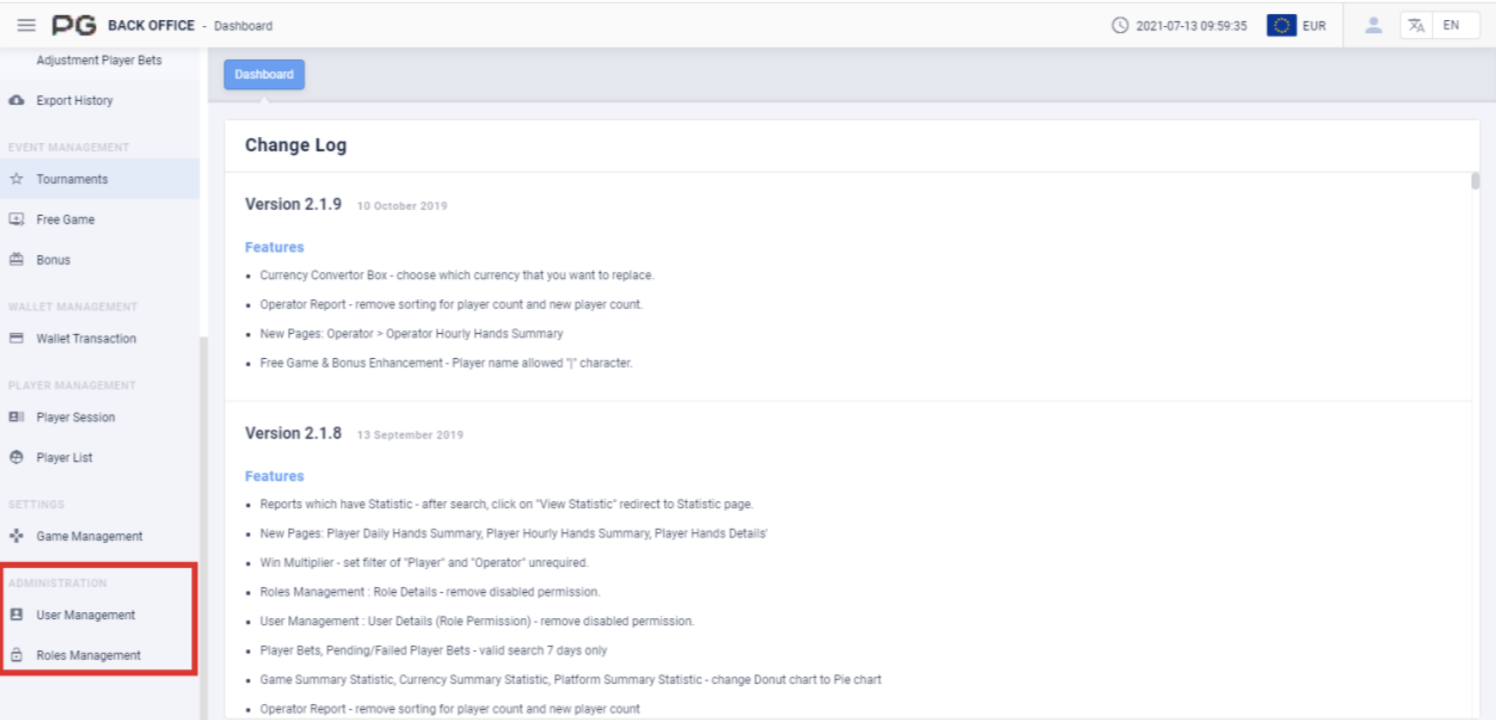
Users can use Administration to check the data of User Management and Roles Management. Click on “User Management” to open the game management page. A
new tab will be opened beside the Dashboard tab. Click on the X symbol to close the
tab. Each tab can be closed separately.
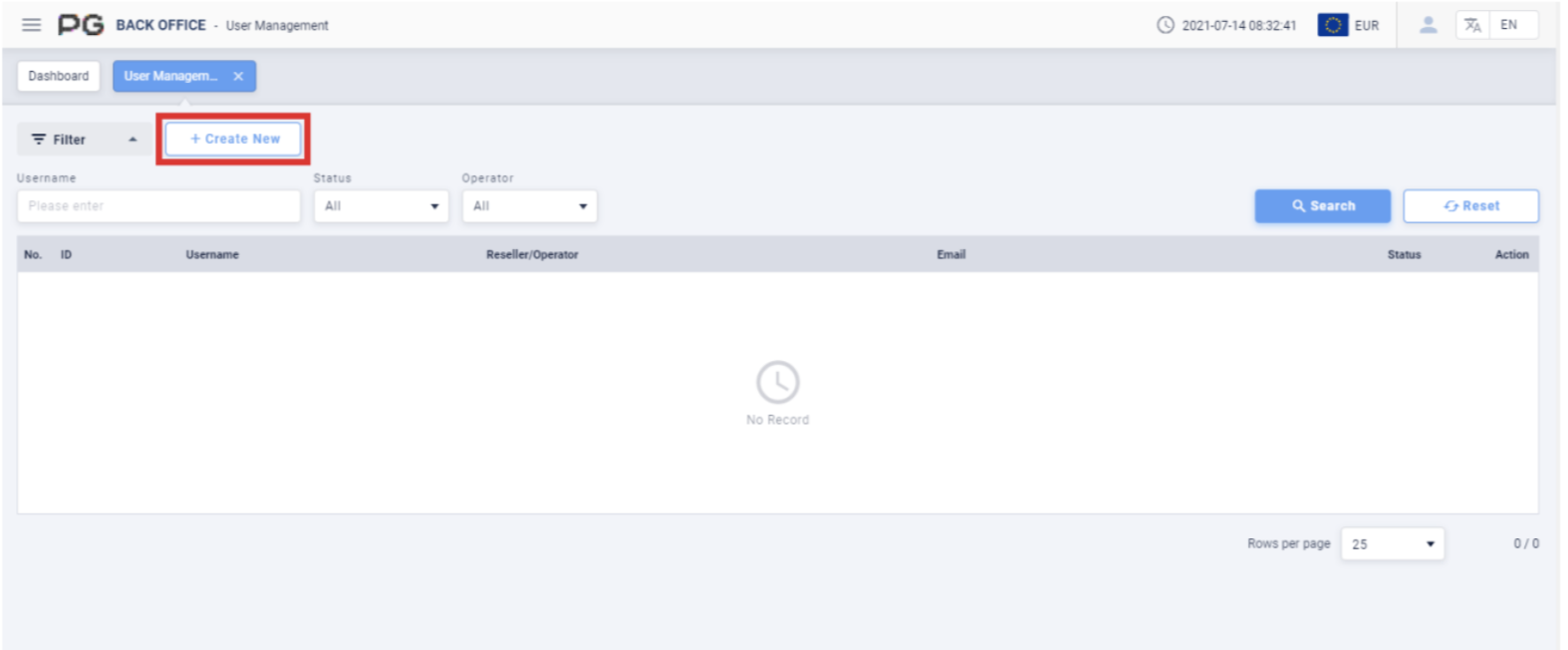
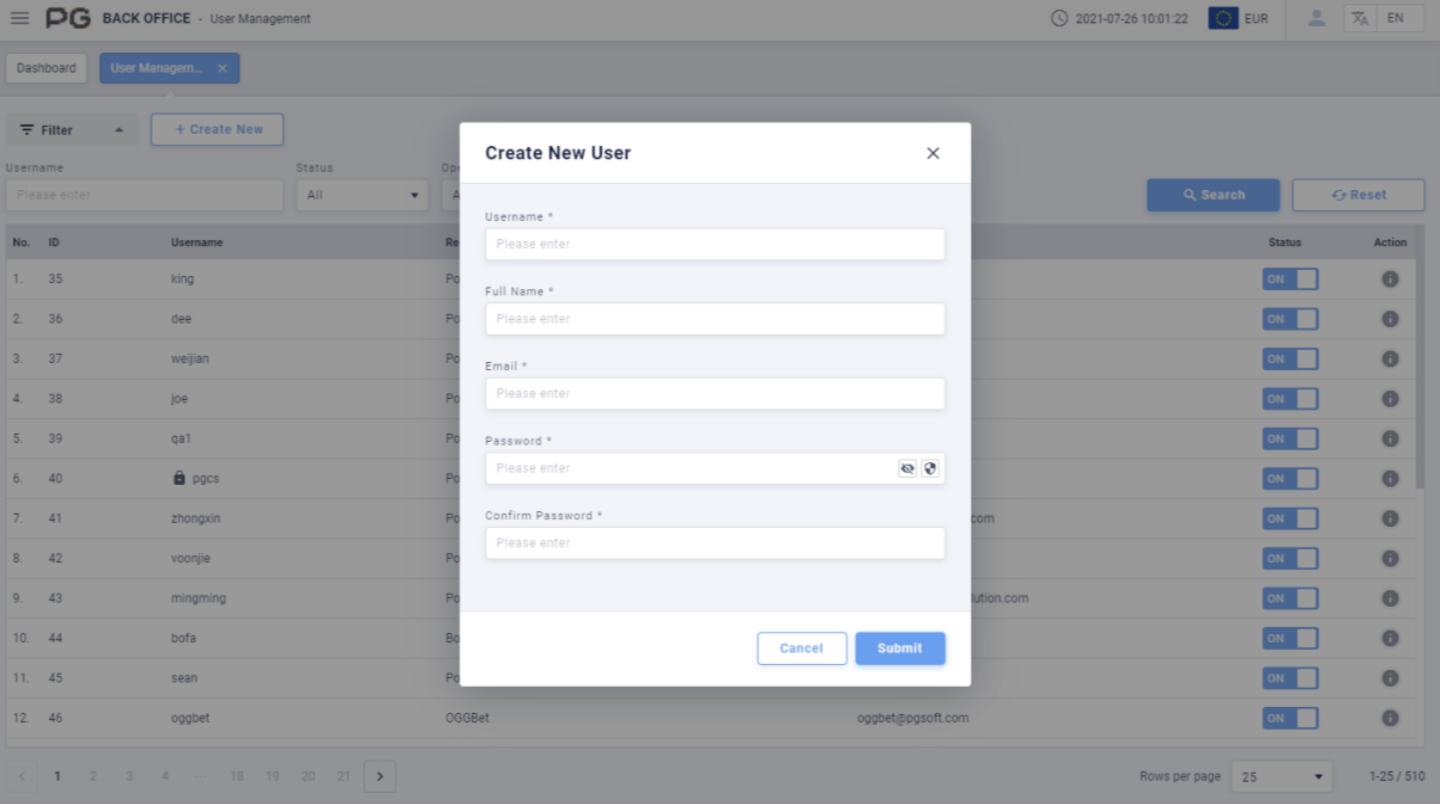
- Create New: Click on the Create New (Screenshot 99 Red Box) button. A pop-up
window will appear automatically. Fill in the necessary details such as: Username,
Full Name, Email, Password and Confirm Password to create a new user (Please
refer to Screenshot 100).
Once the User Management tab is opened, fill in the following details:
(Customized Settings)
Username: Fill in the user’s name.
Status: Select Activate or Deactivated.
Operator: Select the Operator and Sub-Operator name. User can use the Search
bar to quickly search for a specific operator.
Once the details above are filled in, click “Search” to generate the final report.
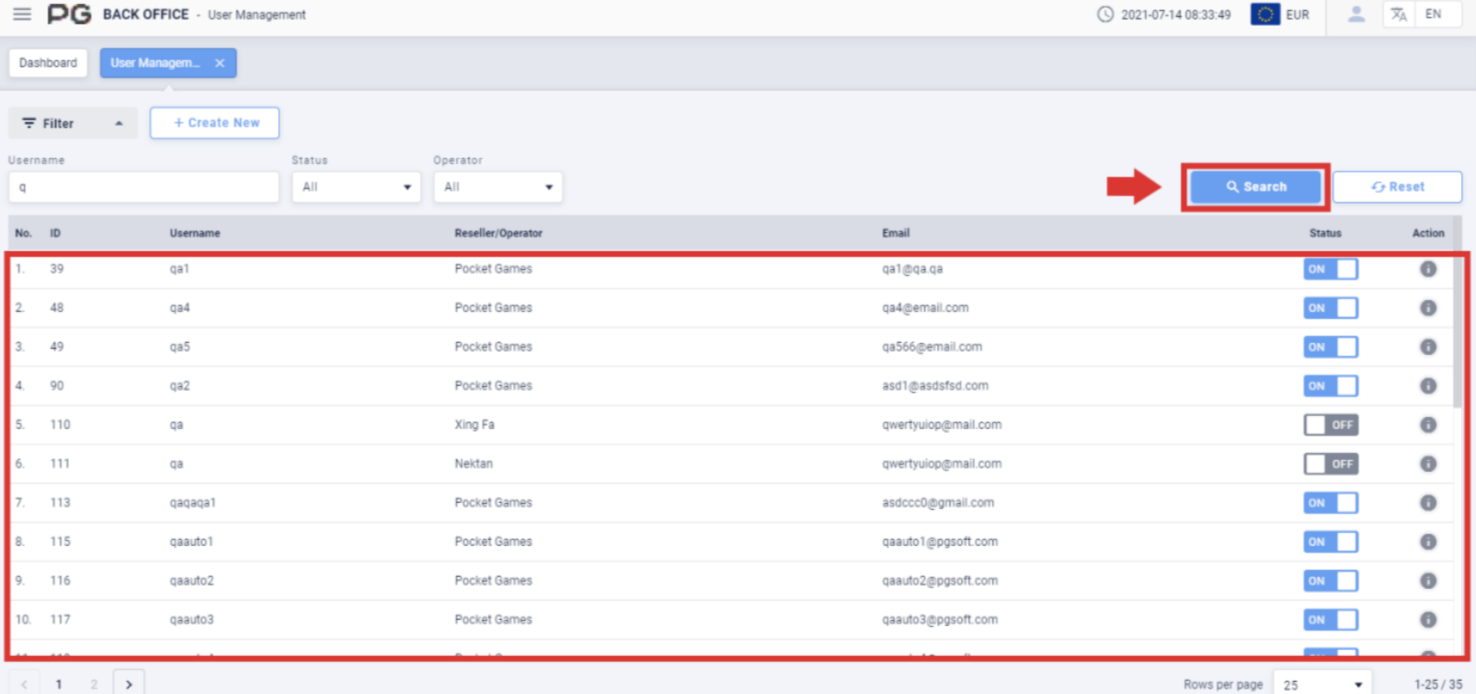
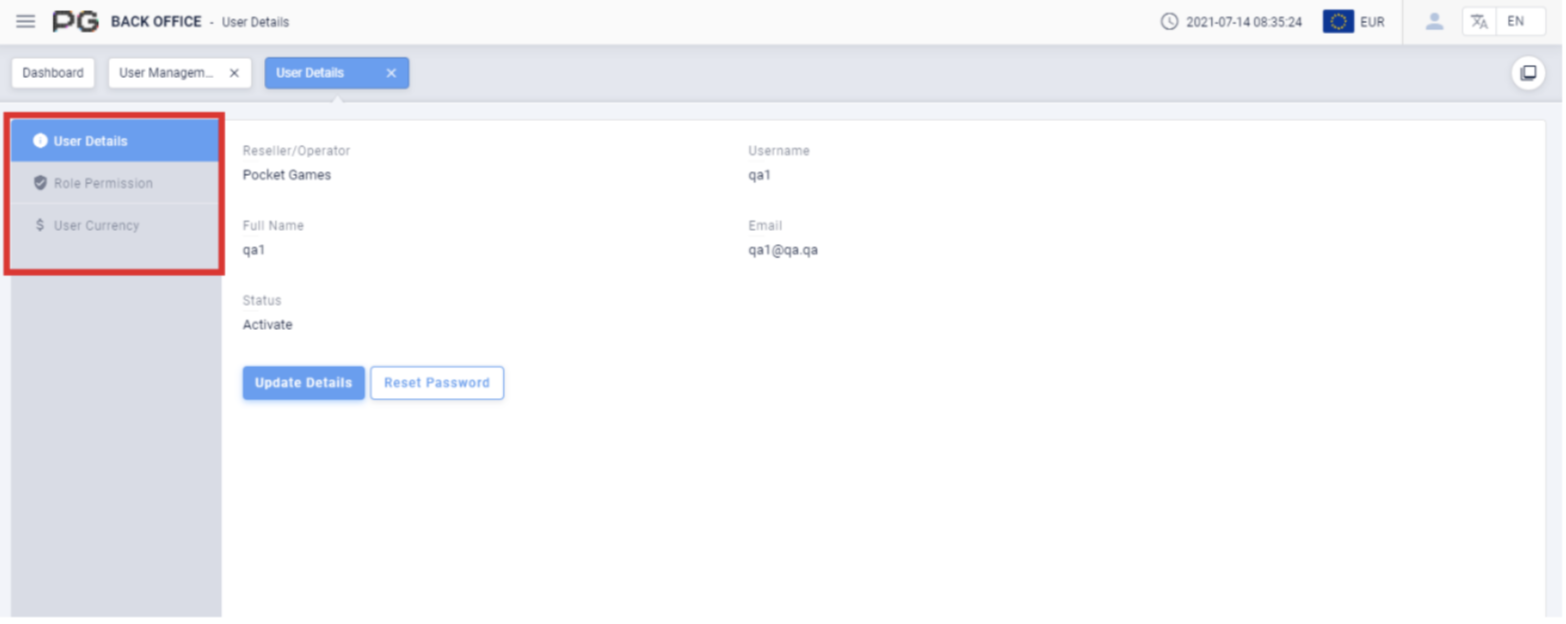
After obtaining the report, click on the icon to edit a specific user’s User Details, Role Permission and User Currency (Screenshot 102).
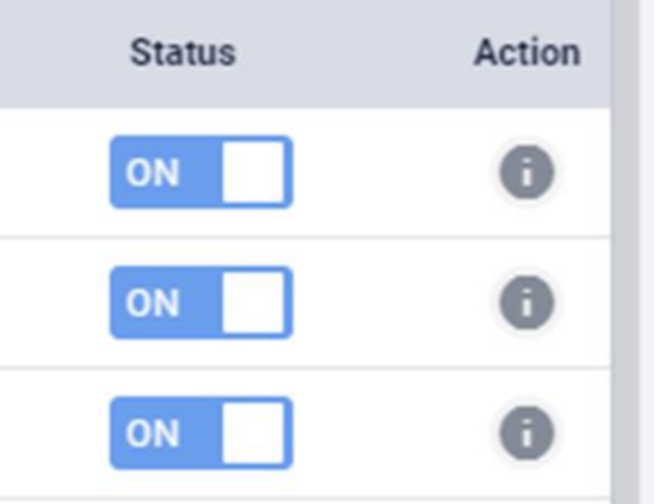
- ON or OFF status
- Edit
7.2 Roles Management
Users can click on “Roles Management” to open the roles management page. A new
tab will be opened beside the Dashboard tab. Click on the X symbol to close the tab.
Each tab can be closed separately.
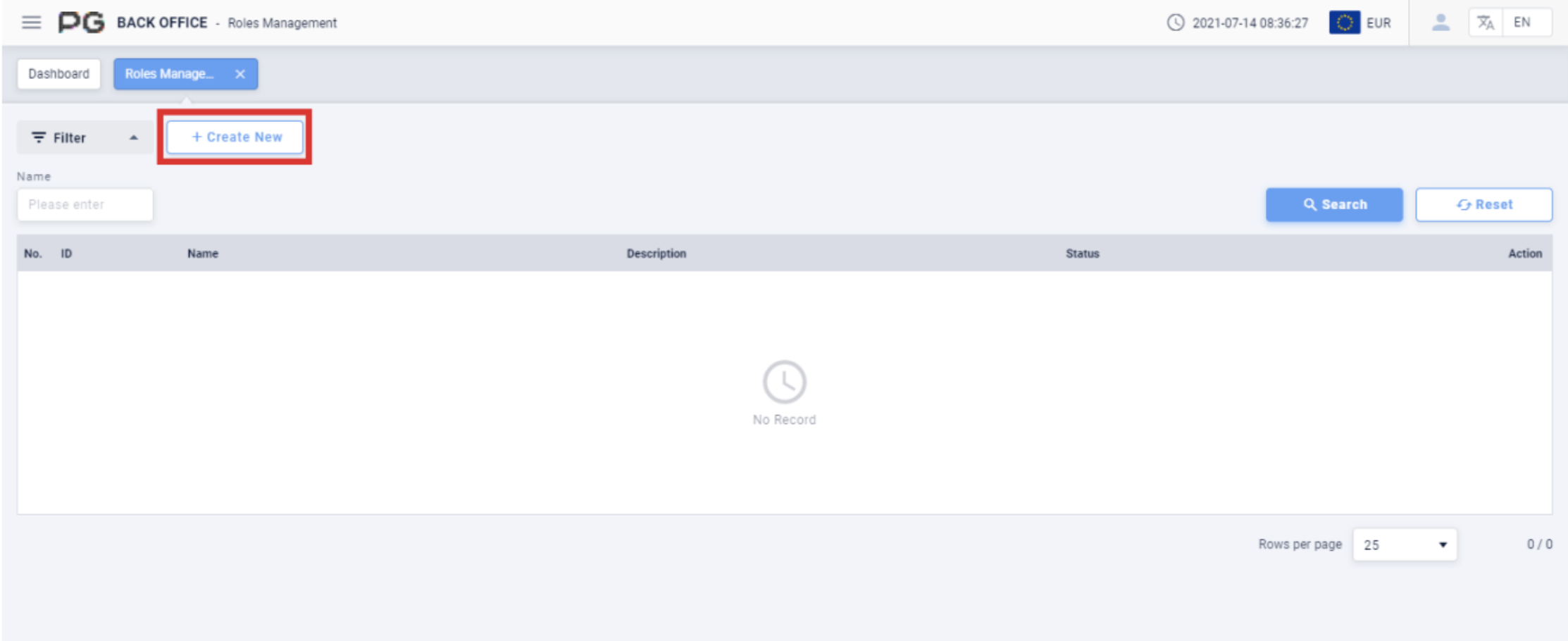
- Create New: Click on the Create New button. A pop-up
window will appear automatically. Fill in the necessary details such as: Role Name
and Description to create a new role.
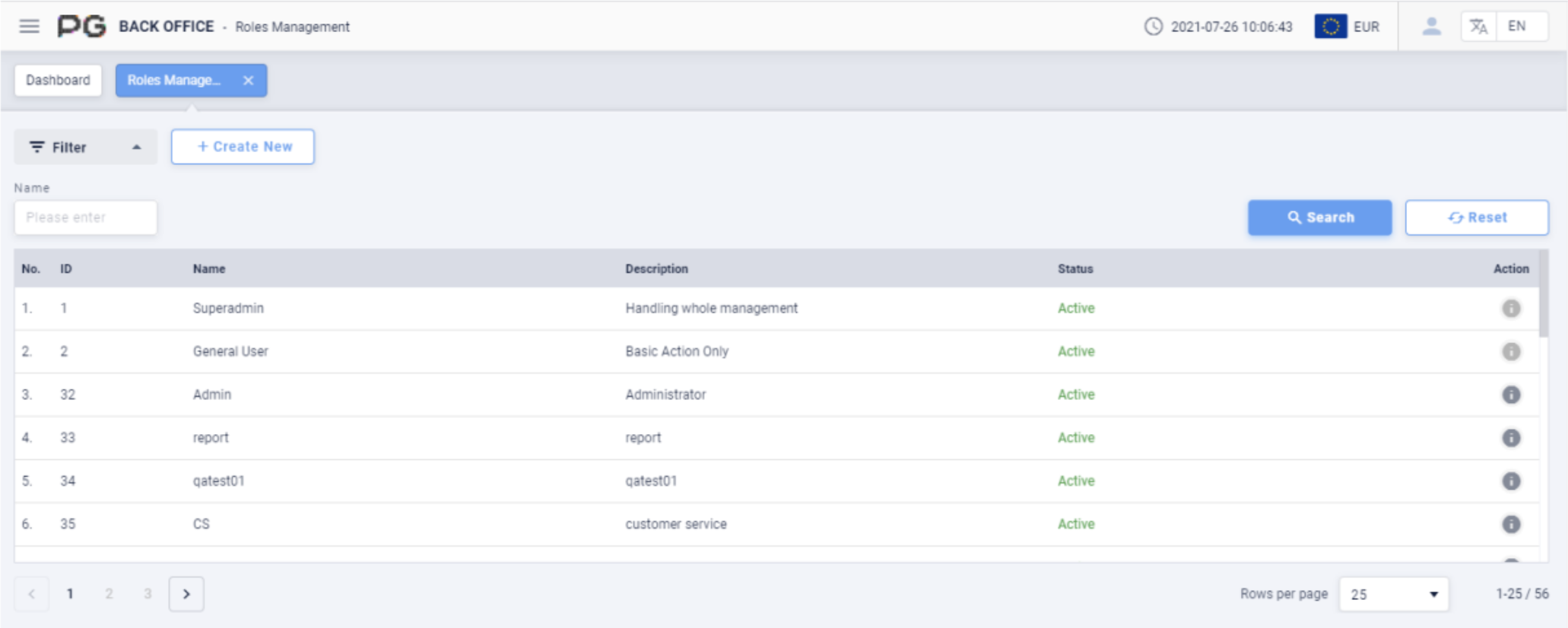
Once the Roles Management tab is opened, fill in the following details:
(Customized Settings)
Name: Fill in a name to search.
Once the details above are filled in, click “Search” to generate the final report.
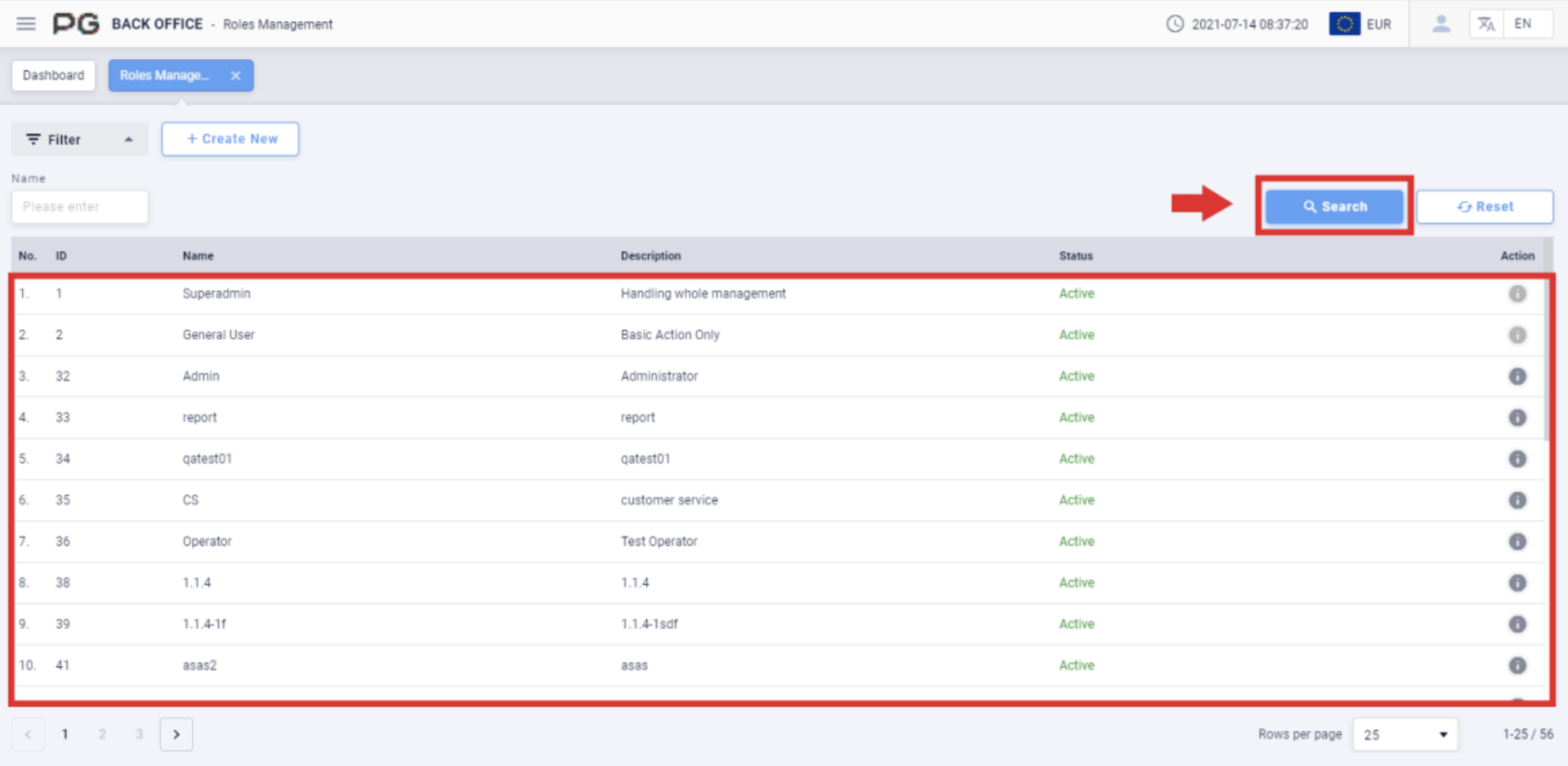
After obtaining the report, click on the icon to edit a specific role’s Role
Details and Role Permission.
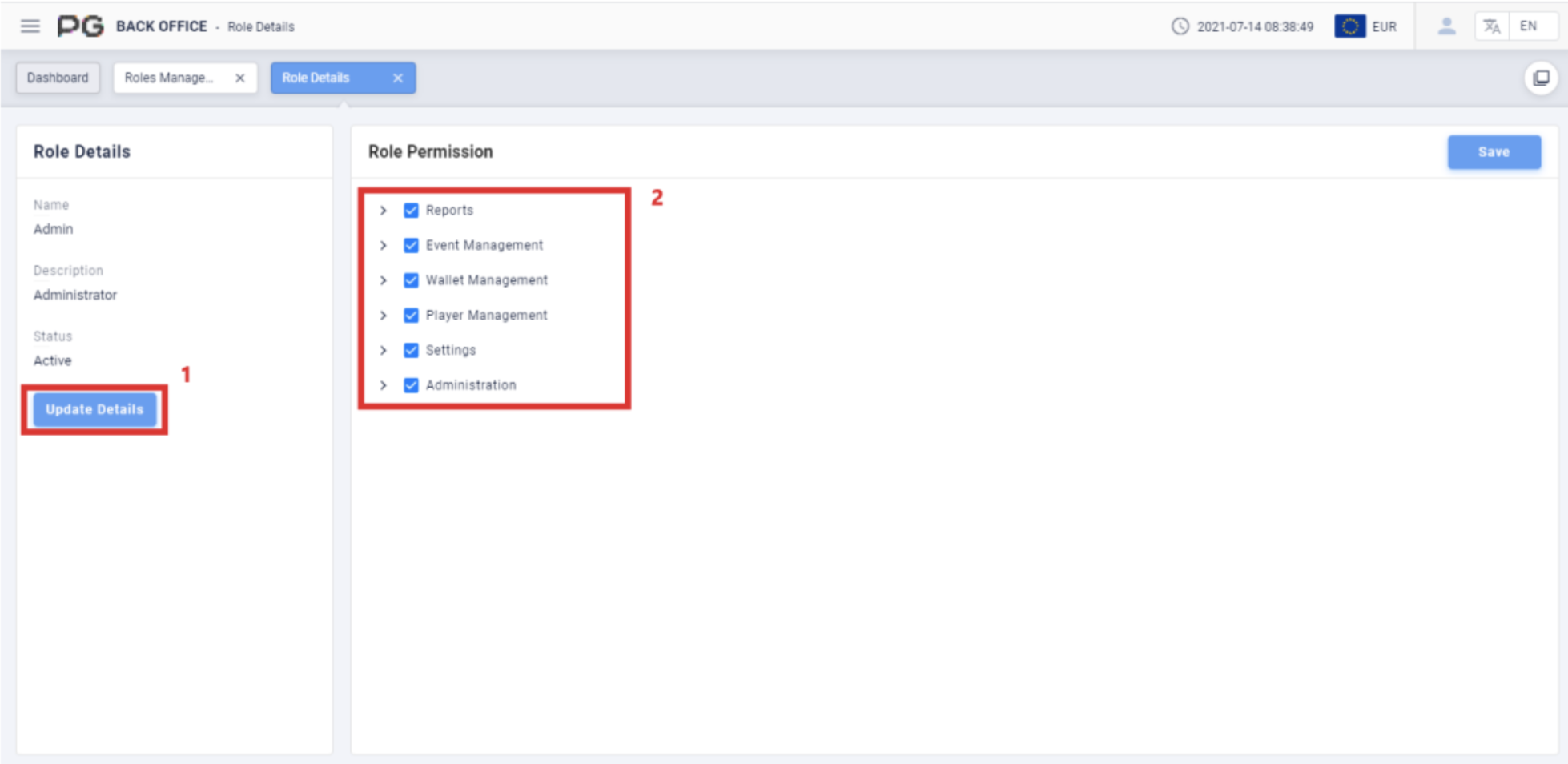
- Users can use the Role Details (Screenshot 108 Box 1) to update the Name,
Description and Status.
- Users can use the Role Permission (Screenshot 108 Box 2) to select the
permissions to be given to a specific role. Click the “Save” button to save your
settings.