1. Bonus
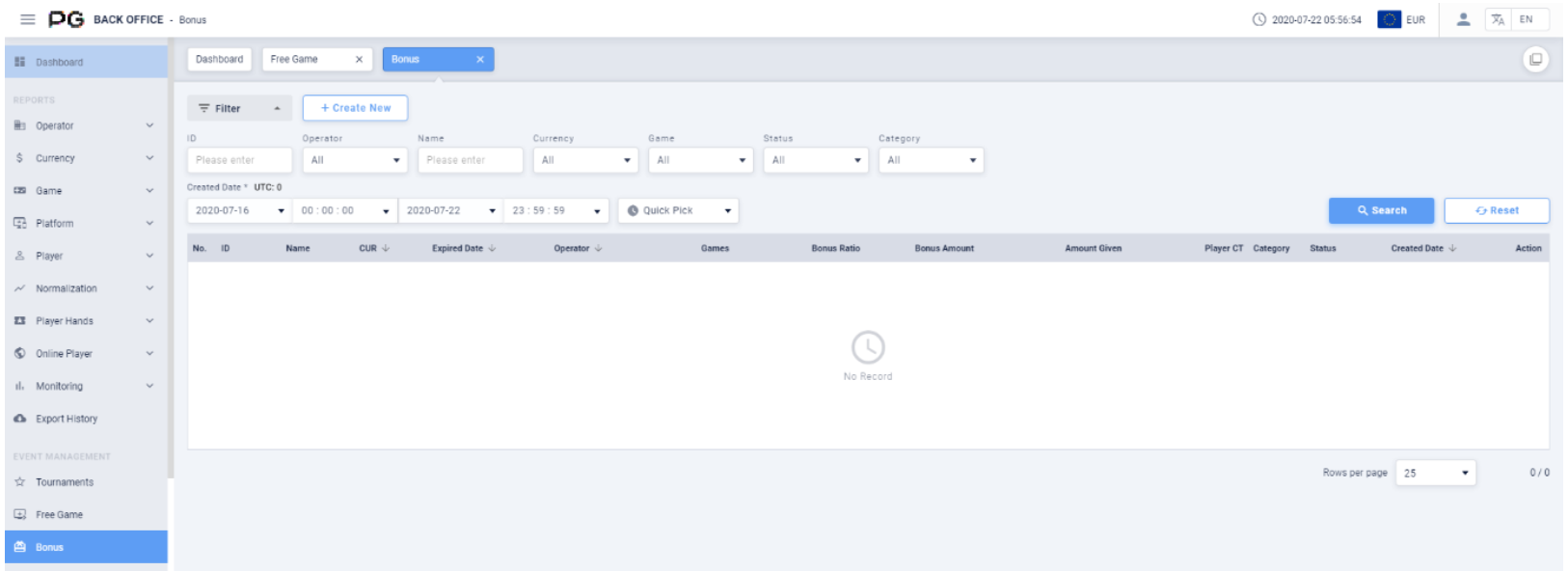
The Bonus function is located in PG Back Office EVENT MANAGEMENT column.
Click on "Bonus" in the dashboard. Search for the corresponding Bonus record by setting the ID, Operator, Name, Currency, Game, Status, Category, Created Date, or Time.
Click the "Search" button to find and view the Bonus records.
1.1 Create bonus
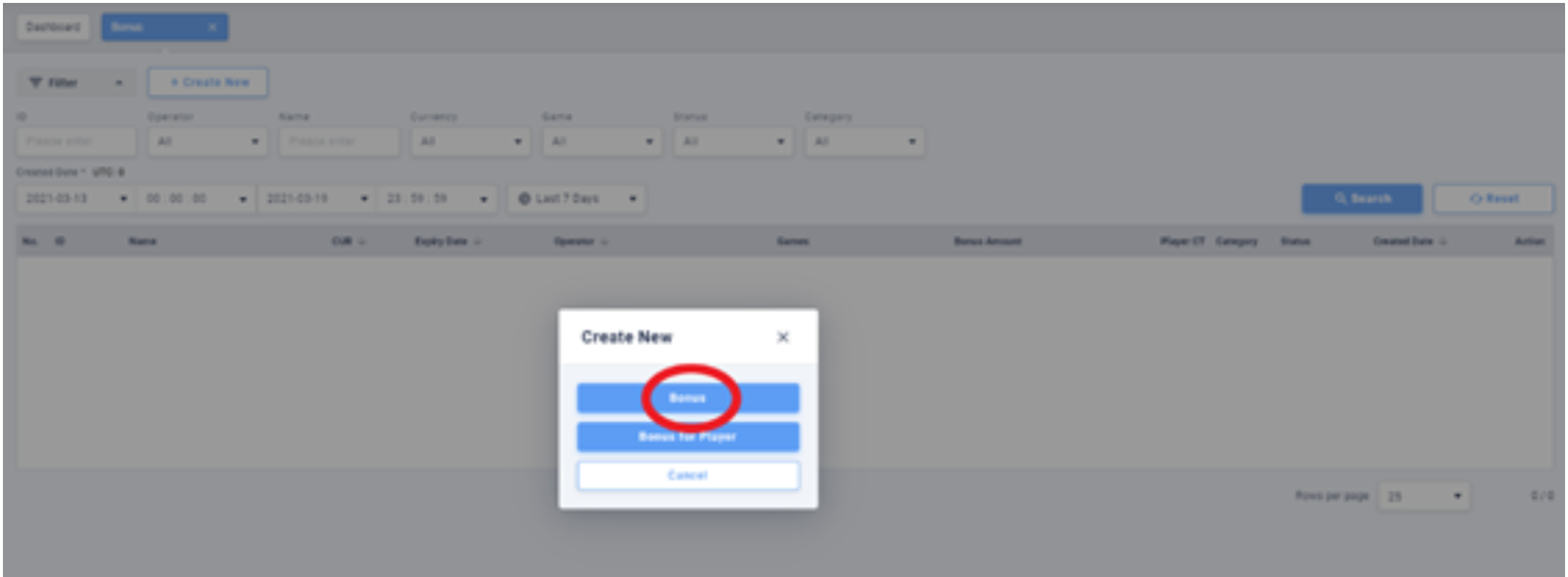
Click on the ‘+ Create New’ button, then select ‘Bonus’ to create a new Bonus.
1.1.1 Create Bonus for Player
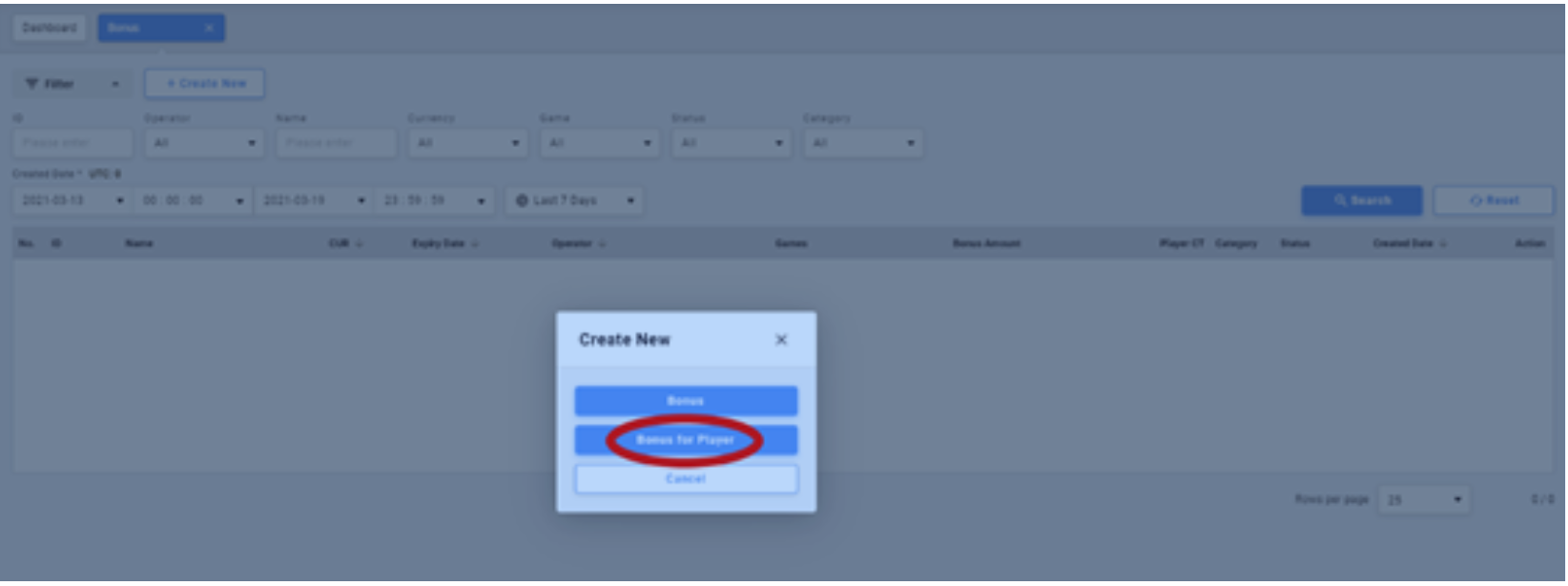
Click on the ‘+ Create New’ button, then select ‘Bonus for Player’ to create a new Bonus for a specific player.
1.2. Definitions
Fill in and select the required information needed to create a Bonus.
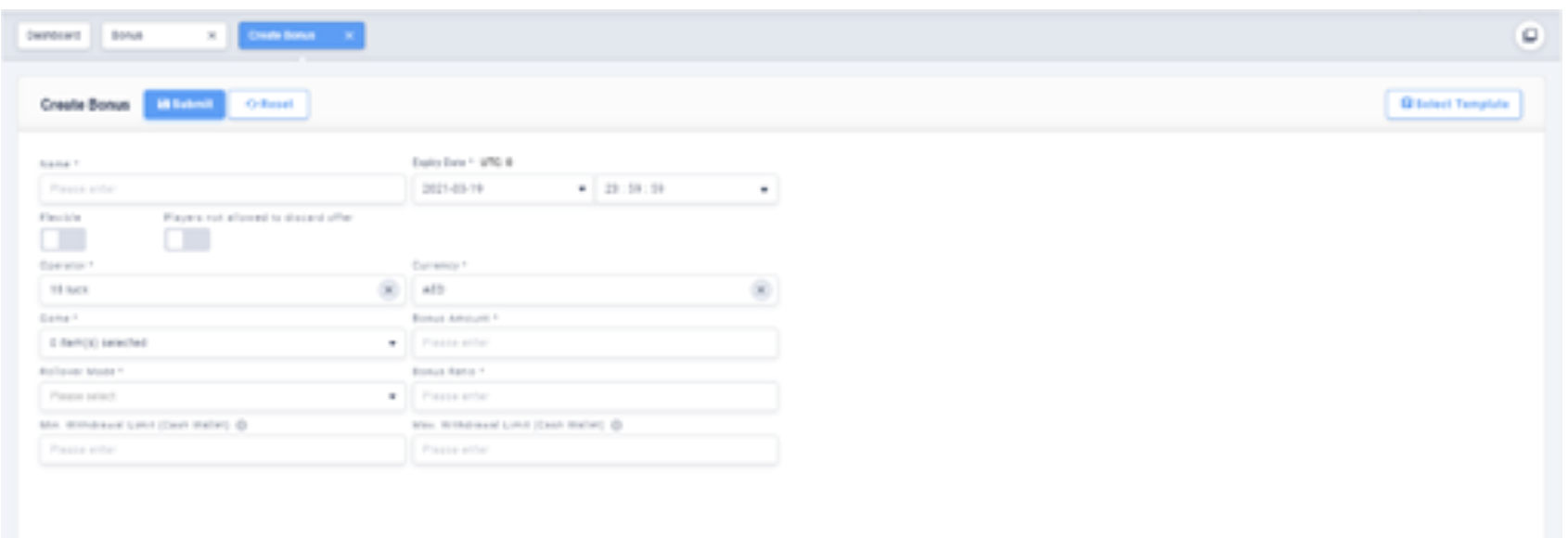
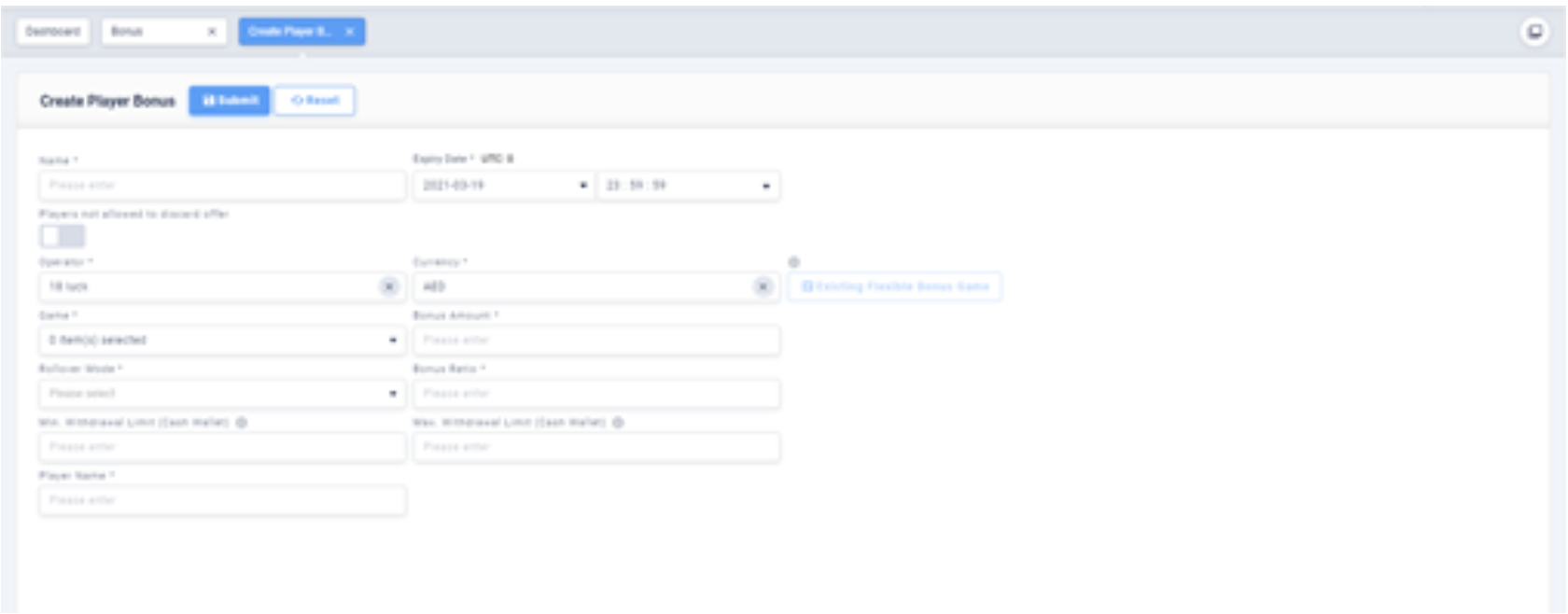
Name: Name of the Bonus
Expiry Date: The date and time when the Bonus will expire.
Operator:Select operator (or default)
Currency:Select currency
Game: Select either single or multiple games that are supported by the Bonus Game. The selected games will share the same Bonus.
Bonus Amount: Bonus amount that will be rewarded to a single player.
Bonus Ratio: Sets the rollover requirement of the Bonus. Example: The Bonus Amount is 10 Euros and the Bonus Ratio is 5, then the rollover required of the player will be 10*5=50 Euros.
Min. Withdrawal Limit (Cash Wallet): Sets the minimum amount of money that players can transfer into their Cash Wallet after completing the rollover required in the Bonus.
Max. Withdrawal Limit (Cash Wallet): Sets the maximum amount of money that players can transfer into their Cash Wallet after completing the rollover required in the Bonus.
Rollover Mode:
- Bonus: Player can only use Bonus to achieve the rollover requirement.
- Cash: Player can only use Cash to achieve the rollover requirement, then Bonus will be automatically credited to Cash Wallet.
- Bonus & Cash: Player can use both Bonus and Cash to achieve rollover requirement. Standard / Flexible:
- Standard: All players will get the same bonus amount.
- Flexible: Different players can get different Bonus amounts. (These features are available in “Add player” section)
Player Name: The username of the player that will be playing this Bonus.*only applicable in Bonus for Player.
Existing Flexible Bonus Games: Add player into existing Flexible Bonus Games that are available for selected Operator and Currency.*only applicable in Bonus for Player.
1.3 Add Players
After creating the Bonus Game, click on the “Players” tab to add players to the Bonus Game.
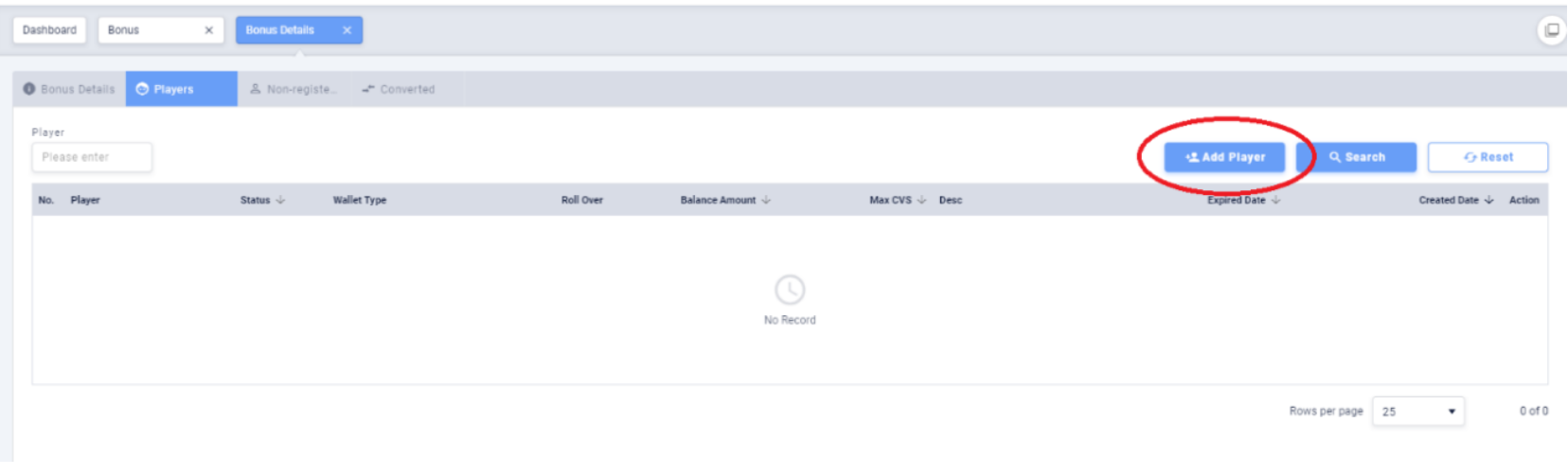
1.3.1 Add a Single Player
Fill in the required information needed to add a Single Player. For Standard Bonus: Fill in the Player Name. For Flexible Bonus: Fill in the Player Name, Bonus Amount, Min. Withdrawal Limit, Max. Withdrawal Limit and Description.
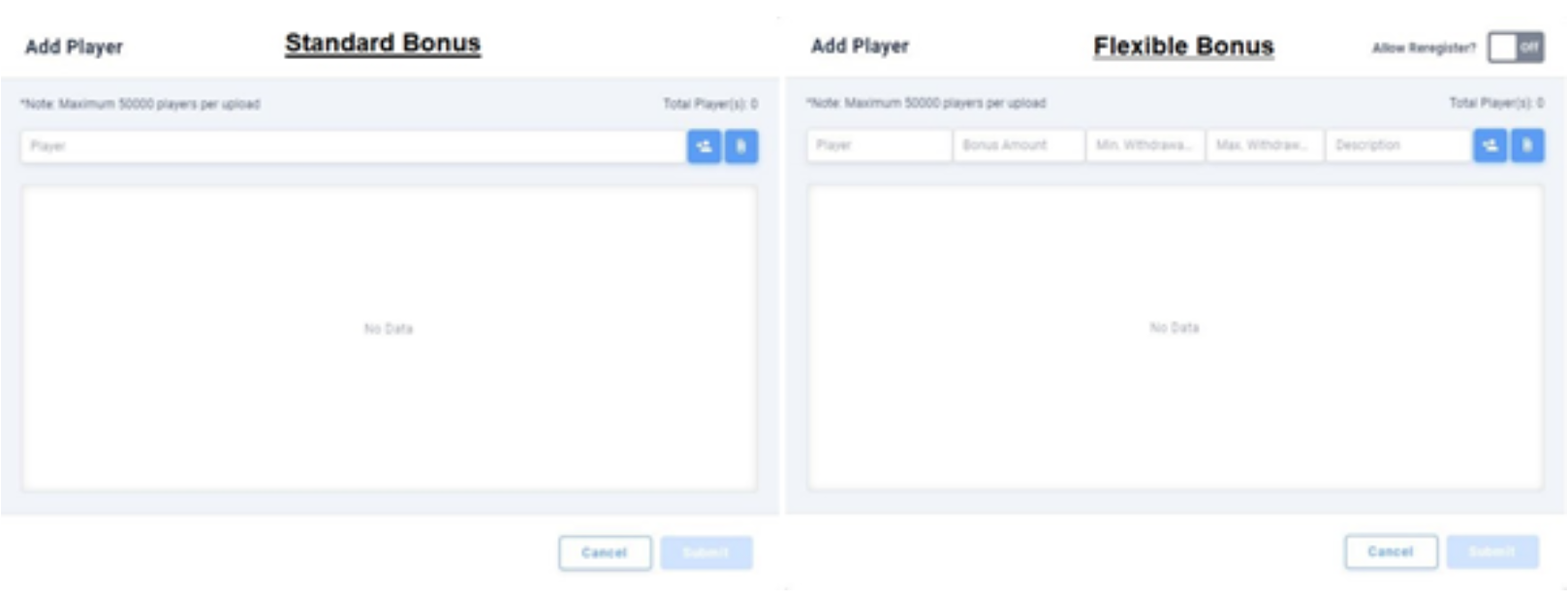
Click ‘Add Player’ button to add one player at a time.
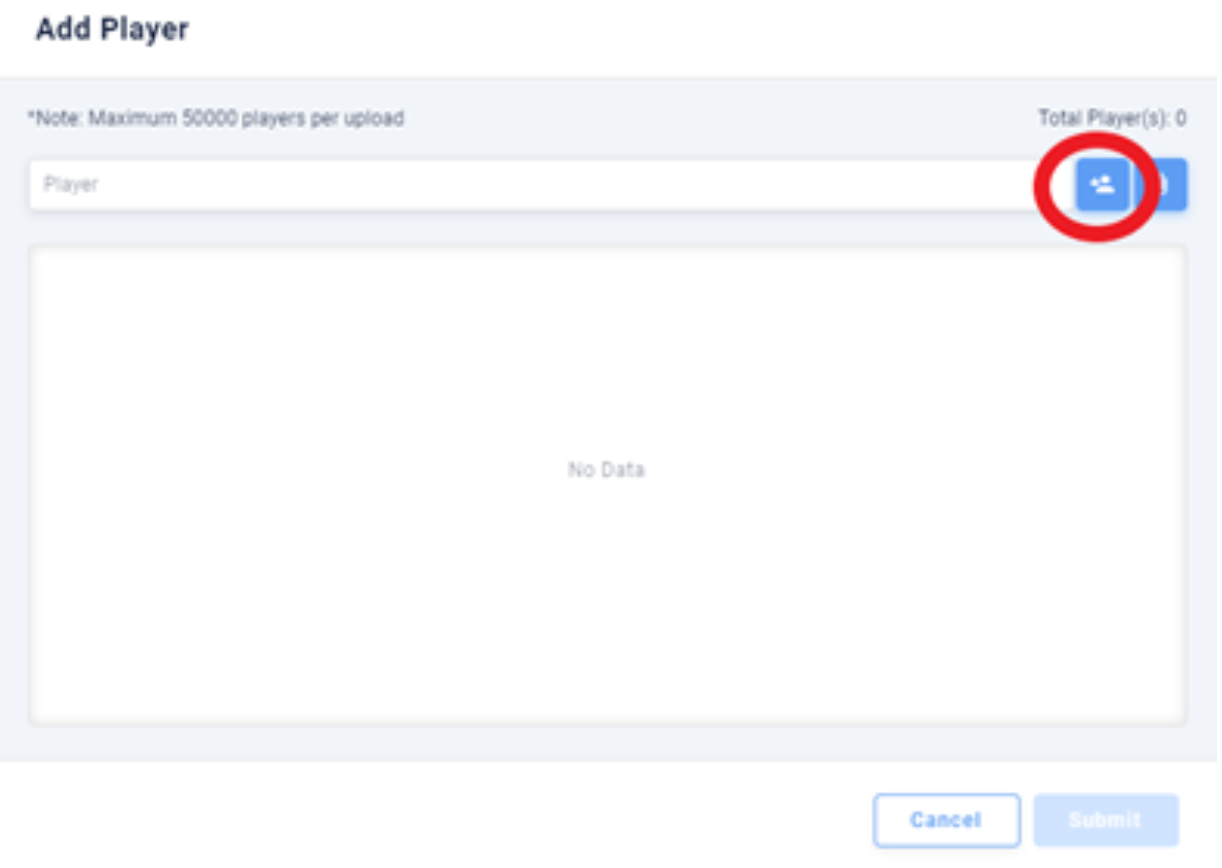
1.3.2 Add Players by Batches
Click on the ‘Attach’ button to add a large number of players.
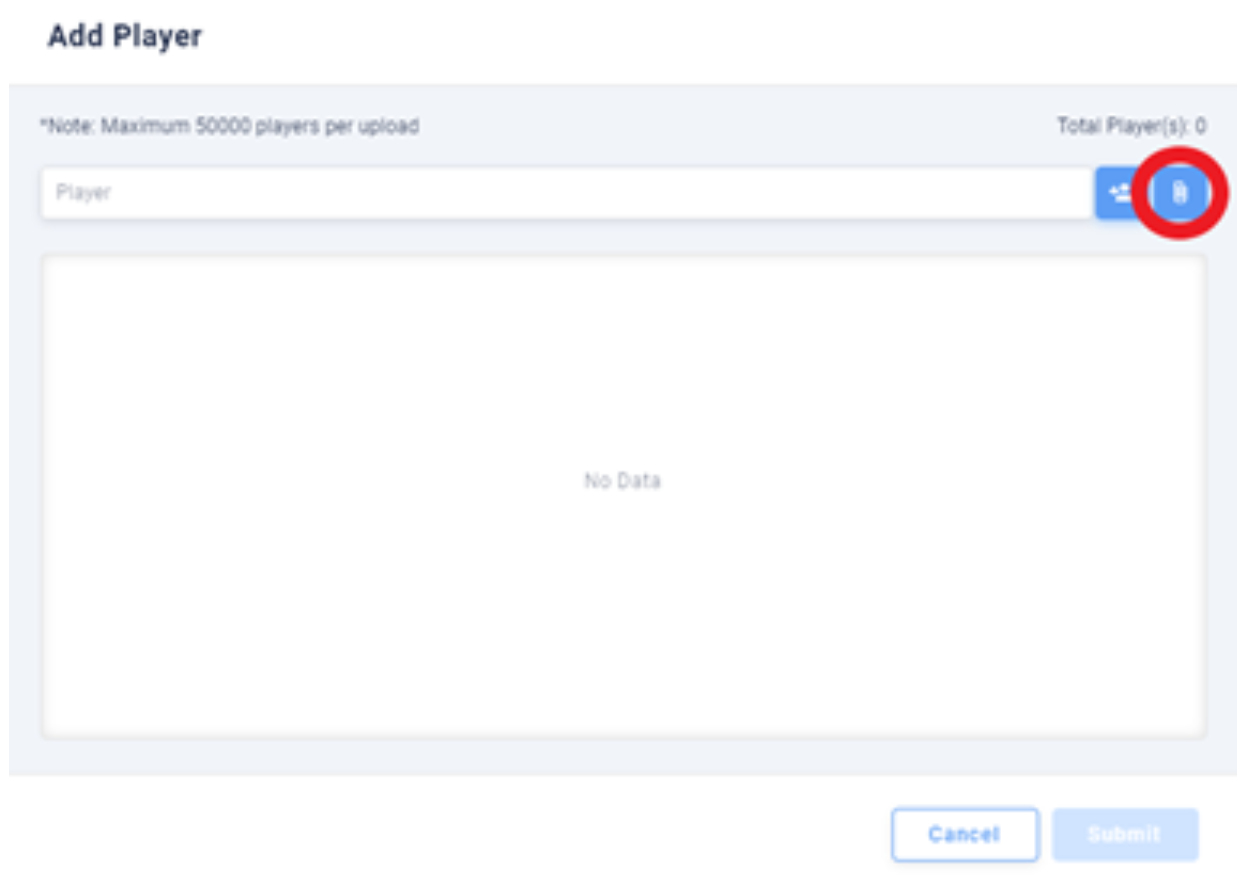
Use an Excel file to add accounts by batches. Click on ‘Sample Excel file format’ to download the form template.
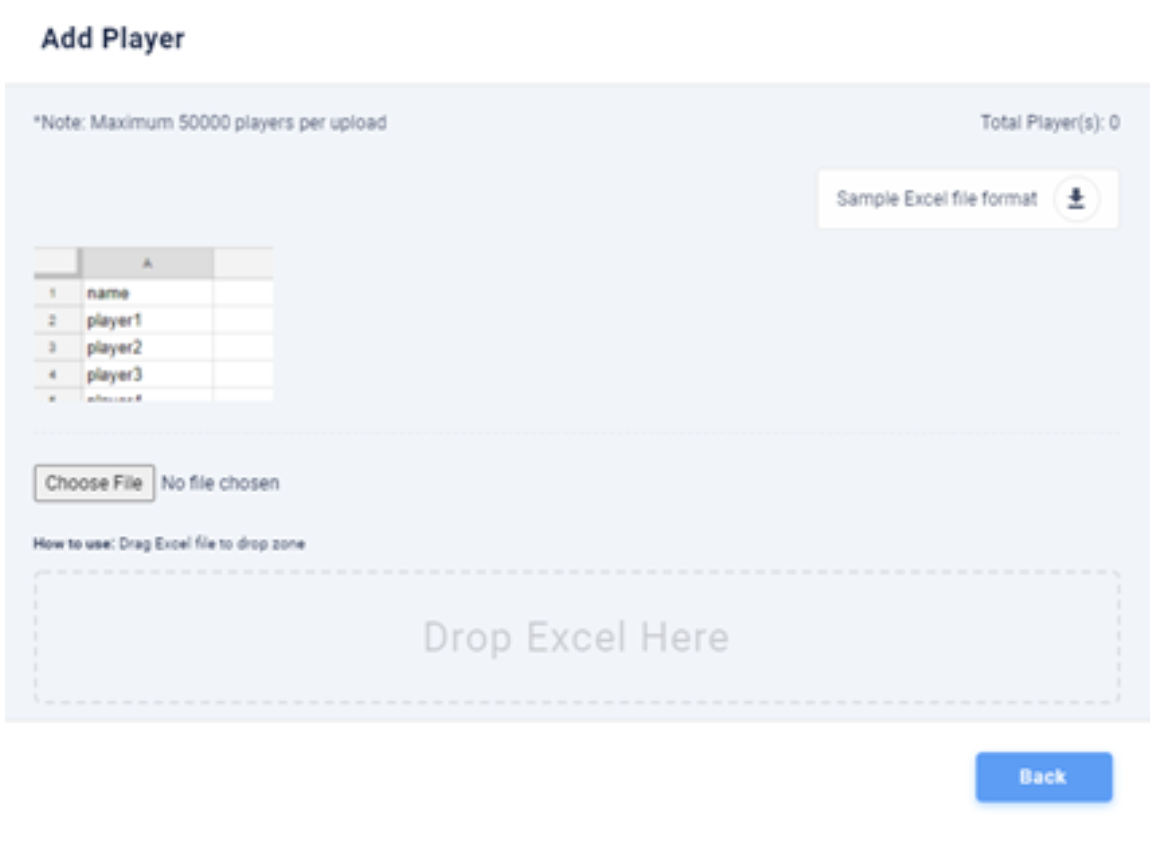
1.4 User Game Interface
1.4.1 Offer Reminder
Players will get a reminder of new offers when they enter the game.
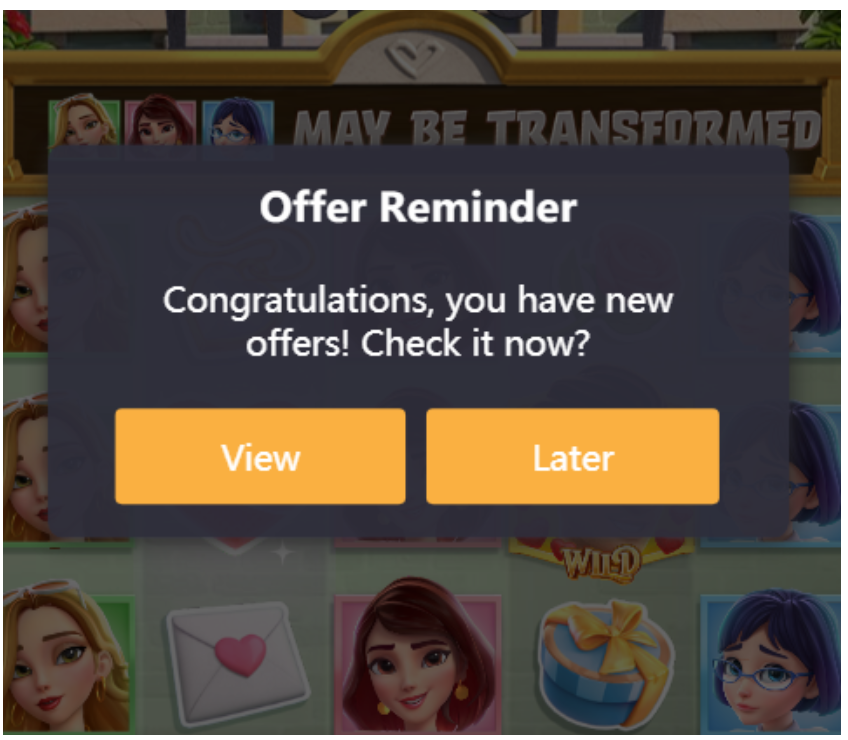
Click ‘View’ to see the offer list in the Wallet.
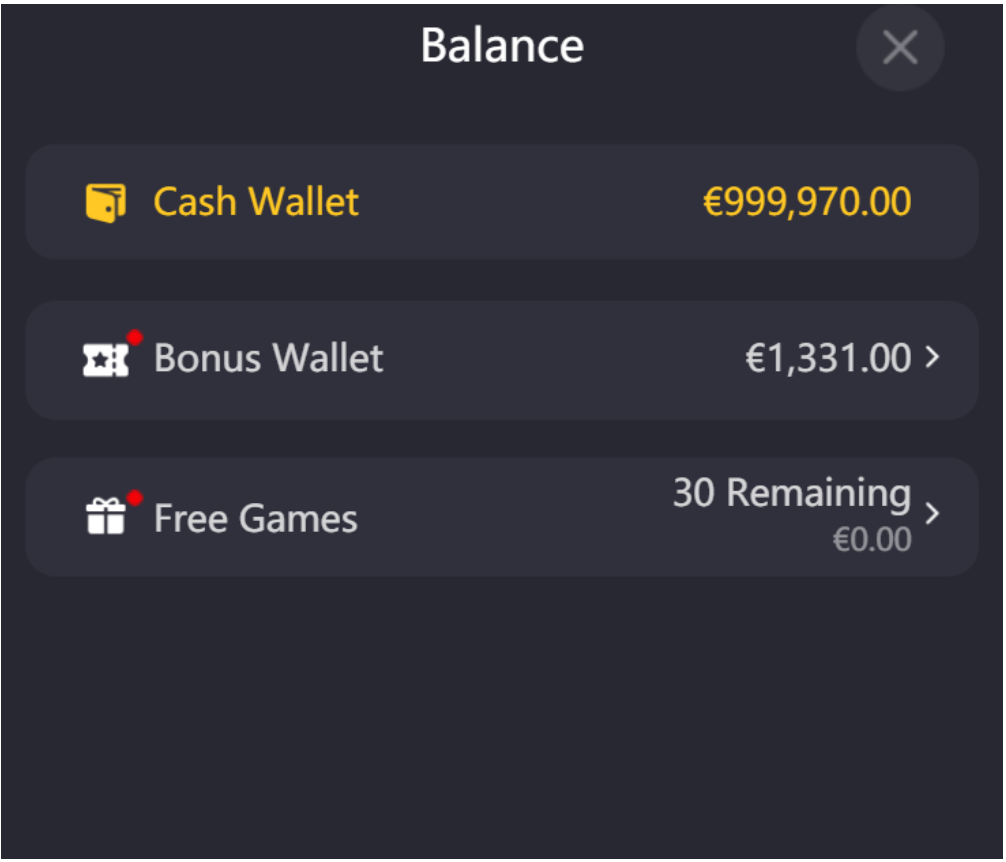
Click on ‘Bonus Wallet’ to see the bonus games available to play.
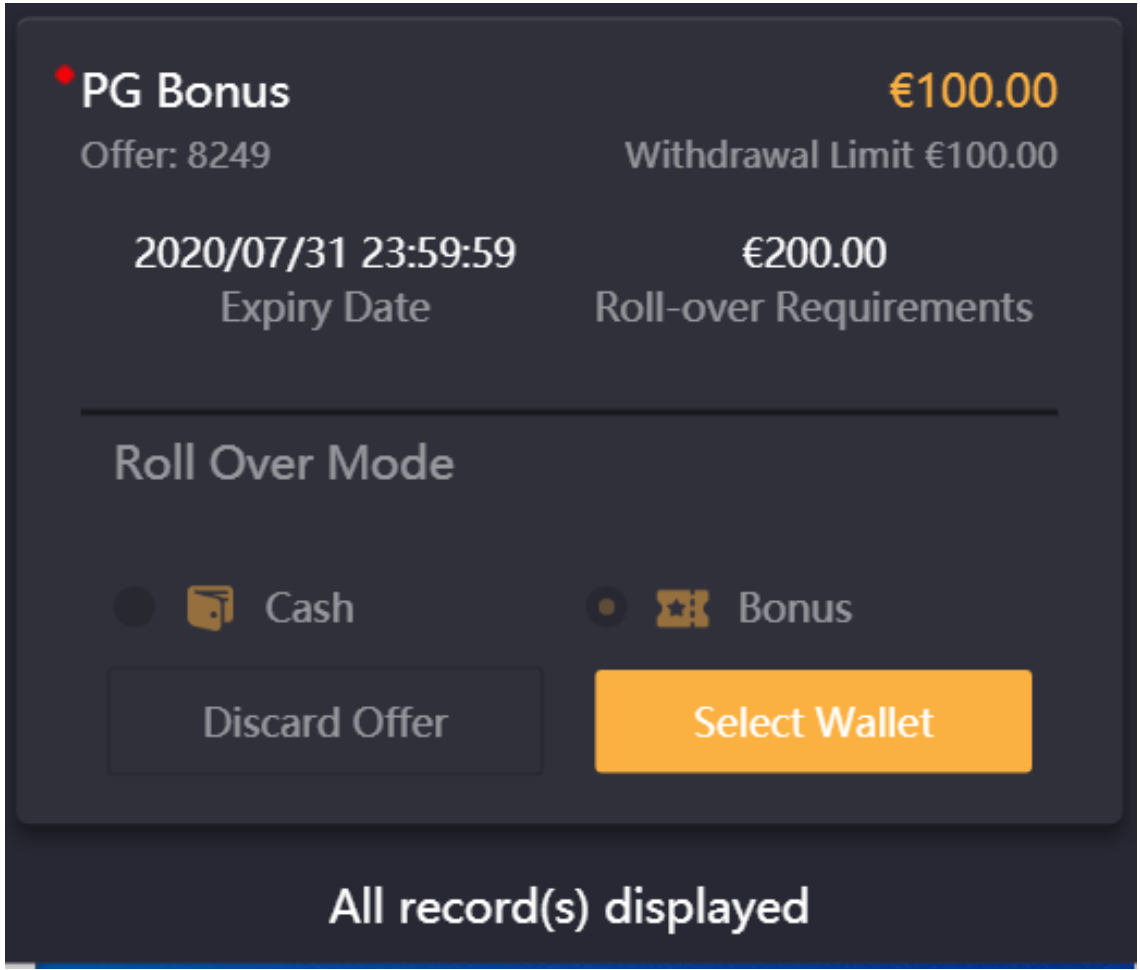
1.4.2 Discard Offer
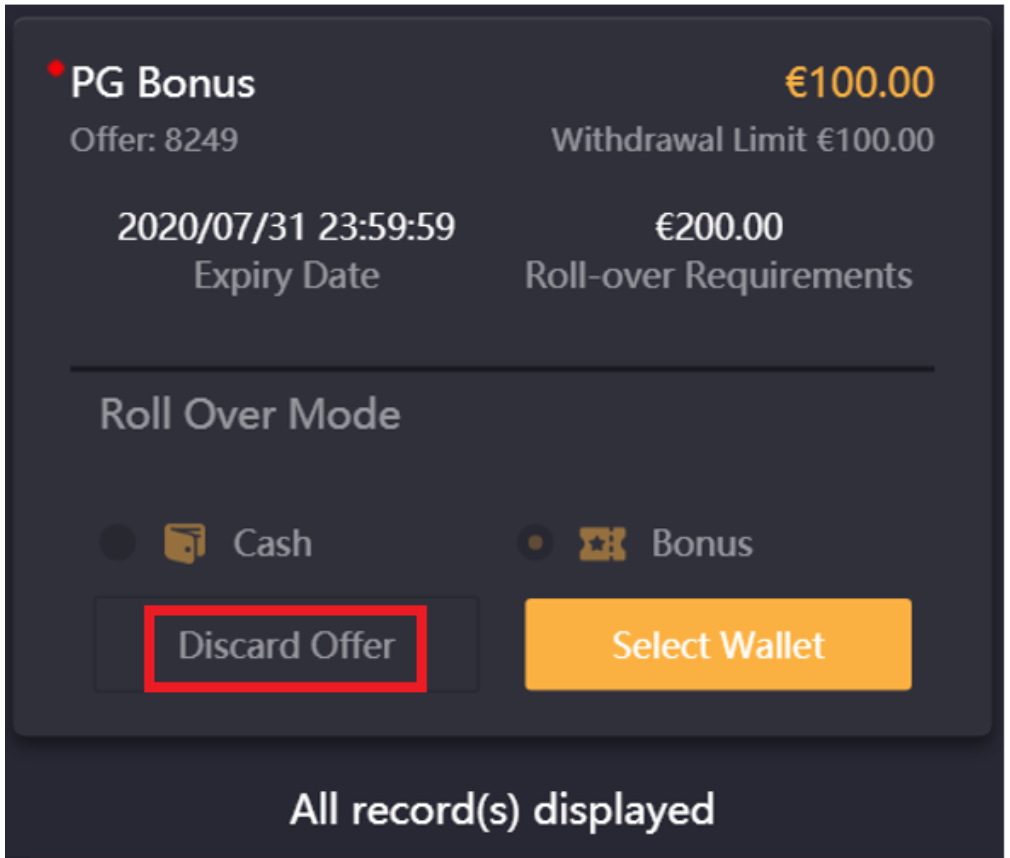
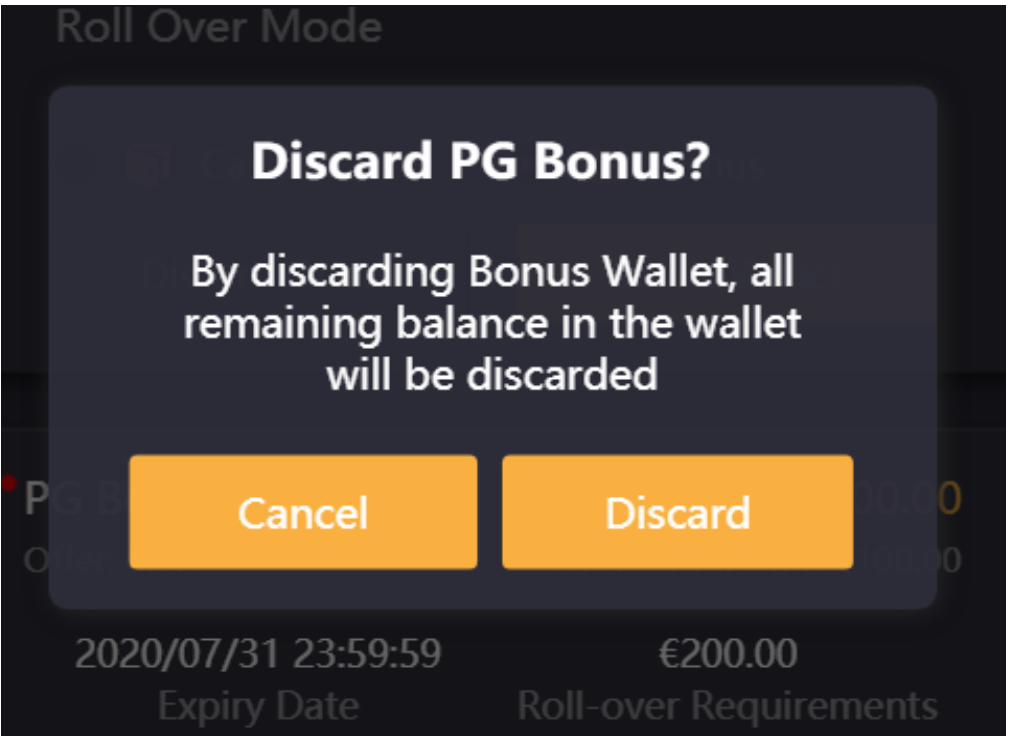
Players can click on “Discard Offer” to discard the offer.
1.4.3 Playing the Bonus Game
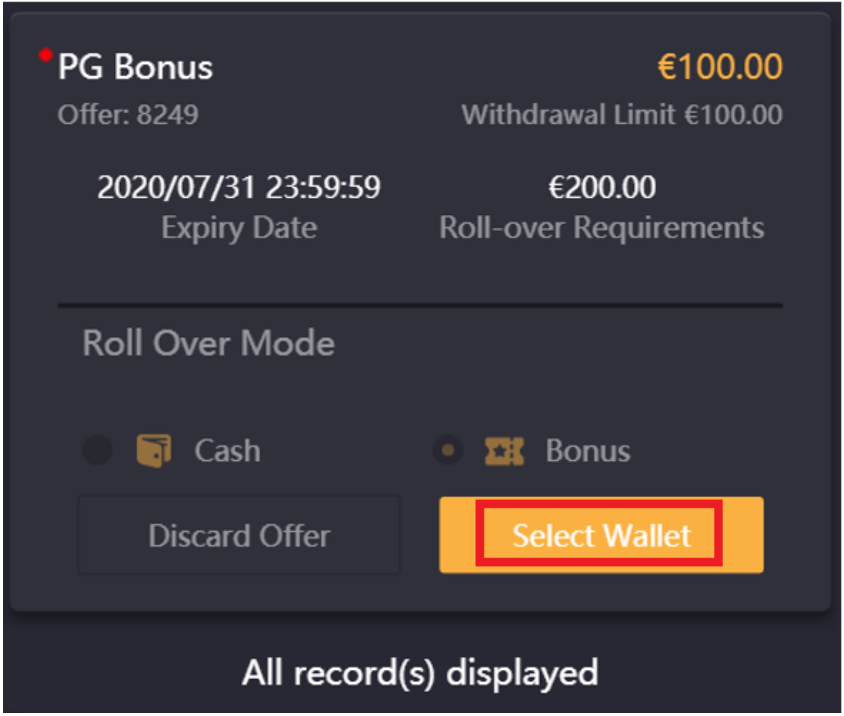
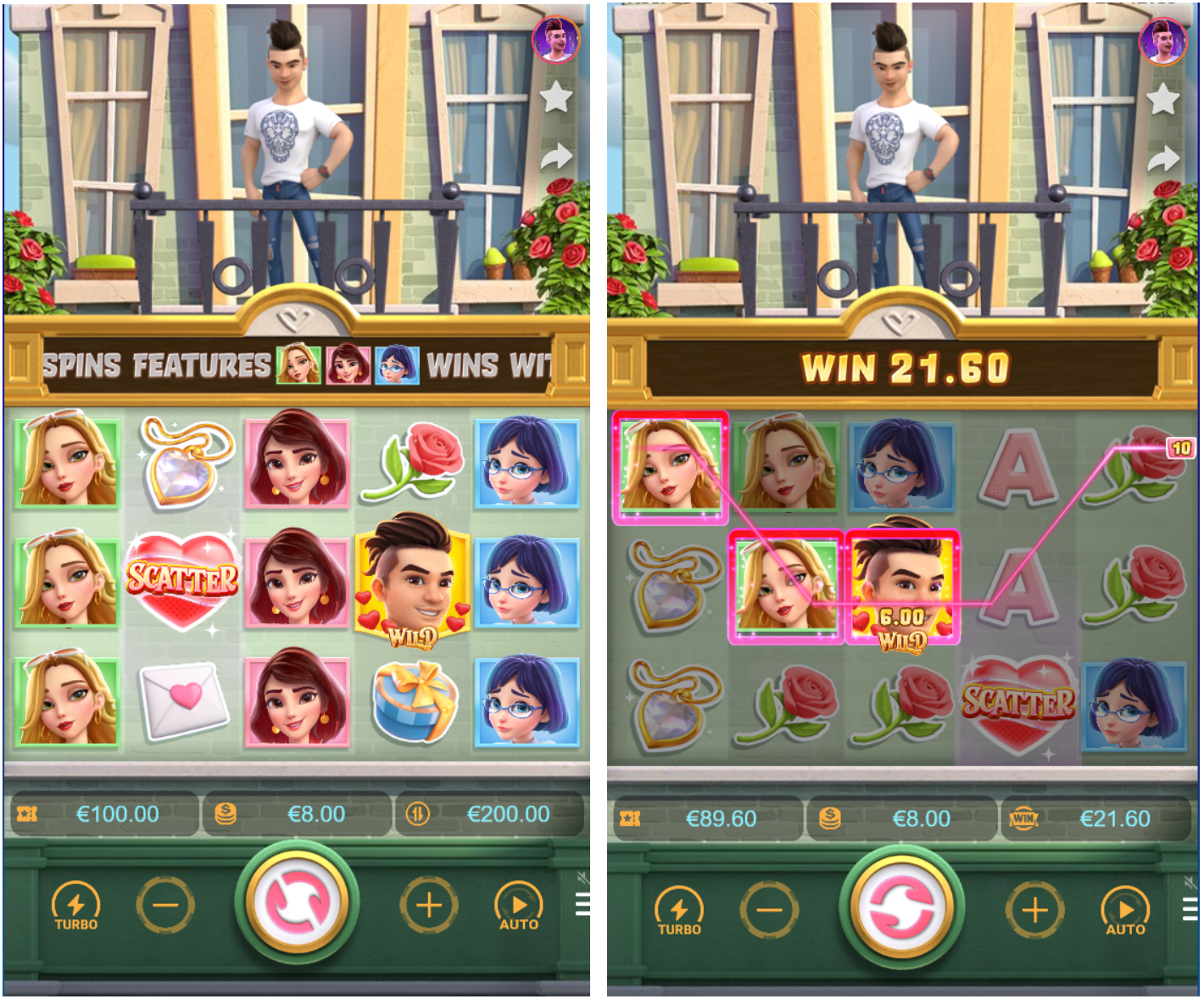
Click ‘Select Wallet’ to start the Bonus Game.
Balance: Refers to the amount of Bonus given to the Player.
1.4.4 Completing Bonus Game
The “Roll-over” at the bottom will display the remaining flow that needs to be completed.
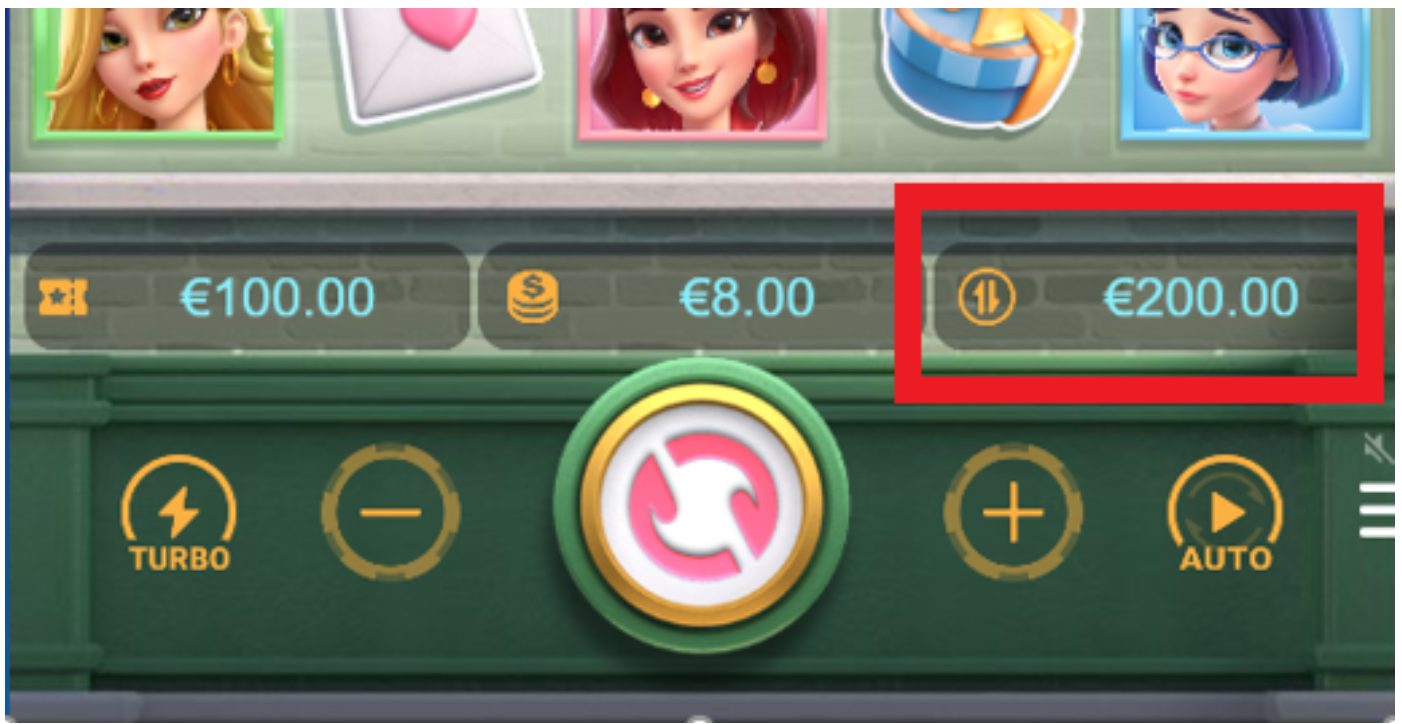
When the remaining flow is 0, the bonus wallet balance is automatically transferred to the cash wallet. The amount will not exceed the pre-set value of the Max. Withdrawal Limit.
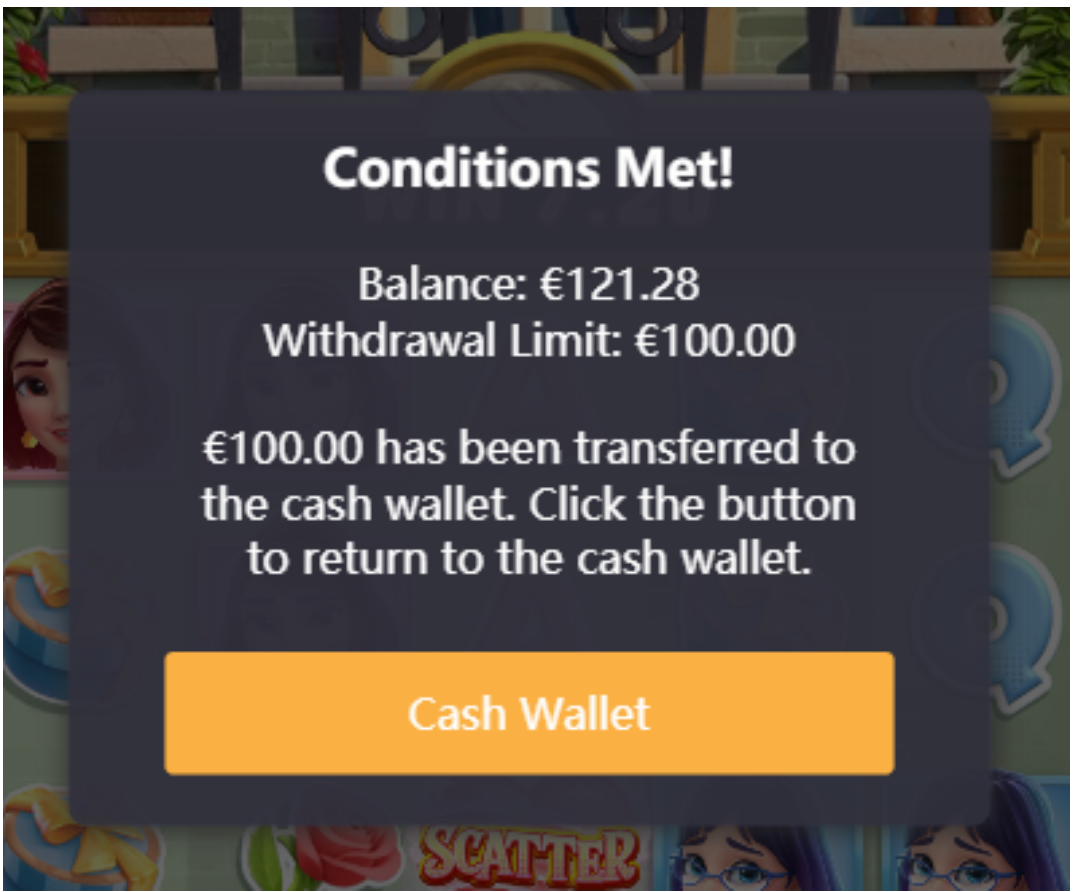
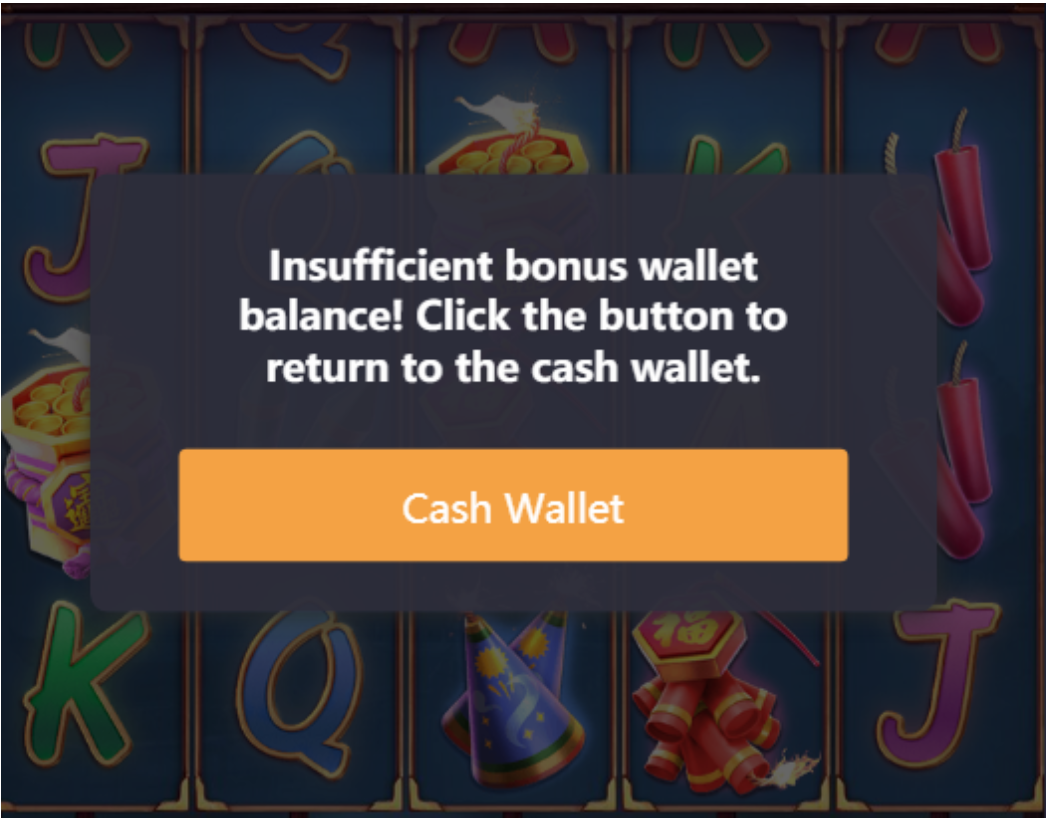
If players have finished the Bonus Game and did not meet the Bonus Conditions set, the players will be redirected back to the normal game page and will be able to continue to play the game using the cash wallet.